

Create a Kafka Cluster
Create an Apache Kafka® cluster in Confluent Cloud to start streaming. Confluent Cloud clusters are fully managed: you choose a cluster type and a cloud provider and region, and Confluent handles provisioning, scaling, and fault tolerance.
Get Started for Free
Sign up for a Confluent Cloud trial and get $400 of free credit.
You can create clusters using the Confluent Cloud Console, Confluent CLI, and REST API. For a description of cluster types, service level agreements (SLA), and resource quotas for clusters, see Kafka Cluster Types in Confluent Cloud and Service Quotas for Confluent Cloud.
Prerequisites:
Operator or administrator access to a Confluent Cloud environment.
For Freight clusters, you must contact Confluent and work with the sales team to determine a maximum eCKU for your cluster before you provision.
Considerations:
Cloud provider and region cannot be changed after provisioning a cluster.
To meet data residency and sovereignty requirements, data produced to a topic through Kafka stays within the geographic region you select. For more information, see the Confluent Cloud Security Controls whitepaper (PDF).
For Dedicated clusters, the number of Confluent Unit for Kafka (CKU) determines the cluster’s capacity. You can manage CKUs after provisioning. For more information, see Fixed limits and recommended guidelines and Update Kafka clusters.
Cluster name (
display_name) is a friendly name with the following requirements:Use 64 characters or less
Use whitespace, Unicode letters, numbers, and the following special characters: period (
.), comma (,), ampersand (&), underscore (_), plus (+), bar (|), open square bracket ([), close square bracket (]), slash (/), dash (-)
Cloud Console
Navigate to the clusters page for your environment. If this is your first cluster, click Create cluster on my own. If this isn’t your first cluster, click + Add cluster. The Create cluster page opens with a single form; the sections that appear depend on the cluster type you choose in Cluster type.
Cluster type |
Setup options |
|---|---|
Basic |
Cluster name, Provider and region |
Standard |
Cluster name, Provider and region, Uptime SLA |
Enterprise |
Cluster name, Provider and region, Uptime SLA, Networking, Encryption key management |
Freight |
Cluster name, Provider and region, Networking, Encryption key management |
Dedicated |
Cluster name, Select CKUs, Provider and region, Uptime SLA, Networking, Encryption key management |
Specify Cluster name.
Under Cluster type, select Basic, Standard, Enterprise, Freight, or Dedicated.
For Dedicated clusters, under Select CKUs, use the slider or enter a value to set the cluster size. Multi-zone availability requires two CKUs.
Under Provider and region, select a cloud provider tile and a Region.
For Standard, Enterprise, or Dedicated clusters, under Uptime SLA, select an SLA option.
For Enterprise, Freight, and Dedicated clusters, a Networking section appears:
For Enterprise and Freight clusters, select the checkbox to configure networking later, or click Create new network to configure a private network now.
Dedicated clusters require you to select a network type (PrivateLink, VPC Peering, or Transit Gateway, depending on provider) and either use an existing network or create a new one.
To create a new private network:
Select your provider’s networking mechanism:
AWS: Transit Gateway, VPC Peering, or PrivateLink. For Enterprise and Freight clusters, Private Network Interface is also available.
Azure: Private Link or VNet Peering
Google Cloud: VPC Peering or Private Service Connect
Choose Create new and enter a Network name.
If required for your mechanism, select your zones.
Depending on your provider and mechanism, enter a CIDR block in CIDR for Confluent Cloud Network, or select Private DNS resolution to resolve your cluster endpoints using a private DNS zone:
Provider
Mechanism
Zones
CIDR block
Private DNS resolution
AWS
VPC Peering
Required
Required
Not supported
AWS
Transit Gateway
Required
Required
Not supported
AWS
PrivateLink
Required
Not applicable
Optional; otherwise public DNS resolution is used
Azure
Private Link
Not applicable
Not applicable
Optional; otherwise public DNS resolution is used
Azure
VNet Peering
Not applicable
Required
Not supported
Google Cloud
VPC Peering
Required
Required
Not supported
Google Cloud
Private Service Connect
Required
Not applicable
Optional; otherwise public DNS resolution is used
For more information, see the reference for your provider and mechanism:
For AWS PrivateLink, see Use AWS PrivateLink for Serverless Products on Confluent Cloud
For AWS Private Network Interface, see Use Private Network Interface on Confluent Cloud
For Azure Private Link, see Use Azure Private Link for Serverless Products on Confluent Cloud
For Google Cloud Private Service Connect, see Use Google Cloud Private Service Connect for Serverless Products on Confluent Cloud
For all mechanisms, see Manage Networking on Confluent Cloud
For Enterprise, Freight, or Dedicated clusters, an Encryption key management section appears. Accept the default cloud-provider managed key, or, with the Advanced Security add-on enabled, select Self managed key.
If you select Self managed key, follow the on-screen steps to register your key. For more information, see Protect Data at Rest Using Self-Managed Encryption Keys on Confluent Cloud.
Review the cost estimate and Summary panel, then click Launch cluster.
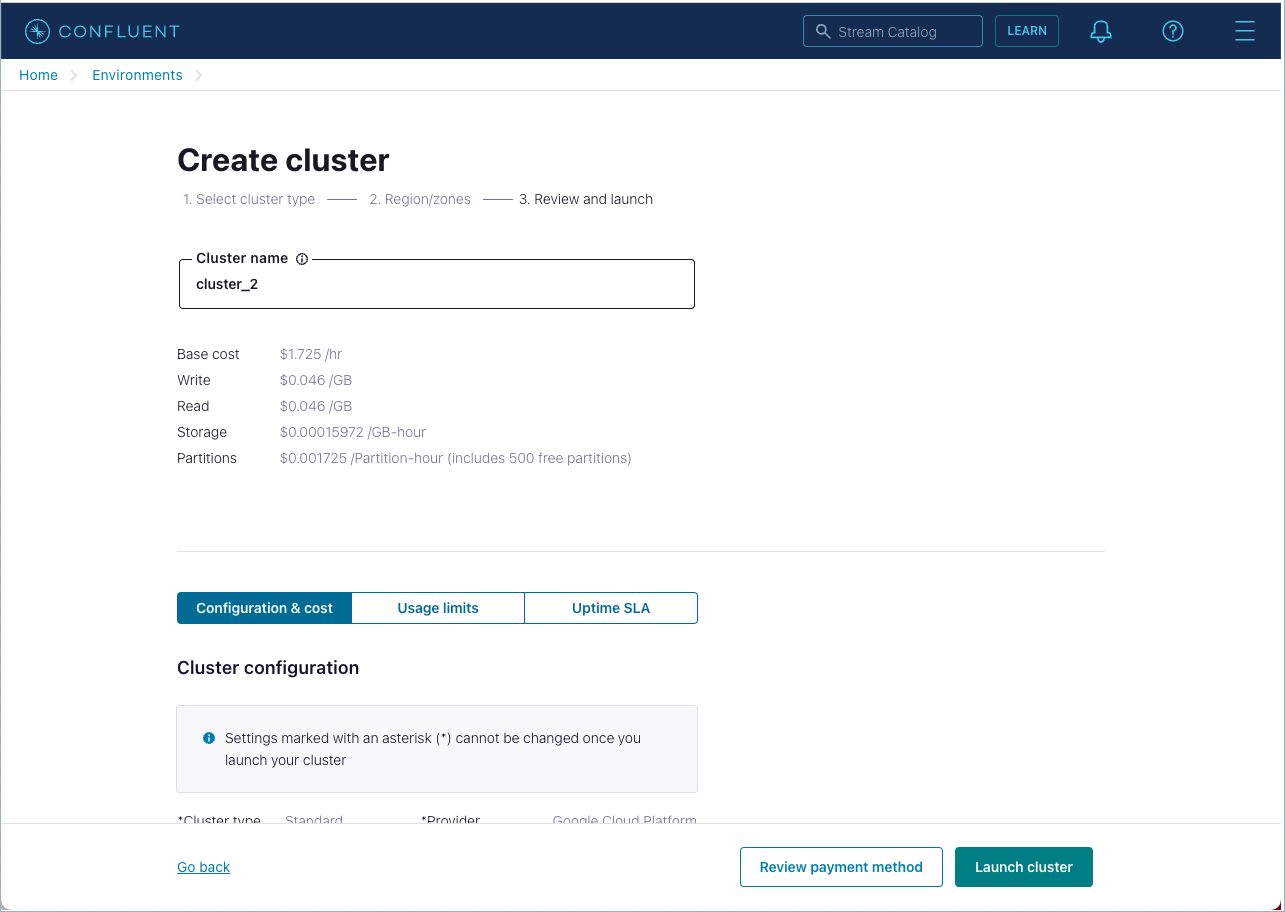
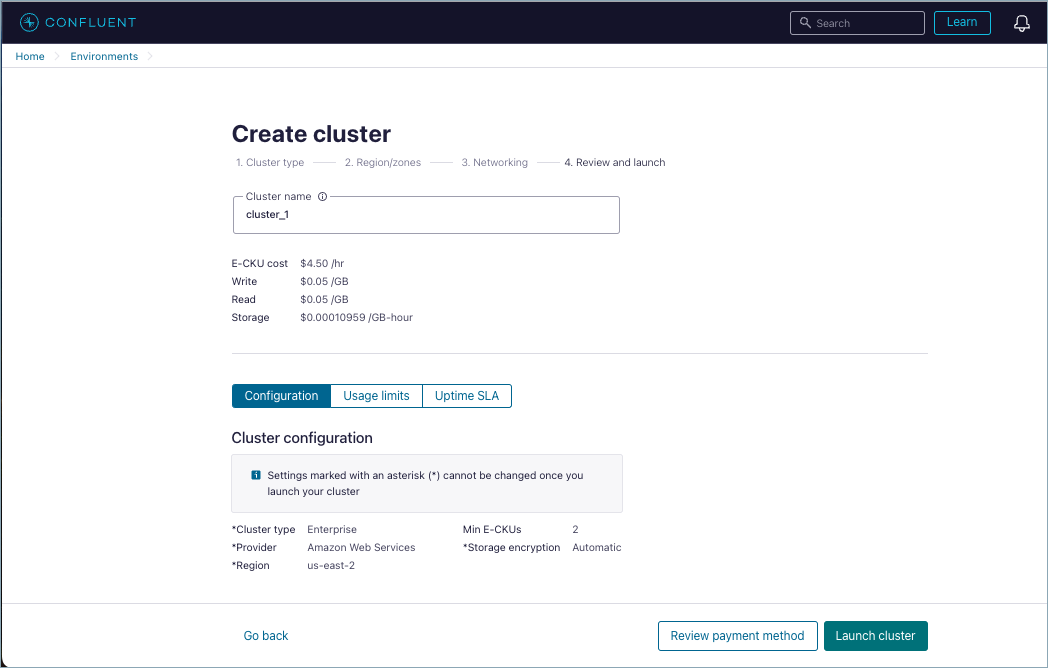
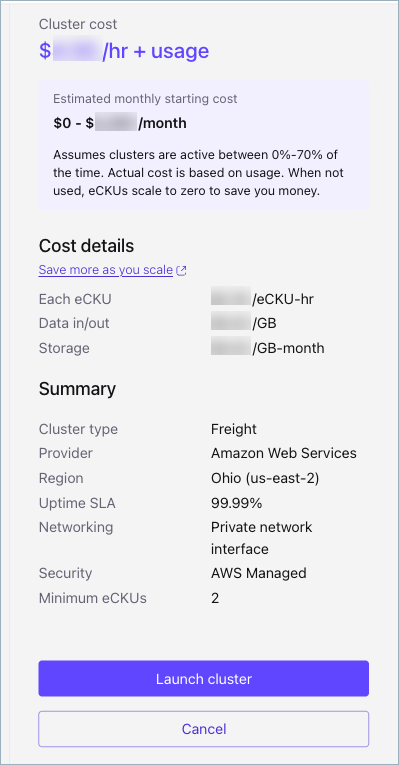
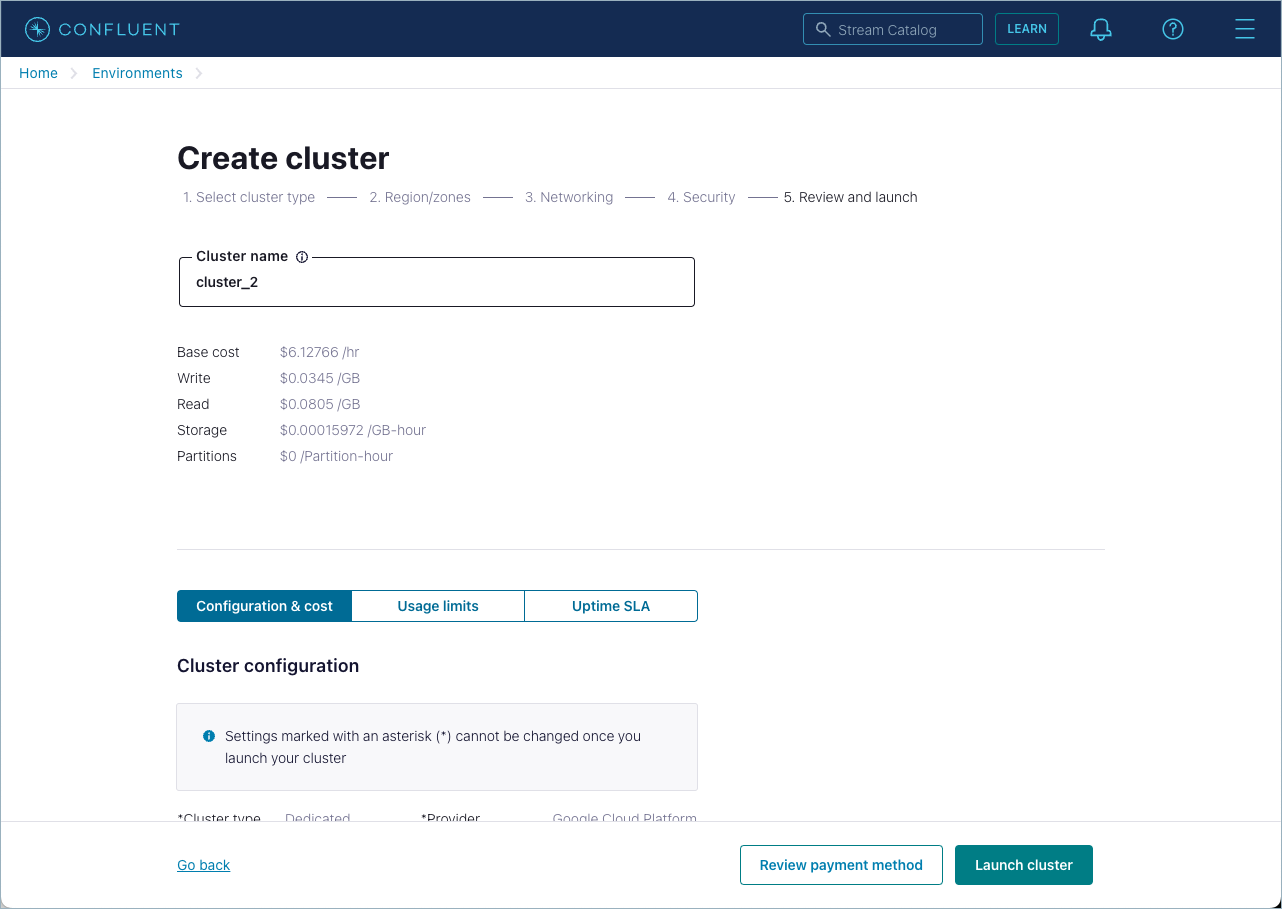
If you haven’t set up a payment method, add one or enter a promotional code before you can launch the cluster.
Confluent CLI
To create a cluster using the CLI, run the following command in your terminal:
confluent kafka cluster create <name> [flags]
For example:
confluent kafka cluster create my_new_cluster --cloud "aws" --region "us-west-2"
Your output should resemble:
It may take up to 5 minutes for the Kafka cluster to be ready.
+----------------------+---------------------------------------------------------+
| Current              | false                                                   |
| ID                   | lkc-123exa                                              |
| Name                 | my_new_cluster                                          |
| Type                 | BASIC                                                   |
| Ingress Limit (MB/s) |                                                     250 |
| Egress Limit (MB/s)  |                                                     750 |
| Storage              | 5 TB                                                    |
| Cloud                | aws                                                     |
| Region               | us-west-2                                               |
| Availability         | single-zone                                             |
| Status               | PROVISIONING                                            |
| Endpoint             | SASL_SSL://pkc-exa45.us-west-2.aws.confluent.cloud:9092 |
| REST Endpoint        | https://pkc-exa45.us-west-2.aws.confluent.cloud:443     |
+----------------------+---------------------------------------------------------+
Confluent Cloud APIs
API requests must include an authorization header with an API key and secret. For more information, see Authentication in the Confluent Cloud API reference.
To create a cluster, make a POST request with a JSON payload that
specifies the requirements.
POST /cmk/v2/clusters
Request
This request structure applies to all cluster types. When you make the
request, include a JSON payload that contains a spec object with the
following:
Parameter |
Required or Optional |
Description |
|---|---|---|
|
Required |
The display name of the cluster. |
|
Required |
|
|
Required |
|
|
Required |
A valid region for the cloud provider. |
|
Required |
Object that contains the cluster type: For Dedicated clusters, you must also specify a Clusters can be upgraded from Basic to Standard, but cannot be downgraded from Standard to Basic. |
|
Required |
Object that contains the environment identifier: |
|
Required for private network |
Object that contains the network identifier: |
Request examples by cluster type
Example request for Basic and Standard clusters
POST /cmk/v2/clusters HTTP/1.1
Host: api.confluent.cloud

{
   "spec":{
      "display_name":"ProdKafkaCluster",
      "availability":"Low",
      "cloud":"GCP",
      "region":"us-east4",
      "config":{
         "kind":"Basic"
      },
      "environment":{
         "id":"env-a12b34"
      }
   }
}
Example request for Enterprise clusters in a private network
POST /cmk/v2/clusters HTTP/1.1
Host: api.confluent.cloud

{
   "spec":{
      "display_name":"ProdKafkaCluster",
      "availability":"High",
      "cloud":"AWS",
      "region":"us-east-1",
      "config":{
         "kind":"Enterprise"
      },
      "environment":{
         "id":"env-a12b34"
      },
      "network":{
         "id":"n-12345",
         "environment": "env-a12b34"
      }
   }
}
Example requests for Dedicated clusters
On a secure public endpoint, specifying the number of CKUs in the
config element:
POST /cmk/v2/clusters HTTP/1.1
Host: api.confluent.cloud

{
   "spec":{
      "display_name":"ProdKafkaCluster",
      "availability":"SINGLE_ZONE",
      "cloud":"GCP",
      "region":"us-east4",
      "config":{
         "kind":"Dedicated",
         "cku": 2
      },
      "environment":{
         "id":"env-a12b34"
      }
   }
}
On a private network, specifying the network in the network element:
POST /cmk/v2/clusters HTTP/1.1
Host: api.confluent.cloud

{
   "spec":{
      "display_name":"ProdKafkaCluster",
      "availability":"SINGLE_ZONE",
      "cloud":"GCP",
      "region":"us-east4",
      "config":{
         "kind":"Dedicated",
         "cku": 2
      },
      "environment":{
         "id":"env-a12b34"
      },
      "network":{
         "id":"n-12345",
         "environment": "env-a12b34"
      }
   }
}
Response
This response structure applies to all cluster types. Successful calls
return HTTP 202 ACCEPTED with a JSON payload that describes the cluster.
Responses include the following:
The cloud provider (
AWS,GCP,AZURE) and region for the cluster.The cluster status (
PROVISIONED,PROVISIONING,FAILED) andkind(Basic, Standard, Enterprise, Dedicated, and Freight).Information about the environment that contains the cluster.
For Dedicated clusters, the number of CKUs allocated to the cluster.
Response examples by cluster type
Example response for Basic and Standard clusters
HTTP/1.1 202 ACCEPTED
Content-Type: application/json

{
      "api_version": "cmk/v2",
      "id": "abc-f3a90de",
      "kind": "Cluster",
      "metadata": {
         "created_at": "2022-04-22T20:45:26.657894Z",
         "self": "https://api.confluent.cloud/v2/kafka-clusters/abc-f3a90de",
         "resource_name": "crn://confluent.cloud/kafka=abc-f3a90de",
         "updated_at": "2022-04-22T20:45:26.659364Z"
      },
      "spec": {
         "display_name": "ProdKafkaCluster",
         "availability": "Low",
         "cloud": "GCP",
         "region": "us-east4",
         "config": {
               "kind": "Basic"
         },
         "kafka_bootstrap_endpoint": "abc-00000-00000.us-east4.gcp.glb.confluent.cloud:9092",
         "http_endpoint": "https://abc-00000-00000.us-east4.gcp.glb.confluent.cloud",
         "environment": {
            "api_version": "org/v2",
            "id": "env-a12b34",
            "kind":"Environment",
            "related": "https://api.confluent.cloud/v2/environments/env-a12b34",
            "resource_name": "crn://confluent.cloud/organization=1234abcd-edef-46ac-8a41-c49e44a3fd9a/environment=env-a12b34"
         }
      },
      "status": {
         "phase": "PROVISIONING"
      }
}
Example response for Enterprise clusters in a private network
HTTP/1.1 202 ACCEPTED
Content-Type: application/json

{
   "api_version": "cmk/v2",
   "kind": "Cluster",
   "id": "abc-f3a90de",
   "metadata": {
      "self": "https://api.confluent.cloud/v2/kafka-clusters/abc-f3a90de",
      "resource_name": "crn://confluent.cloud/kafka=abc-f3a90de",
      "created_at": "2023-06-22T20:45:26.657894Z",
      "updated_at": "2023-06-22T21:13:55.742641944Z"
   },
   "spec": {
      "display_name": "ProdKafkaCluster",
      "availability": "High",
      "cloud": "AWS",
      "region": "us-east-1",
      "config": {
         "kind": "Enterprise"
      },
      "kafka_bootstrap_endpoint": "abc-00000-00000.us-east-1.aws.glb.confluent.cloud:9092",
      "http_endpoint": "https://abc-00000-00000.us-east-1.aws.glb.confluent.cloud",
      "environment": {
         "api_version": "org/v2",
         "id": "env-a12b34",
         "kind":"Environment",
         "related": "https://api.confluent.cloud/v2/environments/env-a12b34",
         "resource_name": "https://api.confluent.cloud/organization=abcd41c4-edef-46ac-8a41-c49e44a3fd9a/environment=env-a12b34"
         },
         "network": {
         "id": "n-00000",
         "environment": "env-a12b34",
         "related": "https://api.confluent.cloud/networking/v1/networks/n-00000",
         "resource_name": "https://api.confluent.cloud/organization=abcd41c4-edef-46ac-8a41-c49e44a3fd9a/network=n-00000",
         "api_version": "networking/v1",
         "kind": "Network"
         }
      },
   "status": {
      "phase": "PROVISIONING"
   }
}
Example responses for Dedicated clusters
On a secure public endpoint:
HTTP/1.1 202 ACCEPTED
Content-Type: application/json

{
   "api_version": "cmk/v2",
   "kind": "Cluster",
   "id": "abc-f3a90de",
   "metadata": {
      "self": "https://api.confluent.cloud/v2/kafka-clusters/abc-f3a90de",
      "resource_name": "crn://confluent.cloud/kafka=abc-f3a90de",
      "created_at": "2022-04-22T20:45:26.657894Z",
      "updated_at": "2022-04-22T21:13:55.742641944Z"
   },
   "spec": {
      "display_name": "ProdKafkaCluster",
      "availability": "SINGLE_ZONE",
      "cloud": "GCP",
      "region": "us-east4",
      "config": {
         "kind": "Dedicated",
         "cku": 2
      },
      "kafka_bootstrap_endpoint": "abc-00000-00000.us-east4.gcp.glb.confluent.cloud:9092",
      "http_endpoint": "https://abc-00000-00000.us-east4.gcp.glb.confluent.cloud",
      "environment": {
         "api_version": "org/v2",
         "id": "env-a12b34",
         "kind":"Environment",
         "related": "https://api.confluent.cloud/v2/environments/env-a12b34",
         "resource_name": "crn://confluent.cloud/organization=1234abcd-edef-46ac-8a41-c49e44a3fd9a/environment=env-a12b34"
      }
   },
   "status": {
      "phase": "PROVISIONING",
      "cku": 2
   }
}
In a private network:
HTTP/1.1 202 ACCEPTED
Content-Type: application/json

{
   "api_version": "cmk/v2",
   "kind": "Cluster",
   "id": "abc-f3a90de",
   "metadata": {
      "self": "https://api.confluent.cloud/v2/kafka-clusters/abc-f3a90de",
      "resource_name": "crn://confluent.cloud/kafka=abc-f3a90de",
      "created_at": "2022-04-22T20:45:26.657894Z",
      "updated_at": "2022-04-22T21:13:55.742641944Z"
   },
   "spec": {
      "display_name": "ProdKafkaCluster",
      "availability": "SINGLE_ZONE",
      "cloud": "GCP",
      "region": "us-east4",
      "config": {
         "kind": "Dedicated",
         "cku": 2
      },
      "kafka_bootstrap_endpoint": "abc-00000-00000.us-east4.gcp.glb.confluent.cloud:9092",
      "http_endpoint": "https://abc-00000-00000.us-east4.gcp.glb.confluent.cloud",
      "environment": {
         "api_version": "org/v2",
         "id": "env-a12b34",
         "kind":"Environment",
         "related": "https://api.confluent.cloud/v2/environments/env-a12b34",
         "resource_name": "https://api.confluent.cloud/organization=abcd41c4-edef-46ac-8a41-c49e44a3fd9a/environment=env-a12b34"
         },
         "network": {
         "id": "n-00000",
         "environment": "env-a12b34",
         "related": "https://api.confluent.cloud/networking/v1/networks/n-00000",
         "resource_name": "https://api.confluent.cloud/organization=abcd41c4-edef-46ac-8a41-c49e44a3fd9a/network=n-00000",
         "api_version": "networking/v1",
         "kind": "Network"
         }
      },
   "status": {
      "phase": "PROVISIONING",
      "cku": 2
   }
}
Terraform
To create a cluster using the Confluent Terraform provider, see confluent_kafka_cluster Resource.