MongoDB CDC Source (Debezium) Connector for Confluent Cloud
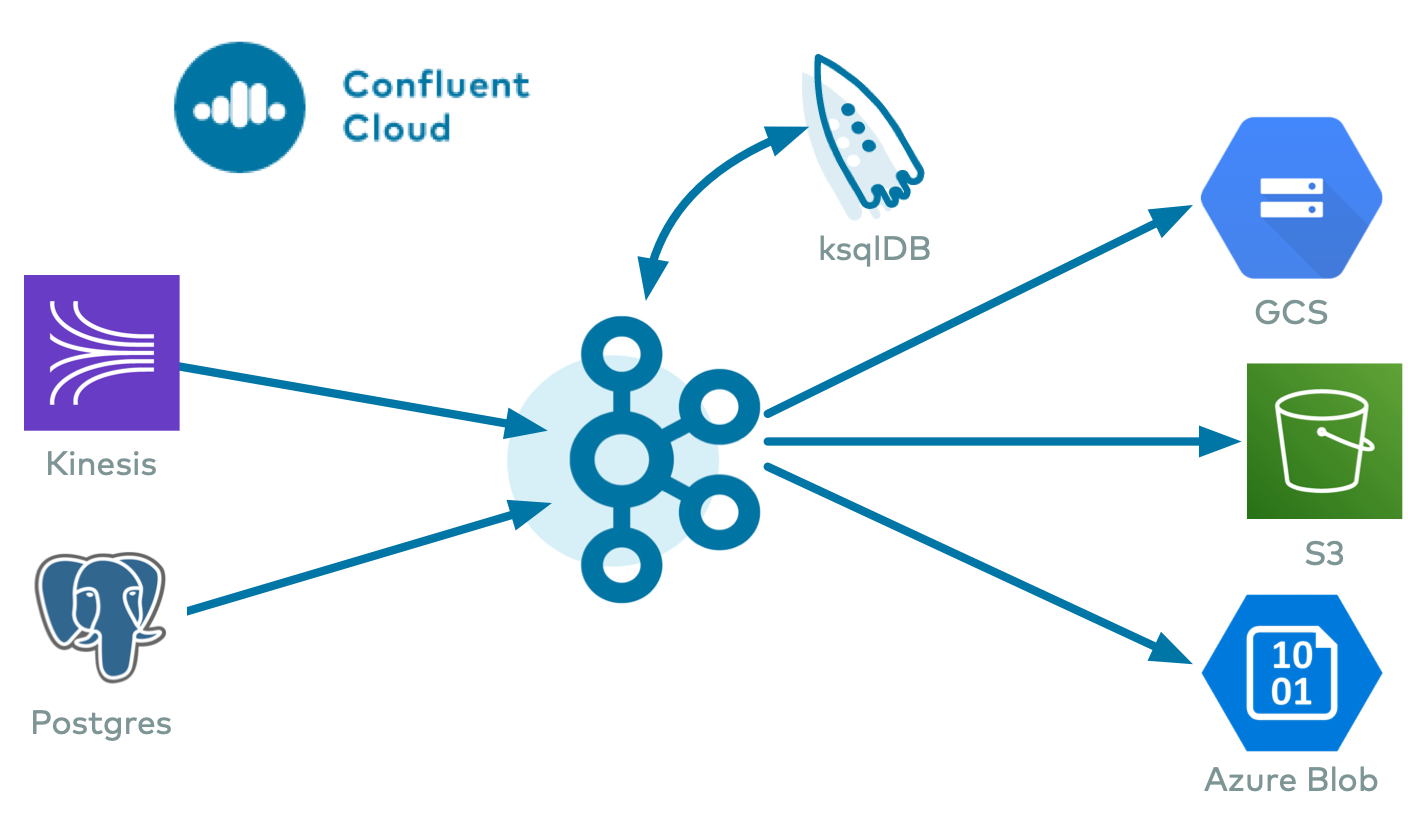
The fully managed MongoDB Change Data Capture Source (Debezium) connector for Confluent Cloud streams data from MongoDB replica sets and sharded clusters to Apache Kafka® topics. It performs an initial snapshot of existing data, then monitors for later document-level changes.
Using Confluent Cloud Schema Registry, the connector supports Avro, JSON Schema, and Protobuf output formats, ensuring structured data delivery from your MongoDB collections into dedicated Apache Kafka® topics. This automated pipeline captures inserts, updates, and deletes as real-time event streams, making database modifications immediately available for downstream applications and microservices without complex polling logic.
If you require private networking for fully managed connectors, make sure to set up the proper networking beforehand. For more information, see Manage Networking for Confluent Cloud Connectors.
Features
The MongoDB CDC Source (Debezium) connector provides the following features:
Topics creation: Automatically creates Kafka topics using the naming convention:
<topic.prefix>.<databaseName>.<collectionName>. The topics are created with the properties:topic.creation.default.partitions=1andtopic.creation.default.replication.factor=3. For more information, see Maximum message size.Database authentication: Uses password authentication or IAM (Identity and Access Management) role-based authentication through provider integration.
IAM role-based authentication: Eliminates static database credentials by supporting AWS IAM authentication for MongoDB Atlas through Confluent Cloud provider integrations.
SSL support: Supports SSL encryption when configured to establish an encrypted connection to the MongoDB server.
Databases included and excluded: Sets whether a database is or is not monitored for change captures. By default, the connector monitors every database on the server.
Collections included and excluded: Sets whether a collection is or is not monitored for changes. By default, the connector monitors every non-system collection.
Tombstones on delete: Sets whether a tombstone event is generated after a delete event. Default is
true.Output formats: Supports the following Kafka record formats:
Value: JSON (Schemaless), Avro, JSON Schema, or Protobuf
Key: JSON (Schemaless), Avro, JSON Schema, Protobuf, or String
Schema Registry must be enabled to use a Schema Registry-based format.
Client-side encryption (CSFLE and CSPE) support: Supports CSFLE and CSPE for sensitive data. For more information about CSFLE or CSPE setup, see Manage CSFLE or CSPE for connectors.
Secret manager integration: The connector supports secret manager integration. For
Passwordbased authentication, the connector can retrieve the following configurations from an integrated secret manager at runtime as needed.Secret manager managed configuration
Type
mongodb.userSTRINGmongodb.passwordPASSWORDFor more information, see Create a secret manager integration in Confluent Cloud.
For more information and examples to use with the Confluent Cloud API for Connect, see the Confluent Cloud API for Connect Usage Examples section.
Supported database versions
The MongoDB CDC Source (Debezium) connector is compatible with MongoDB versions 4.4 through 8.0.
Limitations
For connector limitations, see MongoDB CDC Source (Debezium) Connector.
If you plan to use one or more Single Message Transformations (SMTs), see SMT Limitations.
Maximum message size
This connector creates topics automatically. When it creates topics, the internal connector configuration property max.message.bytes is set to the following:
Basic cluster:
8 MBStandard cluster:
8 MBEnterprise cluster:
8 MBDedicated cluster:
20 MB
For more information about Confluent Cloud clusters, see Kafka Cluster Types in Confluent Cloud.
Oplog retention during snapshot
When launched, the CDC connector creates a snapshot of the existing data in the database to capture the specified collections. To do this, the connector reads all documents from the included collections. Completing the snapshot can take a while if one or more of the specified collections is very large.
During the snapshot process, the database server must retain the oplog (operations log) so that when the snapshot is complete, the CDC connector can start processing database changes that have occurred since the snapshot process began.
If one or more of the collections are very large, the snapshot process could
run longer than the oplog retention window configured on the database server.
To capture very large collections, ensure the oplog is sized large enough to
retain changes for the duration of the snapshot. For MongoDB Atlas, you can
configure the oplog window in the cluster settings. For self-managed
deployments, increase the oplog size using the replSetResizeOplog command.
Manage custom offsets
You can manage the offsets for this connector. Offsets provide information on the point in the system from which the connector is accessing data. For more information, see Manage Offsets for Fully Managed Connectors in Confluent Cloud.
To manage offsets:
Manage offsets using Confluent Cloud APIs. For more information, see Connect offsets API reference.
To get the current offset, make a GET request that specifies the
environment, Kafka cluster, and connector name.
GET /connect/v1/environments/{environment_id}/clusters/{kafka_cluster_id}/connectors/{connector_name}/offsets
Host: https://api.confluent.cloud
Use your Cloud Resource Management API key and secret for basic authentication in your curl request.
Response:
Successful calls return HTTP 200 with a JSON payload that describes
the offset.
{
  "id": "lcc-example123",
  "name": "{connector_name}",
  "offsets": [
    {
      "partition": {
        "server_id": "testing"
      },
      "offset": {
        "ord": 1,
        "resume_token": "zQAAAAJfZGF0YQC9AAAAODI2OUQ3QzE0RTAwMDAwMDBBMkIwNDJDMDEwMDI5NkU1QTEwMDQ5NjczMzlBMjZCMjQ0NkY2QjdDODVCMkM2REJFRTI4RjQ2M0M2RjcwNjU3MjYxNzQ2OTZGNkU1NDc5NzA2NTAwM0M2OTZFNzM2NTcyNzQwMDQ2NjQ2RjYzNzU2RDY1NkU3NDRCNjU3OTAwNDY2NDVGNjk2NDAwNjQ2OUQ3QzE0RTE4NkI3RkFDQzI4NDUxRjkwMDAwMDQAAA==",
        "sec": 177574740
      }
    }
  ],
  "metadata": {
    "observed_at": "2024-03-28T17:57:48.139635200Z"
  }
}
Responses include the following information:
The connector information (
idandname).The
server_idin the partition, identifying the MongoDB server from which the event originated.The offset position, including
resume_token(MongoDB change stream resume token),ord, andsec.The observed time of the offset in the metadata portion of the payload. The
observed_attime indicates a snapshot in time for when the API retrieved the offset. A running connector is always updating its offsets. Useobserved_atto get a sense for the gap between real-time and the time at which the request was made. By default, offsets are observed every minute. Calling get repeatedly fetches more recently observed offsets.
Retrieving resume tokens from MongoDB
You can retrieve resume tokens directly from MongoDB change streams using the following commands:
var cs = db.my_collection.watch()
db.my_collection.insertOne({ name: "Test User", ts: new Date() });
var change = cs.next();
print("Resume Token (hex): " + change._id._data);
cs.close();
Converting resume tokens
The connector requires resume tokens to be Base64-encoded. However, MongoDB change streams provide them in hexadecimal format. Use the following commands in your terminal to convert between these formats:
Base64 to MongoDB hexadecimal format:
echo "$CONNECTOR_BASE64_RESUME_TOKEN" | base64 -d | strings
MongoDB hexadecimal to Base64 format:
python3 -c "import base64,struct; t='MONGO_HEX_RESUME_TOKEN'; s=t.encode()+b'\x00'; b=b'\x02'+b'_data\x00'+struct.pack('<I',len(s))+s+b'\x00'; print(base64.b64encode(struct.pack('<I',4+len(b))+b).decode())"
Example conversions:
Base64:
zQAAAAJfZGF0YQC9AAAAODI2OUQ3QzE0RTAwMDAwMDBBMkIwNDJDMDEwMDI5NkU1QTEwMDQ5NjczMzlBMjZCMjQ0NkY2QjdDODVCMkM2REJFRTI4RjQ2M0M2RjcwNjU3MjYxNzQ2OTZGNkU1NDc5NzA2NTAwM0M2OTZFNzM2NTcyNzQwMDQ2NjQ2RjYzNzU2RDY1NkU3NDRCNjU3OTAwNDY2NDVGNjk2NDAwNjQ2OUQ3QzE0RTE4NkI3RkFDQzI4NDUxRjkwMDAwMDQAAA==Hex:
8269D7C14E0000000A2B042C0100296E5A1004967339A26B2446F6B7C85B2C6DBEE28F463C6F7065726174696F6E54797065003C696E736572740046646F63756D656E744B65790046645F6964006469D7C14E186B7FACC28451F9000004
Ensure that the offsets provided in the POST request are valid. To
find valid offsets, check the MongoDB change stream resume tokens.
Caution
Providing an arbitrary offset can stop the connector streaming with an exception: An exception occurred
in the change event producer. This connector will be stopped.
POST /connect/v1/environments/{environment_id}/clusters/{kafka_cluster_id}/connectors/{connector_name}/offsets/request
Host: https://api.confluent.cloud

 {
   "type": "PATCH",
   "offsets": [
     {
       "partition": {
         "server_id": "testing"
       },
       "offset": {
         "resume_token": "zQAAAAJfZGF0YQC9AAAAODI2OUQ3QzE0RTAwMDAwMDBBMkIwNDJDMDEwMDI5NkU1QTEwMDQ5NjczMzlBMjZCMjQ0NkY2QjdDODVCMkM2REJFRTI4RjQ2M0M2RjcwNjU3MjYxNzQ2OTZGNkU1NDc5NzA2NTAwM0M2OTZFNzM2NTcyNzQwMDQ2NjQ2RjYzNzU2RDY1NkU3NDRCNjU3OTAwNDY2NDVGNjk2NDAwNjQ2OUQ3QzE0RTE4NkI3RkFDQzI4NDUxRjkwMDAwMDQAAA=="
       }
     }
   ]
 }
Considerations:
Only one offset change is allowed at a time per connector.
The request is asynchronous. To check the status, use the
GET .../offsets/request/statusendpoint.Source connectors read from the position defined by the requested offsets.
To retrieve the current offset, use the
GET .../offsetsendpoint, or obtain a resume token directly from MongoDB change streams and convert it to Base64 format.Use your Cloud Resource Management API key and secret for basic authentication in your curl request.
For field definitions, refer to the JSON payload table below.
Response:
Successful calls return HTTP 202 Accepted with a JSON payload that
describes the offset.
{
  "id": "lcc-example123",
  "name": "{connector_name}",
  "offsets": [
    {
      "partition": {
        "server_id": "testing"
      },
      "offset": {
        "resume_token": "zQAAAAJfZGF0YQC9AAAAODI2OUQ3QzE0RTAwMDAwMDBBMkIwNDJDMDEwMDI5NkU1QTEwMDQ5NjczMzlBMjZCMjQ0NkY2QjdDODVCMkM2REJFRTI4RjQ2M0M2RjcwNjU3MjYxNzQ2OTZGNkU1NDc5NzA2NTAwM0M2OTZFNzM2NTcyNzQwMDQ2NjQ2RjYzNzU2RDY1NkU3NDRCNjU3OTAwNDY2NDVGNjk2NDAwNjQ2OUQ3QzE0RTE4NkI3RkFDQzI4NDUxRjkwMDAwMDQAAA=="
      }
    }
  ],
  "requested_at": "2024-03-28T17:58:45.606796307Z",
  "type": "PATCH"
}
Responses include the following information:
The connector information (
idandname).The requested offset position with
server_idandresume_token.The time of the request to update the offset (
requested_at).The type of request (
PATCH).
To delete the offset, make a POST request that specifies the
environment, Kafka cluster, and connector name. Include a JSON payload
that specifies the delete type.
 POST /connect/v1/environments/{environment_id}/clusters/{kafka_cluster_id}/connectors/{connector_name}/offsets/request
 Host: https://api.confluent.cloud

{
  "type": "DELETE"
}
Considerations:
A delete request resets the offset to the base state, as if the connector is new.
The request is asynchronous. To check the status, use the check offset status API. For more information, see Get the status of an offset request.
Do not issue delete and patch requests at the same time.
Source connectors read from the position defined in the base state.
Use your Cloud Resource Management API key and secret for basic authentication in your curl request.
Response:
Successful calls return HTTP 202 Accepted with a JSON payload that
describes the result.
{
  "id": "lcc-example123",
  "name": "{connector_name}",
  "offsets": [],
  "requested_at": "2024-03-28T17:59:45.606796307Z",
  "type": "DELETE"
}
Responses include the following information:
The connector information (
idandname).An empty offsets array (
[]).The time of the request to delete the offset (
requested_at).The type of request (
DELETE).
To get the status of a previous offset request, make a GET request
that specifies the environment, Kafka cluster, and connector name.
GET /connect/v1/environments/{environment_id}/clusters/{kafka_cluster_id}/connectors/{connector_name}/offsets/request/status
Host: https://api.confluent.cloud
Considerations:
The status endpoint always shows the status of the most recent
PATCHorDELETEoperation.Use your Cloud Resource Management API key and secret for basic authentication in your curl request.
Response:
Successful calls return HTTP 200 with a JSON payload that describes
the result. The following is an example of an applied patch.
{
   "request": {
     "id": "lcc-example123",
     "name": "{connector_name}",
     "offsets": [
       {
         "partition": {
           "server_id": "testing"
         },
         "offset": {
           "resume_token": "zQAAAAJfZGF0YQC9AAAAODI2OUQ3QzE0RTAwMDAwMDBBMkIwNDJDMDEwMDI5NkU1QTEwMDQ5NjczMzlBMjZCMjQ0NkY2QjdDODVCMkM2REJFRTI4RjQ2M0M2RjcwNjU3MjYxNzQ2OTZGNkU1NDc5NzA2NTAwM0M2OTZFNzM2NTcyNzQwMDQ2NjQ2RjYzNzU2RDY1NkU3NDRCNjU3OTAwNDY2NDVGNjk2NDAwNjQ2OUQ3QzE0RTE4NkI3RkFDQzI4NDUxRjkwMDAwMDQAAA=="
         }
       }
     ],
     "requested_at": "2024-03-28T17:58:45.606796307Z",
     "type": "PATCH"
   },
   "status": {
     "phase": "APPLIED",
     "message": "The Connect framework-managed offsets for this connector have been altered successfully. However, if this connector manages offsets externally, they will need to be manually altered in the system that the connector uses."
   },
   "previous_offsets": [
     {
       "partition": {
         "server_id": "testing"
       },
       "offset": {
         "ord": 1,
         "resume_token": "zQAAAAJfZGF0YQC9AAAAODI2OUQ3QzE0RTAwMDAwMDBBMkIwNDJDMDEwMDI5NkU1QTEwMDQ5NjczMzlBMjZCMjQ0NkY2QjdDODVCMkM2REJFRTI4RjQ2M0M2RjcwNjU3MjYxNzQ2OTZGNkU1NDc5NzA2NTAwM0M2OTZFNzM2NTcyNzQwMDQ2NjQ2RjYzNzU2RDY1NkU3NDRCNjU3OTAwNDY2NDVGNjk2NDAwNjQ2OUQ3QzE0RTE4NkI3RkFDQzI4NDUxRjkwMDAwMDQAAA==",
         "sec": 177574740
       }
     }
   ],
   "applied_at": "2024-03-28T17:58:48.079141883Z"
 }
Responses include the following information:
The original request, including the requested offsets (
server_id,resume_token) and the time it was made (requested_at).The status of the request:
APPLIED,PENDING, orFAILED.The time the request was applied (
applied_at).The previous offsets with their MongoDB CDC fields. These are the offsets that the connector last updated before updating the offsets. Use these to try to restore the state of your connector if a patch update causes your connector to fail or to return a connector to its previous state after rolling back.
JSON payload
The following fields appear in the JSON payload for offset management requests to the MongoDB CDC Source connector.
Field |
Definition |
Required or optional |
|---|---|---|
|
The identifier of the MongoDB server from which the event originated. This field appears in the partition object. This value corresponds to the connector’s |
Required |
|
The MongoDB change stream resume token. This is a base64-encoded token used to resume streaming from a specific point in the change stream. This field appears in the offset object. |
Required |
|
The ordinal position within the current change stream batch. Used to track the sequence of events when multiple changes occur in the same second. This field appears in the offset object. |
Optional |
|
The Unix timestamp (in seconds) of the last processed change event. Represents the cluster time when the change occurred in MongoDB. This field appears in the offset object. |
Optional |
|
Transaction identifier, mostly null. Only provided when |
Optional |
Important
Do not reset the offset to an arbitrary value. Use only valid resume tokens obtained from MongoDB change streams. Resume tokens can be retrieved from the current offset using the GET offset API.
Quick Start
This quick start walks you through configuring the MongoDB CDC Source (Debezium) connector to take an initial snapshot of a MongoDB database and stream document-level changes to Confluent Cloud.
- Prerequisites
Authorized access to a Confluent Cloud cluster on Amazon Web Services (AWS), Microsoft Azure (Azure), or Google Cloud.
The Confluent CLI installed and configured for the cluster. See Install the Confluent CLI.
Schema Registry enabled to use a Schema Registry-based format (Avro, JSON_SR (JSON Schema), or Protobuf).
Network access configured to reach your MongoDB deployment. For networking considerations, see Networking and DNS. To use a set of public egress IP addresses, see Public Egress IP Addresses for Confluent Cloud Connectors. The following example shows the AWS Management Console when setting up security group rules for the VPC.
Kafka cluster credentials. The following lists the different ways you can provide credentials.
Enter an existing service account resource ID.
Create a Confluent Cloud service account for the connector. Make sure to review the ACL entries required in the service account documentation. Some connectors have specific ACL requirements.
Create a Confluent Cloud API key and secret. To create a key and secret, you can use confluent api-key create or you can autogenerate the API key and secret directly in the Cloud Console when setting up the connector.
Using the Confluent Cloud Console
Step 1: Launch your Confluent Cloud cluster
To create and launch a Kafka cluster in Confluent Cloud, see Create a kafka cluster in Confluent Cloud.
Step 2: Add a connector
In the left navigation menu, click Connectors. If you already have connectors in your cluster, click + Add connector.
Step 3: Select your connector
Click the MongoDB CDC Source connector card.
Step 4: Enter the connector details
At the MongoDB CDC Source (Debezium) Connector screen, complete the following:
Note
Ensure you have all your prerequisites completed.
In the Topic prefix field, define a topic prefix your connector will use to publish to Kafka topics. The connector publishes Kafka topics using the following naming convention:
<topic.prefix><tableName>.Important
If you are configuring granular access using a service account, and you leave the optional Topic prefix (
topic.prefix) configuration property empty, you must grant ACLCREATEandWRITEaccess to all the Kafka topics or create RBAC role bindings. To add ACLs, you use the (*) wildcard in the ACL entries as shown in the following examples.confluent kafka acl create --allow --service-account "<service-account-id>" --operation create --topic "*"
confluent kafka acl create --allow --service-account
"<service-account-id>" --operation write --topic "*"
Click Continue.
Select the way you want to provide Kafka Cluster credentials. You can choose one of the following options:
My account: This setting allows your connector to globally access everything that you have access to. With a user account, the connector uses an API key and secret to access the Kafka cluster. This option is not recommended for production.
Service account: This setting limits the access for your connector by using a service account. This option is recommended for production.
Use an existing API key: This setting allows you to specify an API key and a secret pair. You can use an existing pair or create a new one. This method is not recommended for production environments.
Note
Freight clusters support only service accounts for Kafka authentication.
Click Continue.
Configure the authentication properties:
Authentication method
Authentication method: Select the authentication mechanism for the MongoDB database. Supported options are:
Password: Default. Uses standard username and password credentials.IAM Roles: Uses AWS IAM authentication for MongoDB Atlas.
Use secret manager: Fetch sensitive configuration values from a secret manager.
Provider Integration: Select an existing provider integration that has access to your MongoDB Atlas cluster.
Secret manager configuration
Secret manager: Select the secret manager to use for retrieving sensitive data.
Configurations from Secret manager: Select the configurations whose values Confluent Cloud should fetch from the secret manager.
Provider Integration: Select an existing provider integration that has access to your MongoDB Atlas cluster.
How should we connect to your database?
MongoDB connection string: Enter the MongoDB connection string in the format
mongodb://host:portormongodb+srv://cluster.example.com. Do not include credentials here. Use the specific user, password, or provider integration fields instead.User: Enter a MongoDB username with
readAnyDatabaserole andchangeStreamprivileges. For sharded clusters, the user also requiresreadaccess to theconfigandlocaldatabases.If enabling incremental snapshots, ensure the user has write access to the signal data collection.
Password: Enter the password for the specified MongoDB database user.
Enable SSL connection to MongoDB: Determines whether to enable an SSL/TLS encrypted connection to MongoDB. Supported options are:
true: Enables an SSL/TLS encrypted connection.false(default): Disables SSL/TLS encryption.
SSL Truststore: Provide the trust store file containing trusted certificates in JKS or PKCS12 format. This is required when TLS is enabled. When using Confluent REST API or Confluent CLI, encode the file in base64 and use this format:
data:application/octet-stream;base64,<encoded_content>.SSL Truststore Password: Enter the password required to access the SSL truststore.
Allow invalid hostnames for SSL connection: Determines whether to disable SSL hostname verification. Supported options are:
true: Disables SSL hostname verification. Use for development or testing only.false(default): Enables SSL hostname verification. Recommended for production use.
Setting this to
trueis not secure in production environments and may violate your organization’s security policies. Confluent Cloud connectors use TLS by default with strict hostname verification.Credentials Database: Specify the database containing user credentials for authentication. This defaults to
admin.
Click Continue.
Output messages
Select output record value format: Set the output Kafka record value format. Valid entries are
AVRO,JSON_SR,PROTOBUF, orJSON.Note
You must have Confluent Cloud Schema Registry configured if you are using a schema-based message format like AVRO, JSON_SR, and PROTOBUF.
Output Kafka record key format: Set the output Kafka record key format. Valid entries are
AVRO,JSON_SR,PROTOBUF,STRING, orJSON.Note
You need to have Confluent Cloud Schema Registry configured if using a schema-based message format like AVRO, JSON_SR, and PROTOBUF.
Database config
Include Databases: Provide a comma-separated list of databases to monitor. Supports regular expressions when
filters.match.modeisregex. If empty, includes all databases in thecapture.scope.Do not use this with
database.exclude.list.Exclude Databases: Provide a comma-separated list of database names to exclude. Supports regular expressions when
filters.match.modeisregex.Do not use this with
database.include.list.Include Collections: Provide a comma-separated list of fully-qualified collections (
database.collection) to capture. Supports regular expressions throughfilters.match.mode.Do not use this with
collection.exclude.list.Exclude Collections: Provide a comma-separated list of fully-qualified collections (
database.collection) to exclude from data capture.Database and collection include/exclude match mode: Determines the matching logic for include and exclude filters. Supported options are:
regex: Enables regular expression matching.literal: Enables exact string matching.
Connector config
Capture mode: Determines the mechanism for capturing document changes. Supported options are:
change_streams: Captures only modified fields.change_streams_update_full: Captures the full document state (recommended).change_streams_with_pre_image: Captures modified fields and includes thebeforestate (requires MongoDB 6.0 or later versions).change_streams_update_full_with_pre_image: Captures the full document state and includes pre-images (requires MongoDB 6.0 or later versions).
Capture scope: Define the boundary for data capture. Supported options are:
deployment: Captures changes from the entire cluster or replica set.database: Captures changes from the database specified incapture.target.collection: Captures changes from the collection specified incapture.target.
Capture target: Specify the target name when
capture.scopeisdatabaseorcollection. Use the database name forscope=databaseordatabase.collectionforscope=collection.The connector ignores this setting if the scope is
deployment.
Snapshot Configs
Snapshot mode: Set the behavior for initial data capture. Supported options are:
initial: Performs a snapshot only on the first connector start.no_data: Skips the initial snapshot.when_needed: Performs a snapshot only if offsets are missing or invalid.initial_only: Performs a snapshot and then stops the connector.
Data encryption
Enable Client-Side Field Level Encryption for data encryption. Specify a Service Account to access the Schema Registry and associated encryption rules or keys with that schema. For more information on CSFLE or CSPE setup, see Manage encryption for connectors.
Show advanced configurations
Additional configurations
To add an additional configuration, see Additional Connector Configuration Reference for Confluent Cloud.
Schema context: Select a schema context to use for this connector, if using a schema-based data format. This property defaults to the Default context, which configures the connector to use the default schema set up for Schema Registry in your Confluent Cloud environment. A schema context allows you to use separate schemas (like schema sub-registries) tied to topics in different Kafka clusters that share the same Schema Registry environment. For example, if you select a non-default context, a Source connector uses only that schema context to register a schema and a Sink connector uses only that schema context to read from. For more information about setting up a schema context, see What are schema contexts and when should you use them?.
Additional Configs
Value Converter Replace Null With Default: Specifies whether to replace fields that have a default value and that are null to the default value. When set to
true, the connector uses the default value; otherwise, it usesnull. Applies to theJSONconverter.Value Converter Reference Subject Name Strategy: Sets the subject reference name strategy for values. Valid entries are
DefaultReferenceSubjectNameStrategyorQualifiedReferenceSubjectNameStrategy. You can use this strategy only withPROTOBUFformat; the default strategy isDefaultReferenceSubjectNameStrategy.Value Converter Schemas Enable: Includes schema within each of the serialized values. Input messages must contain
schemaandpayloadfields and must not contain additional fields. For plainJSONdata, set this tofalse. Applies to theJSONconverter.Errors Tolerance: Use this property to configure the connector’s error handling behavior.
Warning
Use this property with caution for sink connectors, as it can lead to data loss. If you set this property to
all, the connector does not fail on errant records, but logs them (and sends to DLQ for sink connectors) and continues processing. If you set this property tonone, the connector task fails on errant records.Value Converter Ignore Default For Nullables: When set to
true, this property ensures that the corresponding record in Kafka isnull, instead of showing the default column value. Applies to theAVRO,PROTOBUF, andJSON_SRconverters.Value Converter Decimal Format: Specifies the
JSONorJSON_SRserialization format for ConnectDECIMALlogical type values with two allowed literals:BASE64to serializeDECIMALlogical types as base64 encoded binary data, andNUMERICto serializeDECIMALlogical type values inJSONorJSON_SRas a number representing the decimal value.Key Converter Schema ID Serializer: The class name of the schema ID serializer for keys. This is used to serialize schema IDs in the message headers.
Value Converter Connect Meta Data: Enables the Connect converter to add its metadata to the output schema. Applies to Avro converters.
Value Converter Value Subject Name Strategy: Determines how to construct the subject name under which the value schema is registered with Schema Registry.
Key Converter Key Subject Name Strategy: Determines how to construct the subject name for key schema registration.
Value Converter Schema ID Serializer: The class name of the schema ID serializer for values. This is used to serialize schema IDs in the message headers.
Store transaction metadata information in a dedicated topic: Determines whether the connector generates transaction boundary events and enriches change event envelopes with transaction metadata. Supported options are:
true: Generates transaction boundary events and enriches change event envelopes with transaction metadata.false: Does not generate transaction boundary events.
Transaction topic name: Set the topic name for transaction metadata. The final name follows the pattern
<topic.prefix>.<topic.transaction>. Defaults to{{.logicalClusterId}}.transaction.Pipeline stages applied to the change stream cursor: Define a MongoDB aggregation pipeline as a JSON array to filter change stream events at the database level.
Change stream cursor pipeline order: Set the execution order for pipeline stages. Supported options are:
internal_first: Runs connector stages before user stages.user_first: Runs user stages before connector stages.user_only: Runs only user stages and bypasses connector stages.
Oversize document handling mode: Determines the strategy for handling BSON documents that exceed size limits. Supported options are:
fail: Stops the connector.skip: Ignores the document.split: Fragments large events. Requires MongoDB 6.0.9 or later.
Poll interval (ms): Set the time in milliseconds to wait for new change events when no data is returned. Default is
500ms.Heartbeat frequency ms: Set the interval in milliseconds for the cluster monitor to detect membership changes in the replica set. Minimum value must be
500ms.Enabled notification channels names: Provide a comma-separated list of enabled channels. Supported options are:
log: Logs notifications.sink: Sends notifications to the topic innotification.sink.topic.name.
Notification topic name: Set the Kafka topic name for notifications. This is required if
sinkis in the list of enabled channels.
Auto-restart policy
Enable Connector Auto-restart: Enables the auto-restart behavior of the connector and its task in the event of user-actionable errors. Defaults to
true, enabling the connector to automatically restart in case of user-actionable errors. Set this property tofalseto disable auto-restart for failed connectors. If disabled, you must manually restart the connector.
Output messages
After-state only: Determines whether to emit only the document state after a change. Supported options are:
true: Emits only the document state after the change.false(default): Emits the full Debezium envelope with operation metadata.
Tombstones on delete: Determines if the connector emits a tombstone event after a delete event. Supported options are:
true(default): Emits both the delete event and a tombstone for log compaction.false: Emits only the delete event.
Database config
Exclude Fields: Provide a comma-separated list of fully-qualified field names (
database.collection.field) to exclude from data capture.Rename Fields: Provide a comma-separated list of field rename mappings in the format
database.collection.oldName:newName.
Connector config
Capture mode full update type: Set the method for obtaining the full document for updates. Supported options are:
lookup: Performs a separate query.post_image: Uses MongoDB post-images (requires MongoDB 6.0 or later versions).
Field name adjustment mode: Determines how to adjust field names for converter compatibility. Supported options are:
none: Applies no adjustment.avro: Replaces invalid characters with underscores.avro_unicode: Replaces invalid characters with unicode sequences.
Schema name adjustment mode: Determines how to adjust schema names for converter compatibility. Supported options are:
none: Applies no adjustment.avro: Replaces invalid characters with underscores.avro_unicode: Replaces invalid characters with unicode sequences.
Note
_is an escape sequence like backslash in Java.Heartbeat interval (ms): Set the frequency in milliseconds for sending heartbeat messages to Kafka. Set to
0(default) to disable. Heartbeats monitor connector health and can reduce the volume of re-sent events upon restart.Skipped Operations: Specify a comma-separated list of operations to skip. Supported options are:
c: Skips insert operations.u: Skips update operations.d: Skips delete operations.none: Does not skip any operations.
Change event batch size: Set the number of events processed per batch. Choose a value between
1and5000. Defaults to2048.
Snapshot Configs
Snapshot mode include data collection: Provide a comma-separated list of collections to snapshot. This must be a subset of
collection.include.list.Snapshot delay (milliseconds): Set the interval in milliseconds to wait before starting a snapshot after the connector starts. Default is
0ms.
Schema Config
Key converter reference subject name strategy: Set the subject reference name strategy for the key. Supported options are:
DefaultReferenceSubjectNameStrategy(default).QualifiedReferenceSubjectNameStrategy.
These options are selectable only for the
PROTOBUFformat.
Incremental Snapshot Configs
Incremental snapshot chunk size: Set the maximum number of documents fetched per incremental snapshot chunk. Tune this based on available heap memory. Larger values improve throughput by reducing query overhead but increase memory consumption.
Incremental snapshot watermarking strategy: Set the strategy for watermarking during incremental snapshots. Supported options are:
INSERT_INSERT(default): Writes both open and close signals.INSERT_DELETE: Writes the open signal and deletes it upon closing.
Streaming Configs
Streaming delay (milliseconds): Set the delay in milliseconds between completing a snapshot and starting streaming. Default is
60000(1 minute). This buffer ensures offsets are committed and prevents duplicate snapshots on connector restart.
Signal Configs
Enabled channels names: Provide a list of signaling channels to enable. Supported options are:
source(default): Reads signals from the database collection.kafka: Consumes signals from a Kafka topic.
Note
sourceis required when usingkafka.Signal data collection: Specify the fully-qualified collection (
database.collection) that stores control signals for snapshot operations. This setting is required when signal channels are configured. The connector monitors this collection for signal documents to trigger snapshot actions. The connector needs to havewritepermissions on this collection.Signal topic name: Set the name of the Kafka topic the connector monitors for ad-hoc signals through the Confluent CLI.
Transforms
Single Message Transformations: To add a new SMT, see Add transforms. For more information about unsupported SMTs, see Unsupported transformations.
Processing position
Set offsets: Click Set offsets to define a specific offset for this connector to begin procession data from. For more information on managing offsets, see Manage offsets.
For additional information about the Debezium SMTs ExtractNewDocumentState and MongoEventRouter, see Debezium transformations.
For all property values and definitions, see Configuration Properties.
Click Continue.
The connector supports running a single task. Click Continue.
Verify the connection details by previewing the running configuration.
After you have validated that the properties are configured to your satisfaction, click Launch.
The connector status should transition from Provisioning to Running.
Step 5: Check the Kafka topic
After the connector is running, verify that messages are populating your Kafka topic.
For more information and examples to use with the Confluent Cloud API for Connect, see the Confluent Cloud API for Connect Usage Examples section.
Using the Confluent CLI
Complete the following steps to set up and run the connector using the Confluent CLI.
Note
Ensure you have all your prerequisites completed.
Step 1: List the available connectors
Enter the following command to list available connectors:
confluent connect plugin list
Step 2: List the connector configuration properties
Enter the following command to show the connector configuration properties:
confluent connect plugin describe <connector-plugin-name>
The command output shows the required and optional configuration properties.
Step 3: Create the connector configuration file
Create a JSON file that contains the connector configuration properties. The following examples show the required connector properties for both password and IAM role-based authentication.
Using password authentication:
{
  "connector.class": "MongoDbCdcSource",
  "name": "MongoDBCdcSourceConnector_0",
  "kafka.auth.mode": "KAFKA_API_KEY",
  "kafka.api.key": "****************",
  "kafka.api.secret": "****************************************************************",
  "mongodb.connection.string": "mongodb+srv://clustername.12345.mongodb.net",
  "mongodb.password": "*********",
  "mongodb.user": "database-username",
  "topic.prefix": "mongodb",
  "collection.include.list": "employees.departments",
  "output.data.format": "JSON",
  "tasks.max": "1"
}
Using IAM role-based authentication:
{
  "connector.class": "MongoDbCdcSource",
  "name": "MongoDBCdcSourceConnector_0",
  "kafka.auth.mode": "KAFKA_API_KEY",
  "kafka.api.key": "****************",
  "kafka.api.secret": "****************************************************************",
  "authentication.method": "IAM Roles",
  "provider.integration.id": "pint-12345",
  "mongodb.connection.string": "mongodb+srv://clustername.12345.mongodb.net",
  "topic.prefix": "mongodb",
  "collection.include.list": "employees.departments",
  "output.data.format": "JSON",
  "tasks.max": "1"
}
The configuration properties have the following definitions:
"connector.class": Sets the connector plugin name."name": Sets a name for your new connector in the Kafka cluster to identify the connector in Confluent Cloud.
"kafka.auth.mode": Identifies the connector authentication mode you want to use. There are two options:SERVICE_ACCOUNTorKAFKA_API_KEY(the default). To use an API key and secret, specify the configuration propertieskafka.api.keyandkafka.api.secret, as shown in the example configuration (above). To use a service account, specify the Resource ID in the propertykafka.service.account.id=<service-account-resource-ID>. To list the available service account resource IDs, use the following command:confluent iam service-account list
For example:
confluent iam service-account list

   Id     | Resource ID |       Name        |    Description
+---------+-------------+-------------------+-------------------
   123456 | sa-l1r23m   | sa-1              | Service account 1
   789101 | sa-l4d56p   | sa-2              | Service account 2
"authentication.method": Specifies the authentication mechanism for the MongoDB database. Valid entries arePasswordorIAM Roles."provider.integration.id": Links the connector to a specific cloud provider configuration for secure, keyless authentication (used with IAM roles)."mongodb.connection.string": Defines the MongoDB connection string in the formatmongodb://host:portormongodb+srv://cluster.example.comto locate the MongoDB deployment."mongodb.password": Provides the secret credential associated with the defined MongoDB user."mongodb.user": Defines the specific MongoDB username that has the required authorization."topic.prefix": Provides a namespace for the particular database server or cluster that the connector captures changes from."collection.include.list": Provides a comma-separated list of fully-qualified collections (database.collection) to capture."output.data.format": Sets the output Kafka record value format (data coming from the connector). Valid entries areAVRO,JSON_SR,JSON, orPROTOBUF. You must have Confluent Cloud Schema Registry configured if using a schema-based record format (for example, AVRO, JSON_SR (JSON Schema), or PROTOBUF)."tasks.max": Provides the number of tasks in use by the connector. You can run multiple connectors with a limit of one task per connector (that is,"tasks.max": "1").
Note
To enable CSFLE or CSPE for data encryption, specify the following properties:
csfle.enabled: Flag to indicate whether the connector honors CSFLE or CSPE rules.sr.service.account.id: A Service Account to access the Schema Registry and associated encryption rules or keys with that schema.
For more information on CSFLE or CSPE setup, see Manage encryption for connectors.
SMTs: For details about adding SMTs using the Confluent CLI, see the Single Message Transformations documentation. For additional information about the Debezium SMTs ExtractNewDocumentState and MongoEventRouter, see
Debezium transformations.
See Configuration Properties for all properties and definitions.
Step 4: Load the properties file and create the connector
Enter the following command to load the configuration and start the connector:
confluent connect cluster create --config-file <file-name>.json
For example:
confluent connect cluster create --config-file mongodb-cdc-source.json
Example output:
Created connector MongoDbCdcSourceConnector_1 lcc-ix4dl
Step 5: Check the connector status
Enter the following command to check the connector status:
confluent connect cluster list
Example output:
ID          |            Name               | Status  |  Type
+-----------+-------------------------------+---------+-------+
lcc-ix4dl   | MongoDbCdcSourceConnector_1   | RUNNING | source
Step 6: Check the Kafka topic
After the connector is running, verify that messages are populating your Kafka topics.
For more information and examples to use with the Confluent Cloud API for Connect, see the Confluent Cloud API for Connect Usage Examples section.
Configuration Properties
Use the following configuration properties with the fully managed connector.
Authentication method
authentication.methodSelect the authentication mechanism for the MongoDB database.
Passworduses standard username and password credentials.IAM Rolesuses AWS IAM authentication for MongoDB Atlas.Type: string
Default: Password
Valid Values: IAM Roles, Password
Importance: high
secret.manager.enabledFetch sensitive configuration values from a secret manager.
Type: boolean
Default: false
Importance: high
provider.integration.idSelect an existing provider integration that has access to your MongoDB Atlas cluster.
Type: string
Importance: high
Secret manager configuration
secret.managerSelect the secret manager to use for retrieving sensitive data.
Type: string
Importance: high
secret.manager.managed.configsSelect the configurations to fetch their values from the secret manager.
Type: list
Importance: high
secret.manager.provider.integration.idSelect an existing provider integration that has access to your secret manager.
Type: string
Importance: high
How should we connect to your data?
nameSets a name for your connector.
Type: string
Valid Values: A string at most 64 characters long
Importance: high
Kafka Cluster credentials
kafka.auth.modeKafka Authentication mode. It can be one of KAFKA_API_KEY or SERVICE_ACCOUNT. It defaults to KAFKA_API_KEY mode, whenever possible.
Type: string
Valid Values: SERVICE_ACCOUNT, KAFKA_API_KEY
Importance: high
kafka.api.keyKafka API Key. Required when kafka.auth.mode==KAFKA_API_KEY.
Type: password
Importance: high
kafka.service.account.idThe Service Account that will be used to generate the API keys to communicate with Kafka Cluster.
Type: string
Importance: high
kafka.api.secretSecret associated with Kafka API key. Required when kafka.auth.mode==KAFKA_API_KEY.
Type: password
Importance: high
How should we connect to your database?
mongodb.connection.stringEnter the MongoDB connection string in the format
mongodb://host:portormongodb+srv://cluster.example.com. Do not include credentials here. Use the specific user, password, or provider integration fields instead.Type: string
Importance: high
mongodb.userEnter a MongoDB username with
readAnyDatabaserole andchangeStreamprivileges.For sharded clusters, the user also requires
readaccess to theconfigandlocaldatabases.If enabling incremental snapshots, ensure the user has write access to the signal data collection.
Type: string
Importance: high
mongodb.passwordEnter the password for the specified MongoDB database user.
Type: password
Importance: high
mongodb.ssl.enabledSet to
trueto enable an SSL/TLS encrypted connection to MongoDB. The default isfalse.Type: boolean
Default: false
Importance: high
mongodb.ssl.truststoreProvide the trust store file containing trusted certificates in JKS or PKCS12 format. This is required when TLS is enabled. When using Confluent Rest API or Confluent CLI, encode the file in base64 and use this format:
data:application/octet-stream;base64,<encoded_content>.Type: password
Importance: medium
mongodb.ssl.truststore.passwordEnter the password required to access the SSL truststore.
Type: password
Importance: medium
mongodb.ssl.invalid.hostname.allowedDetermines whether to disable SSL hostname verification.
Set to
truefor development or testing only.Set to
false(default) in production to ensure secure hostname validation.Setting this to
trueis not secure in production environments and may violate your organization’s security policies. Confluent Cloud connectors use TLS by default with strict hostname verification.Type: boolean
Default: false
Importance: medium
mongodb.authsourceSpecify the database containing user credentials for authentication. This defaults to
admin.Type: string
Default: admin
Importance: medium
Output messages
output.data.formatSets the output Kafka record value format. Valid entries are AVRO, JSON_SR, PROTOBUF, or JSON. Note that you need to have Confluent Cloud Schema Registry configured if using a schema-based message format like AVRO, JSON_SR, and PROTOBUF
Type: string
Default: JSON
Importance: high
output.key.formatSets the output Kafka record key format. Valid entries are AVRO, JSON_SR, PROTOBUF, STRING or JSON. Note that you need to have Confluent Cloud Schema Registry configured if using a schema-based message format like AVRO, JSON_SR, and PROTOBUF
Type: string
Default: JSON
Valid Values: AVRO, JSON, JSON_SR, PROTOBUF, STRING
Importance: high
after.state.onlyDetermines whether to emit only the document state after a change.
When
true, emits only the document state after the change.When
false(default), emits the full Debezium envelope with operation metadata.Type: boolean
Default: false
Importance: low
tombstones.on.deleteDetermines if the connector emits a tombstone event after a delete event.
If set to
true(Default), the connector emits both the delete event and a tombstone for log compaction.If set to
false, the connector emits only the delete event.Type: boolean
Default: true
Importance: medium
How should we name your topic(s)?
topic.prefixType: string
Valid Values: Must match the regex
^[a-zA-Z0-9._\-]+$Importance: high
How should we configure the topic(s)?
topic.creation.topic_prefix_match.partitionsNumber of partitions for Kafka topics auto-created by the connector for topics whose name starts with
topic.prefix.. Kafka preserves message ordering only within a partition. The connector keys each change event by the changed record’s primary key, and Kafka routes all events with the same key to the same partition - so events sharing a key stay in order, while events with different keys may be spread across partitions and lose their relative order. Tables that have no primary key produce unkeyed events, which Kafka distributes across all partitions, so any value above 1 removes ordering guarantees for those tables entirely. Keep this at 1 (the default) if you need all change events in a topic delivered in strict order.Type: int
Default: 1
Valid Values: [1,…]
Importance: high
topic.creation.topic_prefix_match.cleanup.policyCleanup policy applied to Kafka topics auto-created by the connector for topics whose name starts with
topic.prefix..compactretains only the latest value per key (typical for change-data-capture topics);deleteages records out based on retention settings.Type: string
Default: delete
Valid Values: compact, compact,delete, delete
Importance: high
Storage
topic.creation.topic_prefix_match.retention.msTime-based retention, in milliseconds, applied to Kafka topics auto-created by the connector for topics whose name starts with
topic.prefix.. Use-1for infinite retention.Type: long
Default: 604800000 (7 days)
Valid Values: [-1,…]
Importance: high
topic.creation.topic_prefix_match.retention.bytesSize-based retention, in bytes, applied to Kafka topics auto-created by the connector for topics whose name starts with
topic.prefix.. Use-1for unlimited size.Type: long
Default: -1
Valid Values: [-1,…]
Importance: high
Database config
database.include.listProvide a comma-separated list of databases to monitor.
Supports regular expressions when
filters.match.modeisregex.If empty, includes all databases in the
capture.scope.Do not use this with
database.exclude.list.Type: list
Importance: high
database.exclude.listProvide a comma-separated list of database names to exclude.
Supports regular expressions when
filters.match.modeisregex.Do not use this with
database.include.list.Type: list
Importance: high
collection.include.listProvide a comma-separated list of fully-qualified collections (
database.collection) to capture.Supports regular expressions through
filters.match.mode.Do not use this with
collection.exclude.list.Type: list
Importance: high
collection.exclude.listProvide a comma-separated list of fully-qualified collections (
database.collection) to exclude from data capture.Type: list
Importance: high
field.exclude.listProvide a comma-separated list of fully-qualified field names (
database.collection.field) to exclude from data capture.Type: list
Importance: medium
field.renamesProvide a comma-separated list of field rename mappings in the format
database.collection.oldName:newName.Type: string
Importance: medium
filters.match.modeDetermines the matching logic for include and exclude filters.
regexenables regular expression matching.literalenables exact string matching.Type: string
Default: regex
Valid Values: literal, regex
Importance: medium
Snapshot Configs
snapshot.modeSet the behaviour for initial data capture.
initialperforms a snapshot only on the first start.no_dataskips snapshot.when_neededperforms a snapshot only if offsets are missing or invalid.initial_onlyperforms a snapshot and then stops the connector.Type: string
Default: initial
Valid Values: initial, initial_only, no_data, when_needed
Importance: high
snapshot.include.collection.listProvide a comma-separated list of collections to snapshot.
This must be a subset of
collection.include.list.Type: list
Importance: medium
snapshot.delay.msSet the interval in milliseconds to wait before starting a snapshot after the connector starts. Default is
0ms.Type: long
Default: 0
Valid Values: [0,…]
Importance: low
Streaming Configs
streaming.delay.msSet the delay in milliseconds between completing a snapshot and starting streaming. Default is
60000(1 minute). This buffer ensures offsets are committed and prevents duplicate snapshots on connector restart.Type: long
Default: 60000 (1 minute)
Valid Values: [0,…]
Importance: low
Signal Configs
signal.enabled.channelsProvide a list of signalling channels to enable:
source(default): Reads from the database collection.kafka: Consumes from a Kafka topic.Note:
sourceis required when usingkafka.Type: list
Importance: medium
signal.data.collectionSpecify the fully-qualified collection (
database.collection) that stores control signals for snapshot operations. This setting is required when signal channels are configured. The connector monitors this collection for signal documents to trigger snapshot actions. The connector needs to havewritepermissions on this collection.Type: string
Importance: medium
signal.kafka.topicSet the name of the Kafka topic the connector monitors for ad-hoc signals through the Confluent Cloud CLI. Note that signal.kafka.topic must have exactly 1 partition as the connector’s signal consumer reads only from partition-0. Any signal messages routed to other partitions are silently ignored in a multi-partition topic.
Type: string
Importance: low
Incremental Snapshot Configs
incremental.snapshot.chunk.sizeSet the maximum number of documents fetched per incremental snapshot chunk. Tune this based on available heap memory. Larger values improve throughput by reducing query overhead but increase memory consumption.
Type: int
Default: 1024
Valid Values: [1,…,1024]
Importance: medium
incremental.snapshot.watermarking.strategySet the strategy for watermarking during incremental snapshots.
INSERT_INSERT(Default) writes both open and close signals.INSERT_DELETEwrites the open signal and deletes it upon closing.Type: string
Default: INSERT_INSERT
Importance: low
Connector config
capture.modeDetermines the mechanism for capturing document changes.
change_streamscaptures only modified fields.change_streams_update_fullcaptures the full document state (recommended).change_streams_with_pre_imageincludes thebeforestate (requires MongoDB 6.0 or later versions).change_streams_update_full_with_pre_imagecombines full updates and pre-images.Type: string
Default: change_streams_update_full
Valid Values: change_streams, change_streams_update_full, change_streams_update_full_with_pre_image, change_streams_with_pre_image
Importance: high
skipped.operationsComma-separated list of operations to skip. Supported options are:
c(insert)u(update)d(delete)none(no operations skipped).Type: list
Default: none
Importance: low
capture.scopeDefines the boundary for data capture.
deploymentcaptures from the entire cluster or replica set.databaselimits capture to the database incapture.target.collectionlimits capture to the collection incapture.target.Type: string
Default: deployment
Valid Values: collection, database, deployment
Importance: medium
capture.targetSpecifies the target name when
capture.scopeisdatabaseorcollection.Use the database name for
scope=databaseordatabase.collectionforscope=collection.The connector ignores this setting if the scope is
deployment.Type: string
Importance: high
capture.mode.full.update.typeSet the method for obtaining the full document for updates.
lookupperforms a separate query, andpost_imageuses MongoDB post-images (requires MongoDB 6.0 or later versions).Type: string
Default: lookup
Valid Values: lookup, post_image
Importance: medium
field.name.adjustment.modeSpecifies how to adjust field names for converter compatibility.
noneapplies no adjustment.avroreplaces invalid characters with underscores.avro_unicodereplaces invalid characters with unicode sequences.Type: string
Default: none
Valid Values: avro, avro_unicode, none
Importance: medium
schema.name.adjustment.modeSpecifies how to adjust schema names for converter compatibility.
none: Applies no adjustment.avro: Replaces invalid characters with underscores.avro_unicode: Replaces invalid characters with unicode sequences.Note that _ is an escape sequence like backslash in Java.
Type: string
Default: none
Valid Values: avro, avro_unicode, none
Importance: medium
heartbeat.interval.msSet the frequency in milliseconds for sending heartbeat messages to Kafka. Set to
0(Default) to disable. Heartbeats monitor connector health and can reduce the volume of re-sent events upon restart.Type: int
Default: 0
Valid Values: [0,…]
Importance: low
max.batch.sizeSet the number of events processed per batch. Choose a value between
1and5000. Defaults to2048.Type: int
Default: 2048
Valid Values: [1,…,5000]
Importance: low
Schema Config
schema.context.nameAdd a schema context name. A schema context represents an independent scope in Schema Registry. It is a separate sub-schema tied to topics in different Kafka clusters that share the same Schema Registry instance. If not used, the connector uses the default schema configured for Schema Registry in your Confluent Cloud environment.
Type: string
Default: default
Importance: medium
key.converter.reference.subject.name.strategySet the subject reference name strategy for the key. Supported options are
DefaultReferenceSubjectNameStrategy(Default), andQualifiedReferenceSubjectNameStrategy.These options are selectable only for the
PROTOBUFformat.Type: string
Default: DefaultReferenceSubjectNameStrategy
Importance: high
Number of tasks for this connector
tasks.maxThe maximum number of tasks for the connector. Only one task is supported for this connector.
Type: int
Valid Values: [1,…,1]
Importance: high
Additional Configs
header.converterThe converter class for the headers. This is used to serialize and deserialize the headers of the messages.
Type: string
Importance: low
producer.override.compression.typeThe compression type for all data generated by the producer. Valid values are none, gzip, snappy, lz4, and zstd.
Type: string
Importance: low
producer.override.linger.msThe producer groups together any records that arrive in between request transmissions into a single batched request. More details can be found in the documentation: https://docs.confluent.io/platform/current/installation/configuration/producer-configs.html#linger-ms.
Type: long
Valid Values: [100,…,1000]
Importance: low
value.converter.allow.optional.map.keysAllow optional string map key when converting from Connect Schema to Avro Schema. Applicable for Avro Converters.
Type: boolean
Importance: low
value.converter.auto.register.schemasSpecify if the Serializer should attempt to register the Schema.
Type: boolean
Importance: low
value.converter.connect.meta.dataAllow the Connect converter to add its metadata to the output schema. Applicable for Avro Converters.
Type: boolean
Importance: low
value.converter.enhanced.avro.schema.supportEnable enhanced schema support to preserve package information and Enums. Applicable for Avro Converters.
Type: boolean
Importance: low
value.converter.enhanced.protobuf.schema.supportEnable enhanced schema support to preserve package information. Applicable for Protobuf Converters.
Type: boolean
Importance: low
value.converter.flatten.unionsWhether to flatten unions (oneofs). Applicable for Protobuf Converters.
Type: boolean
Importance: low
value.converter.generate.index.for.unionsWhether to generate an index suffix for unions. Applicable for Protobuf Converters.
Type: boolean
Importance: low
value.converter.generate.struct.for.nullsWhether to generate a struct variable for null values. Applicable for Protobuf Converters.
Type: boolean
Importance: low
value.converter.int.for.enumsWhether to represent enums as integers. Applicable for Protobuf Converters.
Type: boolean
Importance: low
value.converter.latest.compatibility.strictVerify latest subject version is backward compatible when use.latest.version is true.
Type: boolean
Importance: low
value.converter.object.additional.propertiesWhether to allow additional properties for object schemas. Applicable for JSON_SR Converters.
Type: boolean
Importance: low
value.converter.optional.for.nullablesWhether nullable fields should be specified with an optional label. Applicable for Protobuf Converters.
Type: boolean
Importance: low
value.converter.optional.for.proto2Whether proto2 optionals are supported. Applicable for Protobuf Converters.
Type: boolean
Importance: low
value.converter.scrub.invalid.namesWhether to scrub invalid names by replacing invalid characters with valid characters. Applicable for Avro and Protobuf Converters.
Type: boolean
Importance: low
value.converter.use.latest.versionUse latest version of schema in subject for serialization when auto.register.schemas is false.
Type: boolean
Importance: low
value.converter.use.optional.for.nonrequiredWhether to set non-required properties to be optional. Applicable for JSON_SR Converters.
Type: boolean
Importance: low
value.converter.wrapper.for.nullablesWhether nullable fields should use primitive wrapper messages. Applicable for Protobuf Converters.
Type: boolean
Importance: low
value.converter.wrapper.for.raw.primitivesWhether a wrapper message should be interpreted as a raw primitive at root level. Applicable for Protobuf Converters.
Type: boolean
Importance: low
errors.toleranceUse this property if you would like to configure the connector’s error handling behavior. WARNING: This property should be used with CAUTION for SOURCE CONNECTORS as it may lead to dataloss. If you set this property to ‘all’, the connector will not fail on errant records, but will instead log them (and send to DLQ for Sink Connectors) and continue processing. If you set this property to ‘none’, the connector task will fail on errant records.
Type: string
Default: none
Importance: low
key.converter.key.schema.id.serializerThe class name of the schema ID serializer for keys. This is used to serialize schema IDs in the message headers.
Type: string
Default: io.confluent.kafka.serializers.schema.id.PrefixSchemaIdSerializer
Importance: low
key.converter.key.subject.name.strategyHow to construct the subject name for key schema registration.
Type: string
Default: TopicNameStrategy
Importance: low
value.converter.decimal.formatSpecify the JSON/JSON_SR serialization format for Connect DECIMAL logical type values with two allowed literals:
BASE64 to serialize DECIMAL logical types as base64 encoded binary data and
NUMERIC to serialize Connect DECIMAL logical type values in JSON/JSON_SR as a number representing the decimal value.
Type: string
Default: BASE64
Importance: low
value.converter.flatten.singleton.unionsWhether to flatten singleton unions. Applicable for Avro and JSON_SR Converters.
Type: boolean
Default: false
Importance: low
value.converter.ignore.default.for.nullablesWhen set to true, this property ensures that the corresponding record in Kafka is NULL, instead of showing the default column value. Applicable for AVRO,PROTOBUF and JSON_SR Converters.
Type: boolean
Default: false
Importance: low
value.converter.reference.subject.name.strategySet the subject reference name strategy for value. Valid entries are DefaultReferenceSubjectNameStrategy or QualifiedReferenceSubjectNameStrategy. Note that the subject reference name strategy can be selected only for PROTOBUF format with the default strategy being DefaultReferenceSubjectNameStrategy.
Type: string
Default: DefaultReferenceSubjectNameStrategy
Importance: low
value.converter.replace.null.with.defaultWhether to replace fields that have a default value and that are null to the default value. When set to true, the default value is used, otherwise null is used. Applicable for JSON Converter.
Type: boolean
Default: true
Importance: low
value.converter.schemas.enableInclude schemas within each of the serialized values. Input messages must contain schema and payload fields and may not contain additional fields. For plain JSON data, set this to false. Applicable for JSON Converter.
Type: boolean
Default: false
Importance: low
value.converter.value.schema.id.serializerThe class name of the schema ID serializer for values. This is used to serialize schema IDs in the message headers.
Type: string
Default: io.confluent.kafka.serializers.schema.id.PrefixSchemaIdSerializer
Importance: low
value.converter.value.subject.name.strategyDetermines how to construct the subject name under which the value schema is registered with Schema Registry.
Type: string
Default: TopicNameStrategy
Importance: low
provide.transaction.metadataDetermines if the connector generates transaction boundary events and enriches change event envelopes with transaction metadata. When enabled, the connector creates a dedicated transaction metadata topic. Its name starts with your topic prefix, so it uses the same partition, retention, and cleanup settings as your other topics with that prefix.
Type: boolean
Default: false
Importance: low
topic.transactionSet the topic name for transaction metadata. The final name follows the pattern
<topic.prefix>.<topic.transaction>. Defaults to{{.logicalClusterId}}.transaction. Because this topic’s name always starts with your topic prefix, it uses the same partition, retention, and cleanup settings as your other topics with that prefix.Type: string
Default: {{.logicalClusterId}}.transaction
Importance: low
topic.heartbeat.prefixSpecifies the prefix for the heartbeat topic where the connector sends periodic heartbeat messages.
Pattern: <topic.heartbeat.prefix>.<topic.prefix>.
Defaults to __debezium-heartbeat-{{.logicalClusterId}}. By default the heartbeat topic does not start with your topic prefix, so it is created with a single partition. If you change this prefix so that the heartbeat topic name starts with your topic prefix followed by a period, it instead uses the same partition, retention, and cleanup settings as your other topics with that prefix. Keep the default unless you have a specific reason to change it.
Type: string
Default: __debezium-heartbeat-{{.logicalClusterId}}
Importance: low
cursor.pipelineDefine a MongoDB aggregation pipeline as a JSON array to filter change stream events at the database level.
Type: string
Importance: medium
cursor.pipeline.orderSet the execution order for pipeline stages.
internal_firstruns connector stages before user stages.user_firstruns user stages before connector stages.user_onlyruns only user stages and bypasses connector stages.Type: string
Default: internal_first
Valid Values: internal_first, user_first, user_only
Importance: low
cursor.oversize.handling.modeDetermines the strategy for handling BSON documents that exceed size limits.
failstops the connector.skipignores the document.splitfragments large events (requires MongoDB 6.0.9 or later versions).Type: string
Default: fail
Valid Values: fail, skip, split
Importance: medium
cursor.oversize.skip.thresholdProvide the maximum document size in bytes when
cursor.oversize.handling.modeisskip. Documents exceeding this size are skipped. Must be greater than 0.Type: int
Default: 0
Valid Values: [0,…]
Importance: low
poll.interval.msSet the time in milliseconds to wait for new change events when no data is returned. Default is
500ms.Type: long
Default: 500
Valid Values: [200,…]
Importance: low
mongodb.heartbeat.frequency.msSet the interval in milliseconds for the cluster monitor to detect membership changes in the replica set. Minimum value must be 500ms.
Type: int
Default: 10000 (10 seconds)
Valid Values: [500,…]
Importance: low
notification.enabled.channelsProvide a comma-separated list of enabled channels.
loglogs notifications, andsinksends notifications to the topic innotification.sink.topic.name.Type: list
Importance: low
notification.sink.topic.nameSet the Kafka topic name for notifications. This is required in case
sinkis in the list of enabled channels. If you set this name so that it starts with your topic prefix followed by a period, the topic uses the same partition, retention, and cleanup settings as your other topics with that prefix; otherwise it is created with a single partition.Type: string
Importance: low
Auto-restart policy
auto.restart.on.user.errorEnable connector to automatically restart on user-actionable errors.
Type: boolean
Default: true
Importance: medium
Next Steps
For an example that shows fully managed Confluent Cloud connectors in action with Confluent Cloud for Apache Flink, see the Cloud ETL Demo. This example also shows how to use Confluent CLI to manage your resources in Confluent Cloud.