

Use Google Cloud Private Service Connect for Serverless Products on Confluent Cloud
From your Google Cloud virtual private cloud (VPC), you can use Private Service Connect to privately access serverless Confluent Cloud products. These products include Enterprise Kafka clusters, Schema Registry clusters, and Confluent Cloud for Apache Flink®. When you use Private Service Connect, your Confluent resources are only accessible from private endpoints in Google Cloud that connect to your Confluent Cloud environment. To enable Private Service Connect connectivity, you create the following private networking resources in your Confluent Cloud environment:
- Ingress PrivateLink Gateway
A reservation to establish a Private Service Connect connection from your VPC to regional services in a Confluent Cloud environment.
- Ingress PrivateLink Access Point
A registration of a VPC Private Service Connect endpoint that’s allowed to connect to a Confluent Cloud environment. A PrivateLink Access Point belongs to a specific PrivateLink Gateway.
These resources are regional and can be accessed from any availability zones.
Note
As of May 4th, 2026, the PrivateLink Attachment (PLATT) resource is replaced by the ingress PrivateLink Gateway resource. A gateway provides the same functionality as a PLATT, but it provides unique fully qualified domain names (FQDNs) for each Private Service Connect connection. With these FQDNs, your applications can more granularly route traffic from your Google Cloud VPC to the services in your Confluent Cloud environment.
Existing PLATT resources will continue to function, but you won’t be able to provision new ones following a future release. We recommend that you update your applications to use gateways.
You can use the Confluent Cloud Console, the Confluent REST API, the Confluent CLI, or Terraform to establish Private Service Connect connectivity with the serverless products in your Confluent Cloud environment.
Requirements and considerations
For the supported regions, see Confluent Cloud Regions and Availability by Cloud Provider.
Ingress PrivateLink Gateway resources don’t support Private Service Connect connections to:
Different cloud regions.
Confluent Cloud resources in different environments.
Each ingress PrivateLink Gateway on Google Cloud supports up to 10 Private Service Connect endpoints.
Confluent Cloud Console components, such as topic management and Flink workspaces, may require additional configuration because they use private endpoints that aren’t accessible from the public internet. For information about using Flink with Google Cloud Private Service Connect, see Private Networking with Confluent Cloud for Apache Flink. To use all features of the Confluent Cloud Console with Google Cloud Private Service Connect, see Use the Confluent Cloud Console with Private Networking.
Step 1: Create an ingress PrivateLink Gateway
Create an ingress PrivateLink Gateway to enable Private Service Connect connections to the Enterprise Kafka clusters, Schema Registry clusters, and the Flink service in an environment for a specific cloud region.
In the Confluent Cloud Console, click Environments in the navigation menu.
On the Environments page, do one of the following:
If you already have the environment where you want to create the gateway, select it.
If you need to create a new environment for the gateway, click Add cloud environment, and create one. For more information about creating Environments, see Environments on Confluent Cloud.
On the page for your environment, click Network management in the navigation menu.
On the Network management page, under the For serverless products tab, click +Add gateway configuration.
On the Create gateway configuration page, under Choose type of networking gateway, select PrivateLink.
Under Set up connections to/from Confluent Cloud, for From your VPC or VNet to Confluent Cloud, click +Create configuration.
The console opens the Configure gateway pane.
Under the 1. Gateway tab, configure the following settings:
For Gateway name, enter a custom name for the gateway.
For Cloud provider, select Google Cloud.
For Set provider region, select the Google Cloud region where your VPC is located.
Click Submit. The Configure gateway pane shows the next set of steps under the 2. Access point tab.
Take note of the Service Attachment URI that the pane provides. You use this value next, when you create a Google Cloud Private Service Connect endpoint.
At this point, your gateway is provisioned and has the CREATED
state.
A gateway can have one of the following states:
CREATED: You provisioned the gateway and can now add an access point.READY: You created the access point, and it can accept connections.EXPIRED: You didn’t provision a valid access point in the allotted time. Create a new gateway to continue.
Send a request to create a PrivateLink Gateway resource:
REST request
POST https://api.confluent.cloud/networking/v1/gateways
REST request body
{
  "spec": {
    "display_name": "<A custom name for the gateway>",
    "config": {
      "kind": "GcpIngressPrivateServiceConnectGatewaySpec",
      "region": "<Google Cloud region of the gateway>"
    },
    "environment": {
      "id": "<The ID of the environment to add the gateway to>"
    }
  }
}
For more information, see Gateways in the Confluent REST API reference.
Use the following command to create a PrivateLink Gateway:
confluent network gateway create <gateway-name> <flags>
The following command-specific flags are supported:
--cloud: Required. The cloud provider. Set togcp.--region: Required. The Google Cloud region of the gateway.--type: Required. The type of gateway configuration. Set toingress-private-service-connect.
For more information, see confluent network gateway create.
The following is an example Confluent CLI command to create a PrivateLink gateway:
confluent network gateway create my-ingress-gateway \
  --cloud gcp \
  --region us-central1 \
  --type ingress-private-service-connect
Use the confluent_gateway Confluent Terraform Provider resource to
create a PrivateLink Gateway. For more information, see
confluent_gateway.
The following is an example of a Terraform configuration:
resource "confluent_gateway" "gcp_ingress" {
   display_name = "my-gateway"
   environment {
      id = "env-123abc"
   }
   gcp_ingress_private_service_connect_gateway {
      region = "us-central1"
   }
}
Step 2: Provision a Private Service Connect endpoint in Google Cloud
In the Google Cloud console, create a Private Service Connect endpoint that is associated with the Service Attachment URI of the ingress PrivateLink Gateway that you created.
To set up a Private Service Connect endpoint:
In the Google Cloud console, go to the VPC Dashboard on the Private Service Connect page.
In the CONNECTED ENDPOINTS tab, click + CONNECT ENDPOINT for each endpoint you want to create and complete the next two steps.
For details of the process, see Access published services through endpoints.
Specify the following values in the fields:
Target: Select Published service.
Target service: Enter the Service Attachment URI from the ingress PrivateLink Gateway you created in Step 1: Create an ingress PrivateLink Gateway.
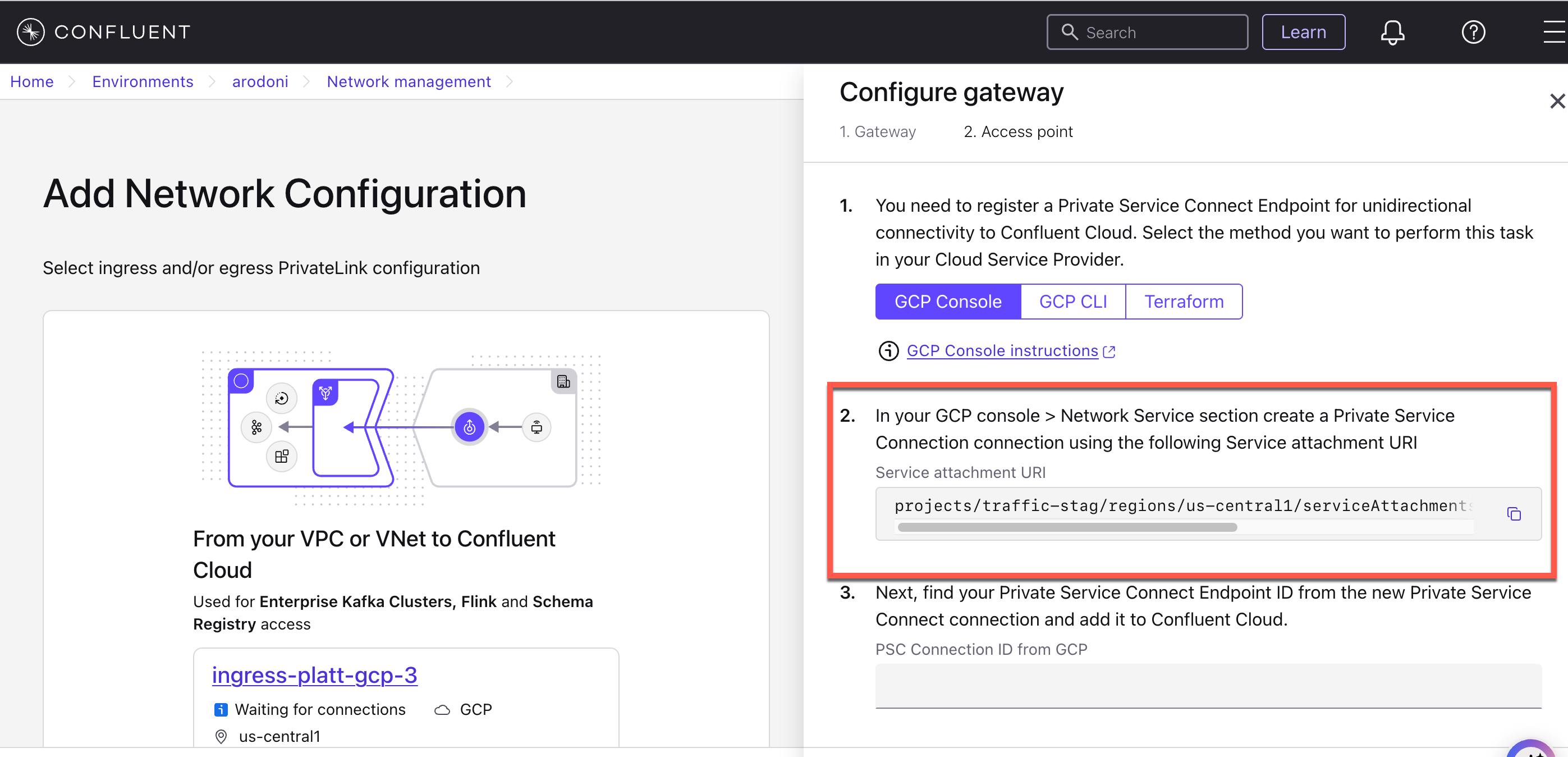
The Configure gateway panel showing the service attachment URI
You can also use the value of the Service Attachment URI from your Network overview of the gateway in the Confluent Cloud Console.
Endpoint name: Give the name for this Private Service Connect endpoint.
Network: Specify the network to place this endpoint.
Subnetwork: Because subnets are regional resources in Google Cloud, you must select a subnet in the same region and availability zone as your Confluent Cloud network from the Networking tab in the Confluent Cloud Console.
IP address: Specify the IP address to assign this endpoint.
Click ADD ENDPOINT.
Even if the new endpoint shows as accepted in Google Cloud, you still need to create an ingress PrivateLink Access Point for this endpoint in Confluent Cloud as described in the next section. Without the PrivateLink Access Point, requests to Confluent Cloud are dropped.
Step 3: Create an ingress PrivateLink Access Point
An ingress PrivateLink Access Point registers a specific Private Service Connect endpoint with your ingress PrivateLink Gateway.
To create an access point, navigate to either of the following locations in the Confluent Cloud console:
The Configure gateway pane where you created your gateway. You configure the access point under the 2. Access point tab.
The Create access point pane for your gateway. To open this pane, do the following:
On the page for your environment, click Network management in the navigation menu.
In the For serverless products tab, click your gateway name. Make sure the gateway is in the same region as your Google Cloud Private Service Connect endpoint.
Click the Access points tab, and click Create access point.
Specify the Private Service Connect connection ID.
The connection ID is the Google Cloud-specific ID of the endpoint you created in Step 2: Provision a Private Service Connect endpoint in Google Cloud.
Specify the access point name.
Click Create access point.
The PrivateLink Gateway and PrivateLink Access Point enter the
READYstate after the Private Service Connect endpoint connection is accepted.
Send a request to create a PrivateLink Access Point resource:
REST request
POST https://api.confluent.cloud/networking/v1/access-points
REST request body
{
  "spec": {
    "display_name": "<A custom name for the access point>",
    "config": {
      "kind": "GcpIngressPrivateServiceConnectEndpoint",
      "private_service_connect_connection_id":
        "<The Google Cloud ID of your Private Service Connect endpoint>"
    },
    "environment": {
      "id": "<The ID of the environment for this access point>"
    },
    "gateway": {
      "id": "<The ID of the gateway to add the access point to>"
    }
  }
}
For more information, see Access Points in the Confluent REST API reference.
Use the following command to create a PrivateLink Access Point:
confluent network access-point private-link ingress-endpoint create \
  <access-point-name> <flags>
The following command-specific flags are supported:
--cloud: Required. The cloud provider. Set togcp.--gateway: Required. The ID of the gateway to add the access point to.--private-service-connect-connection-id: Required. The Google Cloud ID of your Private Service Connect endpoint.
For more information, see confluent network access-point private-link ingress-endpoint create.
The following is an example Confluent CLI command to create a PrivateLink access point:
confluent network access-point private-link ingress-endpoint create \
  my-ingress-access-point \
  --cloud gcp \
  --gateway gw-123abc \
  --private-service-connect-connection-id 1234567890123456
Use the confluent_access_point Confluent Terraform Provider resource
to create a PrivateLink Access Point. For more information, see
confluent_access_point.
The following is an example of a Terraform configuration:
resource "confluent_access_point" "gcp_ingress_1" {
   display_name = "my_access_point"
   environment {
      id = "env-123abc"
   }
   gateway {
      id = "gw-123abc"
   }
   gcp_ingress_private_service_connect_endpoint {
      private_service_connect_connection_id = "1234567890123456"
   }
   depends_on = [
      confluent_gateway.gcp_ingress
   ]
}
In the Google Cloud console, check the status of the Private Service Connect endpoint.
Go to the private endpoint resource in the Google Cloud console and verify that the private endpoint connection status is “Approved”.
Important
If you delete the Private Service Connect endpoint you created in Google Cloud, you should also delete the corresponding PrivateLink Access Point in Confluent Cloud to avoid the security risk arising from Google Cloud reusing the Private Service Connect Connection ID.
Step 4: Configure DNS
Confluent Cloud requires that you set up private DNS records for each access point pointing its DNS domain to the Private Service Connect endpoint you created.
When connecting to Confluent Cloud using access-point-specific hostnames, you must allow public DNS resolution from your network or VPC. Confluent Cloud advertises these hostnames in the public DNS resolver. These hostnames will then redirect to match the domains that you input to your private DNS resolver.
The resolution performs the following two-step process:
The Confluent Cloud Global DNS Resolver returns a CNAME for all of your hostnames removing the
glbsubdomain and converting your access point ID to be a subdomain.For example, with the given hostname:
$lkc-id-$accesspointId.$region.gcp.accesspoint.glb.confluent.cloud
The returned CNAME is:
$lkc-id.$accesspointId.$region.gcp.accesspoint.confluent.cloud
The CNAME then resolves to your Private Service Connect endpoints based on the private DNS configuration.
If you are using Google Cloud Cloud DNS as your private DNS resolver, you can use the following steps to configure DNS.
Set up DNS in Google Cloud Cloud DNS for DNS resolution
In Confluent Cloud, verify that the status of the gateway is
READY.Open the newly created gateway to get the DNS domain value for your access point.
In the Google Cloud console, browse to the Cloud DNS page.
Create a DNS zone.
Click + CREATE ZONE.
Zone Type: Select Private.
Zone name: Specify a name for this DNS zone.
DNS name: Specify the DNS domain value from Confluent Cloud.
Click CREATE.
Create a DNS record.
Go to the DNS zone you created in the previous step.
In the RECORD SETS section, click + ADD STANDARD. The Create record set page appears.
Create a DNS record for your Confluent Cloud network.
Note
In Confluent Cloud, Kafka broker names you retrieve from the metadata are not static. Do not hardcode the broker names in DNS records.
DNS name:
*Resource record type:
ATTL:
1TTL unit:
minutesIPv4 Address: The IP address you specified for the Private Service Connect endpoint in Step 2: Provision a Private Service Connect endpoint in Google Cloud.
Click CREATE.
Verify the Private Zone is in use by the desired Network(s).