

Configure the Confluent Manager for Apache Flink UI
Confluent Platform for Apache Flink® offers a web UI, built into Confluent Manager for Apache Flink® (CMF), that provides a browser-based way to access your CMF deployment instead of calling the REST API or using the Confluent CLI. From the UI you can manage CMF resources, such as Flink applications, and review CMF’s effective configuration for troubleshooting.
The UI is served by the CMF server, so a separate installation step is not required. The UI is available as soon as CMF is running.
Important
In earlier releases, the UI for interacting with CMF was provided by Confluent Control Center. This integration is now deprecated, but it works with your existing configuration. You should use the CMF UI for new deployments. Confluent Control Center does not receive new CMF features. For information about the Confluent Control Center integration, see Use Control Center with Confluent Manager for Apache Flink.
Access the CMF UI
The CMF UI is served from the same host and port as the CMF REST API without configuring an extra port or Helm setting. Open a browser to the base URL of your CMF server to view the UI. For example, if you are using port forwarding, you can access the UI from a browser on your local machine. First set up port forwarding:
kubectl port-forward svc/cmf-service 8080:80
Then, browse to http://localhost:8080/.
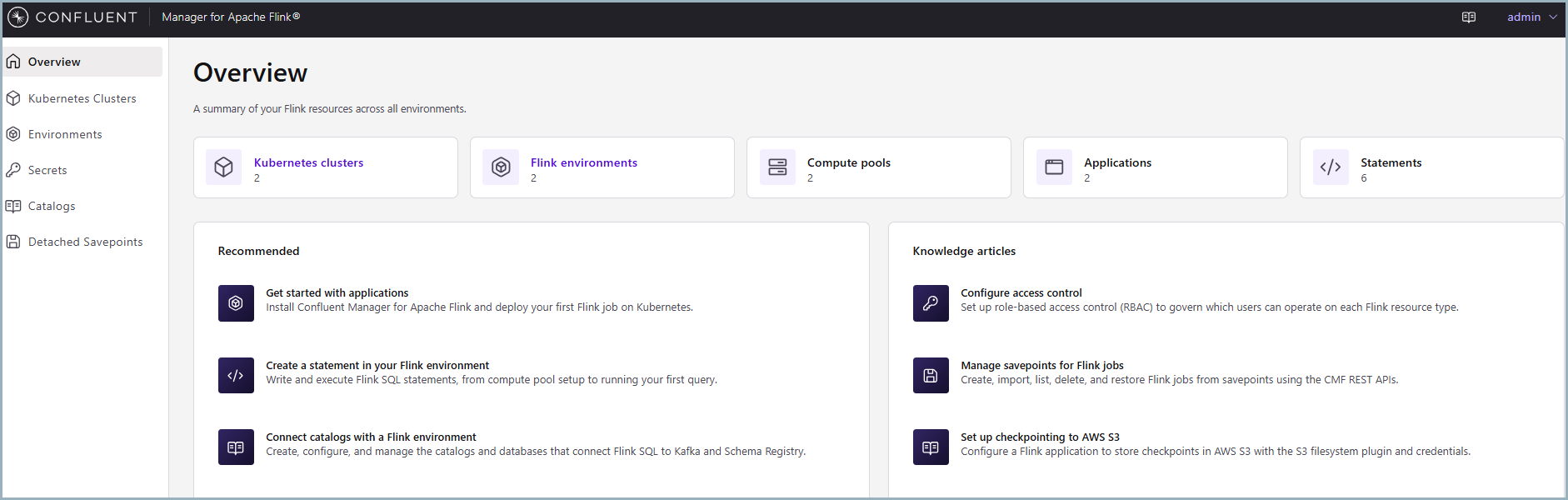
The following image provides an example of the CMF UI home page. The UI shows the current status of CMF deployment and provides links to the resources you can manage from the UI.
Authentication for the UI
The CMF UI authenticates and authorizes users through the same CMF server settings as the REST API. Before configuring the settings on this page, first configure:
Configure Authentication for Confluent Manager for Apache Flink
Configure Authorization for Confluent Manager for Apache Flink
On top of the base configuration, cmf.ui.auth.* settings control which
login options the UI shows to users. These settings are only meaningful
when authentication is enabled. If you do not enable authentication through
cmf.authentication, you can ignore these settings, as the UI reports
all login modes as disabled and shows no login screen.
Setting |
Default |
Description |
|---|---|---|
|
|
Shows a username and password login form in the UI. CMF proxies submitted credentials to Metadata Service (MDS) to mint a session token; this requires a Metadata Service (MDS) endpoint to be reachable. For more information, see Configure Authorization for Confluent Manager for Apache Flink. |
|
|
Shows a single sign-on (SSO) login button that redirects the browser through the OpenID Connect (OIDC) flow configured on MDS. To configure OIDC/SSO on MDS, see Configure SSO using OIDC. |
|
|
Maximum lifetime, in seconds, that CMF asks MDS to issue for a UI
login token. When |
The following example shows how to enable both login modes and set a token lifetime. You pass the configuration file to Helm when you install or upgrade CMF.
# ui-values.yaml
cmf:
  ui:
    auth:
      basicAuthEnabled: true
      ssoEnabled: true
      tokenMaxLifeSeconds: 3600
helm upgrade --install cmf confluentinc/confluent-manager-for-apache-flink \
-f ui-values.yaml
Login behavior by authentication type
You should configure the cmf.ui.auth.* settings according to your
cmf.authentication setup so that they stay consistent (see
Configure Authentication for Confluent Manager for Apache Flink). The following combinations are typical:
No authentication (default): the UI has no login screen, and all pages are open.
Mutual TLS (mTLS) only (no interactive login configured): when both
cmf.ui.auth.basicAuthEnabledandcmf.ui.auth.ssoEnabledarefalse, the browser’s client certificate authenticates every request automatically, so the UI renders directly with no login screen. Becausecmf.ui.auth.basicAuthEnableddefaults totrue, you must set it tofalsefor this pass-through behavior; otherwise the UI shows a login form, the same behavior described for token-based login.Token-based login, either with OAuth or with username and password (with or without mTLS): the UI shows the login form, the SSO button, or both, based on
cmf.ui.auth.*, and users must log in before accessing protected pages. This applies whenever an interactive login mode is enabled, including mutual TLS (mTLS) authentication combined withcmf.ui.auth.basicAuthEnabledorcmf.ui.auth.ssoEnabled.
Important
If cmf.ui.auth.basicAuthEnabled is true but no Metadata Service (MDS) endpoint is
configured and the embedded MDS is not enabled, CMF logs a warning at
startup. The login form then fails to complete, and the request returns an
HTTP 503 response. Either configure an MDS endpoint as described in
Configure Authorization for Confluent Manager for Apache Flink, enable the embedded MDS as described in
Configure Embedded MDS for Confluent Manager for Apache Flink, or set cmf.ui.auth.basicAuthEnabled to
false.
Effective configuration view
The UI includes a read-only page that shows CMF’s effective
configuration, meaning its resolved properties and where each value came from.
A property value can come from a configuration file, an environment variable,
or a default value.
Use the effective configuration to troubleshoot a deployment. You can hide this page by setting
cmf.ui.effectiveConfiguration.enabled to false:
cmf:
  ui:
    effectiveConfiguration:
      enabled: false