

Manage Offsets for Consumer Groups and Share Groups
You can reset offsets for consumer groups and share groups. Offsets track the position of a consumer in a partition. Each consumer instance in a consumer group or share group periodically commits its progress through the partition with an offset. If a consumer instance fails, another instance in the group takes over and resumes from the last committed offset.
You can reset or delete offsets in the Consumer and Share Groups tabs for your selected client.
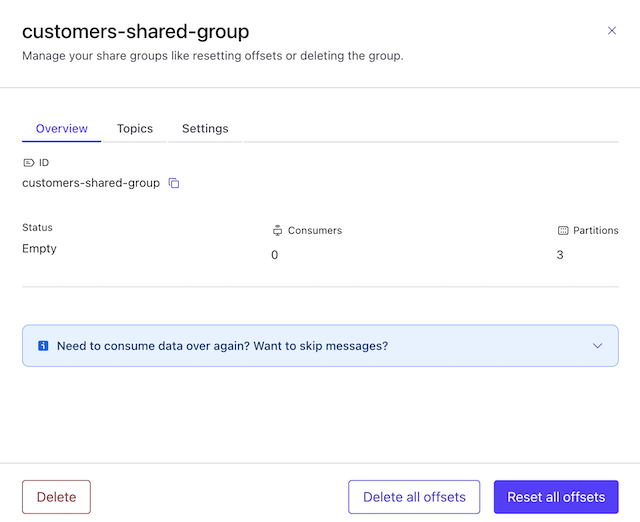
You can reset offsets for troubleshooting, testing, and disaster recovery.
- Considerations:
To reset offsets with Control Center, you must first empty the consumer group or share group by stopping any clients or consumers in the consumer group or share group.
To reset offsets with Control Center for a consumer group or share group that uses the Apache Kafka®
assign()function to manually assign consumers to partitions, you must first locate and pause the consumer that is using theassign()function. Consumer groups and share groups that use theassign()function always appear empty to Control Center but they may hide unstopped consumers.Don’t use Control Center to reset offsets for stream processing applications, which require special considerations for resets. For more information, see Reset Kafka Streams Applications in Confluent Platform.
Prerequisites
To delete or reset offsets, you must have one of the following roles:
super.userSystemAdminClusterAdmin
Reset offsets for consumer groups
To reset offsets for consumer groups, use the following procedure.
To reset an offset
From Clients, select your cluster name.
Select Consumers and then select Consumer Lag. A list of consumer group IDs is displayed.
Select a consumer group ID. A list of clients and consumers is displayed.
Select the client or consumer you want to reset, or select all.
Select Reset offset. The Reset offset dialog appears.
In Reset offset, choose one of the following and then select Reset:
Earliest to set the offset to the earliest offset available for the topic and partition.
Latest to set the offset to the latest offset available for the topic and partition.
Offset value and add a value in Enter offset value to set the offset to a specified integer.
After you reset an offset, Control Center may need a few minutes to catch up.
Delete offsets for consumer groups
To delete offsets for consumer groups, use the following procedure:
From Clients, select your cluster name.
Select Consumers and then select Consumer Lag. A list of consumer group IDs is displayed.
Select a consumer group ID. A list of clients and consumers is displayed.
Select the client or consumer you want to delete, or select all.
Select Delete offset. The Delete offset dialog appears.
In Delete offset, enter the required text, and then select Delete.