

Manage Share Groups Using Confluent Control Center
On the Clients page, select the Share Groups tab to manage share groups for all the topics in a cluster.
- Considerations:
Control Center limits the number of share groups shown in Share Groups if there are many.
You can export share partition lag data as a CSV file. For clusters with large amounts of data, you may see a placeholder value like
-999in thecurrentOffsetfield. This occurs because Control Center cannot display all the data immediately, and the offsets are not yet available. For large payloads, consider exporting share partition lag data using the Confluent CLI or Confluent Cloud APIs.
Update share group settings
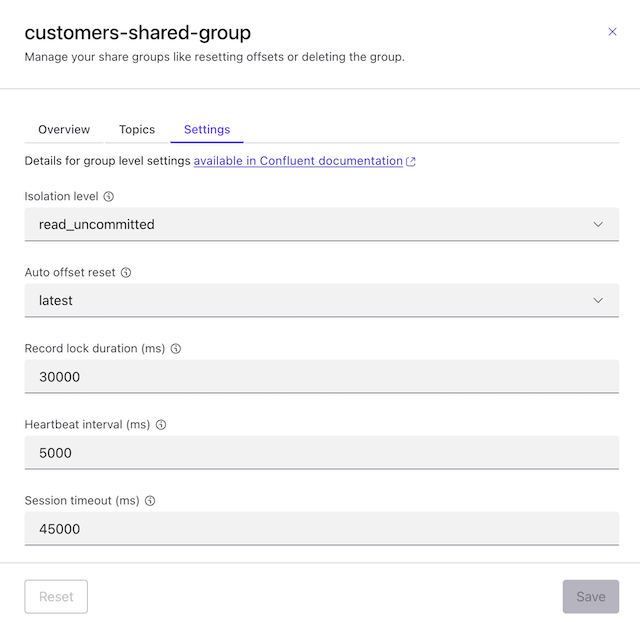
Within the Share group panel, you can manage your settings for the selected share group.
Select your cluster name.
Choose Clients and select Share Groups. A list of share groups displays.
Select a share group from the list to see details for that group.
Select the Settings tab to edit these settings: * Isolation level * Auto offset reset * Record lock duration (ms) * Heartbeat interval (ms) * Session timeout (ms)
In Confluent Control Center, you can also monitor share partition lag and manage offsets for share groups.
For more about these configurations, see Configuration for client developers.