

Use Schema Registry to Migrate Schemas in Confluent Platform
Use Schema Linking to migrate schemas from a self-managed cluster to another self-managed cluster or to a Confluent Cloud cluster. To migrate schemas from one Confluent Cloud cluster to another, use Schema Linking on Confluent Cloud.
For releases before Confluent Platform 7.0.0, use Replicator with Schema Translation to migrate schemas from a self-managed cluster to a target cluster that is either self-managed or in Confluent Cloud. Replicator supports Schema Registry migration in Confluent Platform 5.2.0 and later.
Replicator provides Schema Migration, which replicates an entire Schema Registry environment to another, empty Schema Registry cluster (both on Confluent Platform) and preserves all schema ID and version information. You can also use Replicator to manually migrate individual subjects between Schema Registry clusters (subject-level migration) without migrating an entire environment. The following sections describe each migration method:
Migrate Schemas Across Self-Managed Clusters
You can set up continuous migration or a one-time, lift-and-shift migration of schemas across self-managed (on-premises) clusters.
For a demo of migrating schemas from one self-managed cluster to another, see Replicator Schema Translation Example for Confluent Platform.
Migrate an Individual Schema to an Already Populated Schema Registry (subject-level migration)
Use the Schema Registry API to migrate individual schemas into an existing, populated Schema Registry and preserve the schema ID and version, without a full schema migration into an empty destination Schema Registry.
You can also use this approach to manually register a schema at a specified ID on a Schema Registry, as long as the schema ID isn’t already taken. It’s useful in recovery operations when a schema was deleted but is backed up on another cluster.
To migrate an individual schema, follow these steps:
Set
mode.mutability=truein the Schema Registry properties.Put the subject into IMPORT mode, which requires the subject to be empty or nonexistent:
curl -X PUT -H "Content-Type: application/json" "http://localhost:8081/mode/my-cool-subject" --data '{"mode": "IMPORT"}'
For more information, see subject-level IMPORT mode in the API reference.
Register the schema.
For example, the following call registers a schema for the subject
my-cool-subjectwith a specific ID (24) and version (1):curl -X POST -H "Content-Type: application/json" \ --data '{"schemaType": "AVRO", "version":1, "id":24, "schema":"{\"type\":\"record\",\"name\":\"value_a1\",\"namespace\":\"com.mycorp.mynamespace\",\"fields\":[{\"name\":\"field1\",\"type\":\"string\"}]}" }' \ http://localhost:8081/subjects/my-cool-subject/versions
Note
The schema ID used for subject-level migration shouldn’t already be assigned to any other schema in the destination Schema Registry. If you register the schema with an ID that’s already in use on the destination, Schema Registry returns an error that says overwriting an existing schema with a new ID isn’t permitted, and the registration fails.
Return the subject to READWRITE mode.
curl -X PUT -H "Content-Type: application/json" "http://localhost:8081/mode/my-cool-subject" --data '{"mode": "READWRITE"}'
Migrate Schemas to Confluent Cloud
This section explains how to migrate schemas from Confluent Platform to Confluent Cloud.
Note
Replicator doesn’t support custom converters for schema migration. Use Schema Linking together with Replicator and the Byte Array Converters.
Confluent Cloud (Confluent Cloud) is a fully managed streaming data service based on Confluent Platform. As you can “lift and shift” or “extend to cloud” your Kafka applications from self-managed Kafka to Confluent Cloud, you can do the same with Confluent Schema Registry.
If you already use Schema Registry to manage schemas for Kafka applications and want to move some or all of that data and schema management to the cloud, use Replicator to migrate your existing schemas to Confluent Cloud Schema Registry. For more about running Replicator, see Run Replicator as an executable.
Set up continuous migration to maintain a hybrid deployment (extend to cloud), or use a one-time migration to lift and shift everything to Confluent Cloud.
Continuous Migration
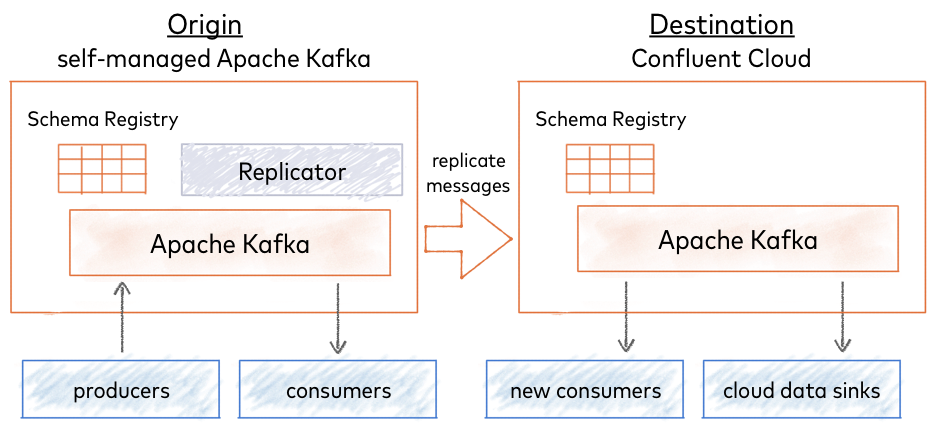
For continuous migration, use your self-managed Schema Registry as the primary and Confluent Cloud Schema Registry as the secondary (extend to cloud, also known as bridge to cloud). New schemas are registered directly in the self-managed Schema Registry (origin), and Confluent Replicator continuously copies them to Confluent Cloud Schema Registry (destination), which is set to IMPORT mode.
One-time Migration
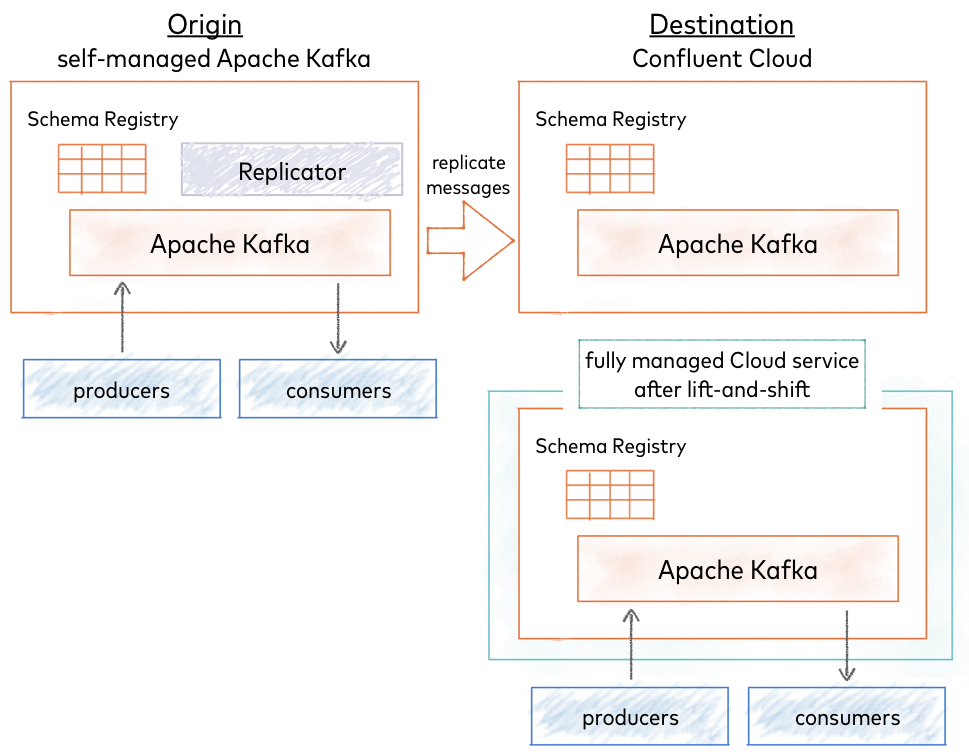
Choose a one-time migration to move all data to a fully managed Confluent Cloud service (lift and shift). You migrate your existing self-managed Schema Registry to Confluent Cloud Schema Registry as the primary. All new schemas are registered in Confluent Cloud Schema Registry and stored in the centralized Kafka cluster, and nothing migrates from Confluent Cloud Schema Registry back to the self-managed Schema Registry.
Topics and Schemas
Schemas are associated with Kafka topics and organized under subjects in Schema Registry. For definitions, see Schema Registry terms: topic, schema, and subject.
The following quick start describes how to migrate Schema Registry and the schemas it contains, but not Kafka topics.
For a continuous migration (extend to cloud), you need only a schema migration, because your topics stay in the primary, self-managed cluster.
For a one-time migration (lift and shift), follow schema migration with topic migration. Use Replicator to migrate your topics to the Confluent Cloud cluster, as described in Related Content after the quick start.
Tip
If you configure Confluent Replicator to use the default subject translator for schemas as follows:
schema.subject.translator.class=io.confluent.connect.replicator.schemas.DefaultSubjectTranslator
then, topic.rename.format is used to rename the subjects in the target
Schema Registry during a schema migration.
For example, if the topic.rename.format is ${topic}-replica, the subject
mytopic-value in the original Schema Registry would be renamed
mytopic-replica-value in the “new”, target registry.
Only the schemas that use the subject name strategy TopicNameStrategy (subject name with -key or -value)
will be renamed. All other subjects (which use different naming strategies) will be migrated but not renamed.
The property topic.rename.format is described in
Destination topics under Replicator Configuration Reference for Confluent Platform.
Quick Start
The quick start describes how to perform a Schema Registry migration that applies to any type of deployment, from on-premises servers or data centers to Confluent Cloud Schema Registry. The examples also teach the basics of migrating schemas from a local cluster to Confluent Cloud.
- Prerequisites
Before You Begin
If you’re new to Confluent Platform, first work through these quick starts and tutorials to get a baseline understanding of the platform (including the role of producers, consumers, and brokers), Confluent Cloud, and Schema Registry. Experience with these workflows gives you better context for schema migration.
Before you begin schema migration, verify that you have:
Access to Confluent Cloud to serve as the destination Schema Registry
A local installation of Confluent Platform, for example from a Quick Start for Confluent Platform download, or another cluster to serve as the origin Schema Registry.
Schema migration requires that you configure and run Replicator. For more information than the examples here provide, see the replicator tutorial.
Migrate Schemas
To migrate Schema Registry and associated schemas to Confluent Cloud, follow these steps:
Start the origin cluster.
If you’re running a local cluster, for example from a Quick Start for Confluent Platform download, start only Schema Registry for this tutorial with the Confluent CLI confluent local commands.
confluent local services schema-registry start
Tip
The examples here use a Replicator worker in standalone mode for schema migration. In this mode, you can’t run Kafka Connect and Replicator at the same time, because Replicator also runs Connect. In distributed mode, the setup is different and this limitation doesn’t apply (you can use
./bin/confluent local services start). For more about configuring and running Connect workers (including Replicator) in standalone and distributed modes, see Running Workers in the Connect guide.Verify that
schema-registry,kafka, and KRaft are running.For example, run
confluent local services status:Schema Registry is [UP] Kafka is [UP] Zookeeper is [UP]
Verify that no subjects exist on the destination Schema Registry in Confluent Cloud.
curl -u <schema-registry-api-key>:<schema-registry-api-secret> <schema-registry-url>/subjects
If no subjects exist, the output is empty (
[]), as expected.If subjects exist, delete them. For example:
curl -X DELETE -u <schema-registry-api-key>:<schema-registry-api-secret> <schema-registry-url>/subjects/my-existing-subject
Set the destination Schema Registry to IMPORT mode. For example:
curl -u <schema-registry-api-key>:<schema-registry-api-secret> -X PUT -H "Content-Type: application/json" "https://<destination-schema-registry>/mode" --data '{"mode": "IMPORT"}'
Tip
If subjects exist on the destination Schema Registry, the import fails with a message similar to the following:
{"error_code":42205,"message":"Cannot import since found existing
subjects"}
Full-scale schema migration of all schemas requires the destination Schema Registry to be in IMPORT mode, and the registry must be empty to transition to this mode. This type of migration produces an exact copy of the source registry (including schema IDs) but doesn’t let you merge pre-existing schemas in the destination with the source schemas.
As another option, use the Schema Registry API to set mode mutability and subject-level IMPORT mode, as described in Migrate an Individual Schema to an Already Populated Schema Registry (subject-level migration).
Configure a Replicator worker with the addresses of the brokers in the destination cluster, as described in Configure and run Replicator.
Tip
Replicator in Confluent Platform 5.2.0 and newer supports Schema Registry migration.
The worker configuration file is in
CONFLUENT_HOME/etc/kafka/connect-standalone.properties.# Connect Standalone Worker configuration bootstrap.servers=<path-to-cloud-server>:9092
Configure Replicator with Schema Registry and destination cluster information.
For a standalone Connect instance, configure the following properties in
CONFLUENT_HOME/etc/kafka-connect-replicator/quickstart-replicator.properties:# basic connector configuration name=replicator-source connector.class=io.confluent.connect.replicator.ReplicatorSourceConnector key.converter=io.confluent.connect.replicator.util.ByteArrayConverter value.converter=io.confluent.connect.replicator.util.ByteArrayConverter header.converter=io.confluent.connect.replicator.util.ByteArrayConverter tasks.max=4 # source cluster connection info src.kafka.bootstrap.servers=localhost:9092 # destination cluster connection info dest.kafka.ssl.endpoint.identification.algorithm=https dest.kafka.sasl.mechanism=PLAIN dest.kafka.request.timeout.ms=20000 dest.kafka.bootstrap.servers=<path-to-cloud-server>:9092 retry.backoff.ms=500 dest.kafka.sasl.jaas.config=org.apache.kafka.common.security.plain.PlainLoginModule required username="<encrypted-username>" password="<encrypted-password>"; dest.kafka.security.protocol=SASL_SSL # Schema Registry migration topics to replicate from source to destination # topic.whitelist indicates which topics are of interest to replicator topic.whitelist=_schemas # schema.registry.topic indicates which of the topics in the ``whitelist`` contains schemas schema.registry.topic=_schemas # Connection settings for destination Confluent Cloud Schema Registry schema.registry.url=https://<path-to-cloud-schema-registry> schema.registry.client.basic.auth.credentials.source=USER_INFO schema.registry.client.basic.auth.user.info=<schema-registry-api-key>:<schema-registry-api-secret>
If your clusters have TLS/SSL enabled, set the TLS/SSL configurations that are appropriate for Schema Registry clients.
# TLS/SSL configurations for clients to Schema Registry
 schema.registry.client.schema.registry.ssl.truststore.location
 schema.registry.client.schema.registry.ssl.truststore.type
 schema.registry.client.schema.registry.ssl.truststore.password
 schema.registry.client.schema.registry.ssl.keystore.location
 schema.registry.client.schema.registry.ssl.keystore.type
 schema.registry.client.schema.registry.ssl.keystore.password
 schema.registry.client.schema.registry.ssl.key.password
Tip
Schema Registry client configurations require the
schema.registry.clientprefix. For more information on these configurations, see Clients to Schema Registry in Secure Schema Registry for Confluent Platform.
In
quickstart-replicator.properties, the replication factor is1for demo purposes on a development cluster with one broker. For this schema migration tutorial and in production, change it to at least3:confluent.topic.replication.factor=3
See also
For an example of a JSON configuration for Replicator in distributed mode, see submit_replicator_schema_migration_config.sh on GitHub examples repository.
Start Replicator so that it can perform the schema migration.
For example:
connect-standalone ${CONFLUENT_HOME}/etc/kafka/connect-standalone.properties \
${CONFLUENT_HOME}/etc/kafka-connect-replicator/quickstart-replicator.properties
The method or commands you use to start Replicator depend on your application setup and might differ from this example. For more information, see Tutorial: Configure and Run Replicator for Confluent Platform as an Executable or Connector and Configure and run Replicator.
Stop all producers that are producing to Kafka.
Wait until the replication lag is 0.
For more information, see Monitoring Replicator lag (legacy versions only).
Stop Replicator.
Enable mode changes in the self-managed source Schema Registry properties file by adding the following setting, and then restart Schema Registry.
mode.mutability=true
Important
Modes are supported only in version 5.2 of Schema Registry and later. This step and the next one (set Schema Registry to READONLY) are precautionary and not strictly necessary. If you use version 5.1 of Schema Registry or earlier, you can skip these two steps as long as you stop all producers so that no further schemas are registered in the source Schema Registry.
Set the source Schema Registry to READONLY mode.
curl -u <schema-registry-api-key>:<schema-registry-api-secret> -X PUT -H "Content-Type: application/json" "https://<source-schema-registry>/mode" --data '{"mode": "READONLY"}'
Set the destination Schema Registry to READWRITE mode.
curl -u <schema-registry-api-key>:<schema-registry-api-secret> -X PUT -H "Content-Type: application/json" "https://<destination-schema-registry>/mode" --data '{"mode": "READWRITE"}'
Stop all consumers.
Configure all consumers to point to the destination Schema Registry in the cloud and restart them.
For example, if you configure Schema Registry in a Java client, change the Schema Registry URL from the source to the destination, either in the code or in a properties file that specifies the Schema Registry URL, the authentication type (USER_INFO), and credentials.
For more examples, see Java consumers.
Configure all producers to point to the destination Schema Registry in the cloud and restart them.
For more examples, see Java producers.
(Optional) Stop the source Schema Registry.
Next Steps
If you are extending to a cloud hybrid with continuous migration from a primary self-managed cluster to the cloud, the migration is complete.
For a one-time migration to Confluent Cloud, use Replicator to migrate your topics to the cloud cluster next.
To manage schemas and storage space in Confluent Cloud through the REST API, see Manage Schemas in Confluent Cloud.
To configure and use Schema Registry in Confluent Cloud, see Quick Start for Schema Management on Confluent Cloud and Quick Start for Apache Kafka using Confluent Cloud.
Limitations
When you use Replicator to migrate schemas, Confluent Cloud isn’t supported as the source cluster. Confluent Cloud can only be the destination cluster. As another option, migrate schemas with the REST API for Schema Registry. For Confluent Cloud limits on schemas and for managing storage space, see the API reference in Manage Schemas in Confluent Cloud.
Replicator doesn’t support an active-active Schema Registry setup. It supports only migration (one-time or continuous) from an active Schema Registry to a passive Schema Registry.
Newer versions of Replicator cannot be used to replicate data from early version Kafka clusters to Confluent Cloud. Specifically, Replicator version 5.4.0 or later cannot be used to replicate data from clusters Apache Kafka® v0.10.2 or earlier nor from Confluent Platform v3.2.0 or earlier, to Confluent Cloud. If you have clusters on these earlier versions, use Replicator 5.0.x to replicate to Confluent Cloud until you can upgrade. Keep in mind the following, and plan your upgrades accordingly:
Kafka Connect workers included in Confluent Platform 3.2 and later are compatible with any Kafka broker that is included in Confluent Platform 3.0 and later as documented in Cross-component compatibility.
Confluent Platform 5.0.x has an end-of-support date of July 31, 2020 as documented in Supported Versions and Interoperability for Confluent Platform.