

Manage Billing in Confluent Cloud
Confluent Cloud uses a consumption-based billing model where you pay for the resources you use. This includes:
Data transferred
Storage
Compute units (Confluent Unit for Kafka (CKU), Elastic Confluent Unit for Kafka (eCKU))
Add-on services (connectors, ksqlDB, Flink SQL, Advanced Security add-on)
For details on how each of these resources is billed, see Billing Dimensions in Confluent Cloud.
Billing accrues hourly with monthly invoicing. Pay as you go or make an annual commitment for volume discounts. For current rates, see Confluent Cloud Pricing. To estimate your monthly costs from throughput, retention, and other factors, use the Cost Estimator. To view or download invoices or retrieve your costs with the Costs API, see Retrieve Invoices and Costs in Confluent Cloud.
Get Started for Free
Sign up for a Confluent Cloud trial and get $400 of free credit.
Considerations
Billing for each Confluent Cloud component accrues at hourly intervals. Any usage that is less than an hour is billed for the full hour.
All billing computations are conducted in Coordinated Universal Time (UTC).
Billing accrues hourly, with a monthly-in-arrears invoicing cycle, and Confluent generates your invoice at the beginning of the following month.
If you deprovision resources mid-month, billing stops accruing, but usage already incurred appears on your next invoice.
If your organization is deactivated, or you convert to an annual commitment, or switch between signing up directly through Confluent and through a cloud marketplace, you receive an invoice within 48 hours. Usage that accrues after the conversion appears on a separate invoice at the start of the next month.
To view billing information, sign in to Confluent Cloud and go to Billing and payment.
You can sign up for the pay-as-you-go billing model directly from Confluent, or sign up with your cloud provider to pay through your cloud provider billing account.
Confluent Cloud billing integrates with Google Cloud, Microsoft Azure, and Amazon Web Services.
Confluent Cloud Console displays your usage as it occurs, but your cloud provider might not show billed usage for Confluent Cloud until 6-24 hours after usage occurs.
Important
If you sign up for Confluent Cloud through a cloud provider marketplace, your data plane resources must run in the same cloud provider as your marketplace billing relationship. Data plane resources include Kafka clusters, ksqlDB, Schema Registry, Stream Catalog, and Flink. You can’t provision a resource in a different cloud provider while you are being billed through a marketplace. You also can’t link a marketplace payment method to an organization that already has resources running in a different cloud. Choose your marketplace provider carefully before you sign up.
Marketplace options by cloud provider
To get started through a cloud provider marketplace, see the options for your provider:
Cloud provider |
Billing and onboarding options |
|---|---|
AWS |
|
Google Cloud |
|
Microsoft Azure |
Pay-as-you-go billing
With the pay-as-you-go billing model you can sign up and pay monthly in arrears. If you sign up for Confluent Cloud directly through Confluent, your Organization is on the pay-as-you-go billing model by default. Pay-as-you-go is also available through cloud provider marketplaces; see Marketplace options by cloud provider.
A Confluent Consumption Unit (CCU) is a billing unit used in marketplace listings, calculated from data ingress, egress, and storage. To compute your total cost, multiply CCUs consumed by the per-CCU cost from the marketplace listing.
Annual commitments
An annual commitment is a minimum spend agreement with Confluent Cloud over a fixed term. In exchange, you receive volume discounts and can apply the commitment across the entire Confluent Cloud stack, including Kafka cluster types, ksqlDB, Connectors, and Confluent Support.
With annual commitments, you can view the total amount of accrued usage during the commitment term and the amount of time left on your commitment.
If you use more than your committed amount, you can continue using Confluent Cloud without interruption. You are charged at your discounted rate for usage beyond the committed amount until the end of your commitment term. Commitments are minimums; exceeding them has no negative impact. If you exceed this minimum, overage charges are billed to the payment method set for your organization.
To get started with an annual commitment through a marketplace, see Marketplace options by cloud provider.
Billing profile and payment
Your billing profile in Confluent Cloud holds your payment method, billing address, invoice history, promotional balance, and Cloud Organization ID. To manage your billing profile, sign in to the Confluent Cloud Console and go to Billing and payment.
If your organization is using role-based access control (RBAC), assign users to the BillingAdmin role to view the Billing and payment screen. For more information, see Predefined RBAC Roles in Confluent Cloud.
Requirements
OrganizationAdmin or BillingAdmin access to a Confluent Cloud environment
To view your billing profile:
Sign in to your Confluent Cloud account.
From the Administration menu, select Billing and payment.
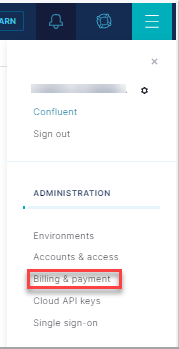
Then select the Payment details and contacts tab.
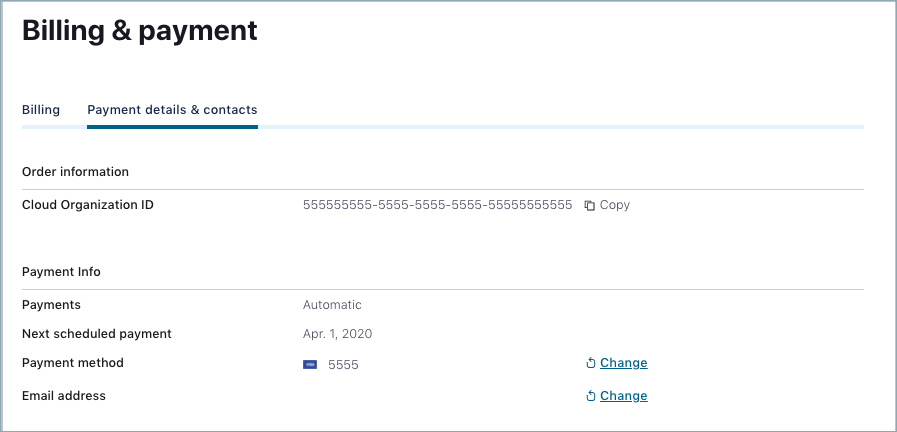
You can use all major credit cards, add a bank for electronic fund transfers, or bill through the marketplace of your provider. To switch to invoicing, contact the Confluent sales team. Invoicing requires a minimum annual commitment.
Important
Prepaid cards are not supported for Confluent Cloud billing.
Credit card payment receipts or invoices are emailed to the address that was initially provided during sign up for Confluent Cloud. To change the billing email address, see Manage your payment method.
The invoice can only be sent to a single email address.
Manage your payment method
Payment methods include:
Credit cards
Banks (for direct fund transfers)
Cloud providers (link your Confluent billing to your cloud provider)
If you choose to bill through your cloud provider, your provider bills you for the Confluent resources you use.
Tip
To continue using Confluent Cloud after your free promotion, you must add a payment method.
To add a payment method:
Sign in to your Confluent Cloud account.
Open the Administration menu in the upper right, select Billing and payment, then Payment details and contacts.
Select Enter Payment.
Choose Credit Card/Bank or a cloud provider to link your billing.
Consider the following:
For providers, verify the provider account you want to link meets the listed requirements and follow the prompts to add the provider as a payment method.
For credit cards, enter the required information and select Save.
For banks, enter the required information and select Continue. Read and follow the Stripe prompts to link the bank to your Confluent account. After you link the bank, select Save. You can only link US bank accounts.
Tip
If you don’t see your cloud provider listed, use the marketplace of the cloud provider you want to use for billing to add a payment method. For more information, see Pay-as-you-go billing.
To change your credit card or billing email address:
Sign in to your Confluent Cloud account.
Open the Administration menu in the upper right, select Billing and payment, then Payment details and contacts.
Select Change and enter the required information. You cannot use a prepaid credit card, and you must use a valid email address.
Select Save.
You can also contact your account team to change your email.
Redeem a promo code or view balance
If you have a promotional code for Confluent Cloud, you can use one of the following options to claim the code:
Redeem a code when you create a new cluster. On the New cluster screen, after you select Continue, enter the promotional code before you select Launch.
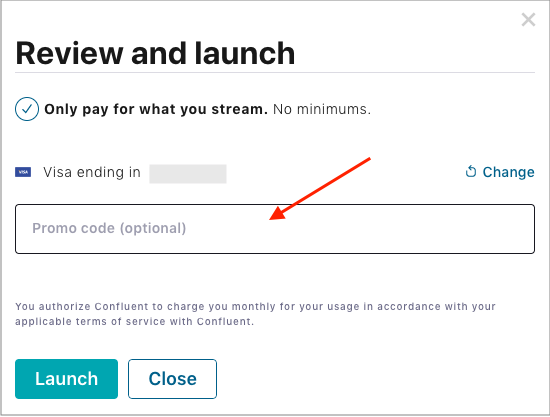
View your promotional balance or redeem a promo code using the Confluent Cloud Console or the Confluent CLI.
Navigate to the Payment details and contacts tab on the Billing and payment page.
View your existing promotional balance.
To add a new promo code, select + Promo code.
Use the Confluent CLI and the
confluent billing promo listcommand to list promo codes you have already added:confluent billing promo list
Use the Confluent CLI and the
confluent billing promo addcommand to add a promo code:confluent billing promo add
For more details, see confluent billing promo.
Confluent support plans
Support plans are available for purchase from the Confluent Cloud Console at https://confluent.cloud/support-plans. From this page, you can view your current plan or choose a different plan. If you have an annual commitment, support charges contribute to your total committed spend amount.
When you sign up for paid Confluent Support, your charges are variable.
The costs you see associated with each plan are the minimum costs for support. If your usage costs are more than the cost of your paid support plan, then you are charged a percentage of your usage costs for support. Percentages can vary depending on the plan and usage costs.
Consider the following examples for Developer support with a monthly minimum of $29 or a rate of 5% of usage costs (whichever is greater):
Scenario |
Monthly usage |
Support cost |
Total |
|---|---|---|---|
5% of usage is at or below the $29 minimum |
$580 |
$29 (the minimum applies) |
$609 |
5% of usage is more than the $29 minimum |
$1,000 |
$50 (5% of $1,000) |
$1,050 |
The breakeven is at $580 of usage: 5% × $580 = $29 (the monthly minimum).
Support billing is not finalized until the end of the month. For the current month, the Cloud Console shows a projected monthly bill for Support. The amount for support shown in Projected monthly cost is excluded from Current accrued charges until the month is over.
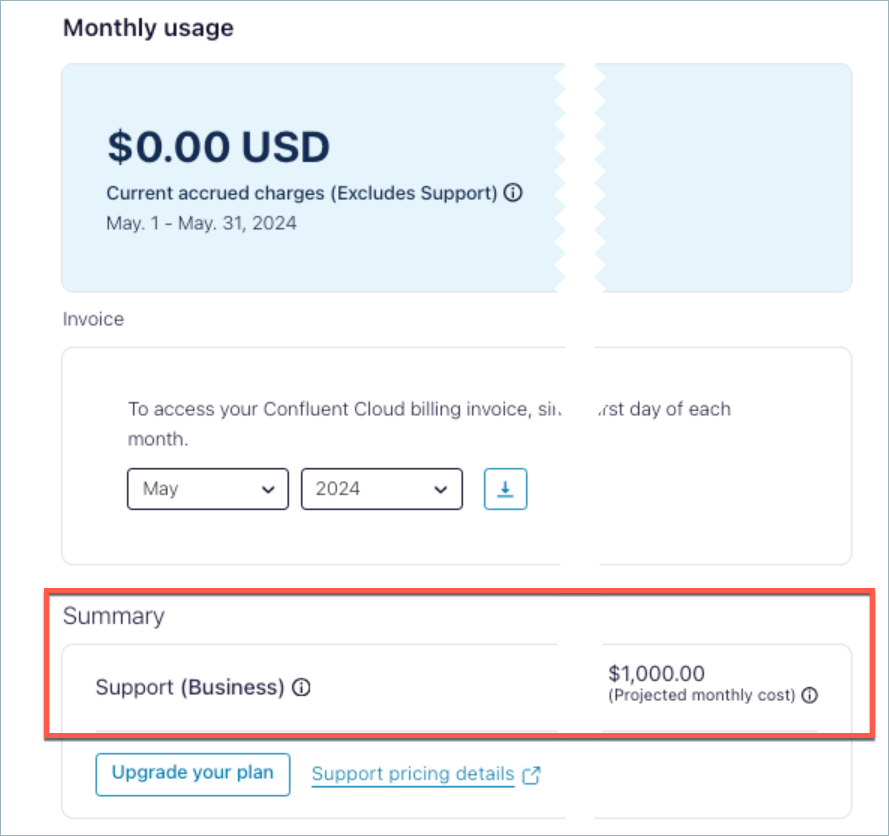
Important
Downgrade restrictions apply to support plan purchases. Your current support level remains in effect until the end of the current calendar month. However, if you downgrade within the month of purchase, your current support plan level is maintained until the end of the next full calendar month.