

Query Iceberg Tables with Snowflake and Tableflow in Confluent Cloud
Tableflow enables seamless integration with Snowflake® by materializing Apache Kafka® topics into Apache Iceberg™ tables, which you can query directly in Snowflake. By leveraging Snowflake’s externally managed Iceberg table capabilities, Tableflow publishes metadata to its built-in Iceberg REST Catalog or compatible external catalog, like AWS Glue, which ensures efficient, query-ready access to streaming data.
You can use Snowflake with Horizon Catalog federation, the preferred method for new deployments, or with the AWS Glue Data Catalog. Both require Bring Your Own Storage (BYOS). For tables on Confluent-managed storage, use the per-table Tableflow Catalog method. Snowflake Open Catalog remains available for existing deployments.
- Use Snowflake with Horizon Catalog federation
- Use Snowflake with Tableflow Catalog
- Use Snowflake with AWS Glue Data Catalog integration
- Use Snowflake with Snowflake Open Catalog for existing deployments
Prerequisites
Tableflow is enabled for the topic you plan to materialize into a table, by completing steps 1-3 in the BYOS Tableflow Quick Start, or steps 1-2 in the managed storage Quick Start.
Use Snowflake with Horizon Catalog federation
Snowflake Horizon Catalog can federate directly against the Tableflow Iceberg REST Catalog through a catalog-linked database. This method supports only tables on Bring Your Own Storage (BYOS). Horizon Catalog can’t federate topics on Confluent-managed storage. After a one-time setup per Kafka cluster, Snowflake discovers every BYOS Tableflow table in the cluster automatically and exposes it as a read-only, externally managed Iceberg table. To configure the integration, follow Integrate Tableflow with Snowflake Horizon Catalog in Confluent Cloud.
After the catalog-linked database syncs, tables surface under a schema named after the Kafka cluster ID, one table per topic. User-defined namespaces configured for external catalog integrations don’t apply, because Horizon Catalog reads the Tableflow Iceberg REST Catalog directly. Snowflake uppercases unquoted identifiers, so quote the namespace and table name exactly as they appear in Tableflow.
SELECT * FROM tableflow_linked_db."<kafka-cluster-id>"."<topic-name>" LIMIT 100;
Use Snowflake with Tableflow Catalog
The following steps document the per-table method. It connects to the same
Tableflow Iceberg REST Catalog as the catalog-linked database approach,
but requires a manual CREATE ICEBERG TABLE statement per topic and doesn’t
discover new topics automatically. Use it for tables on Confluent-managed
storage, which Horizon Catalog federation doesn’t support, or to maintain
existing setups.
An Iceberg REST catalog integration enables Snowflake to access Iceberg tables managed in a remote catalog that complies with the open-source Iceberg REST OpenAPI specification. This means that you can access Confluent Tableflow’s Iceberg tables by using the built-in Iceberg REST Catalog.
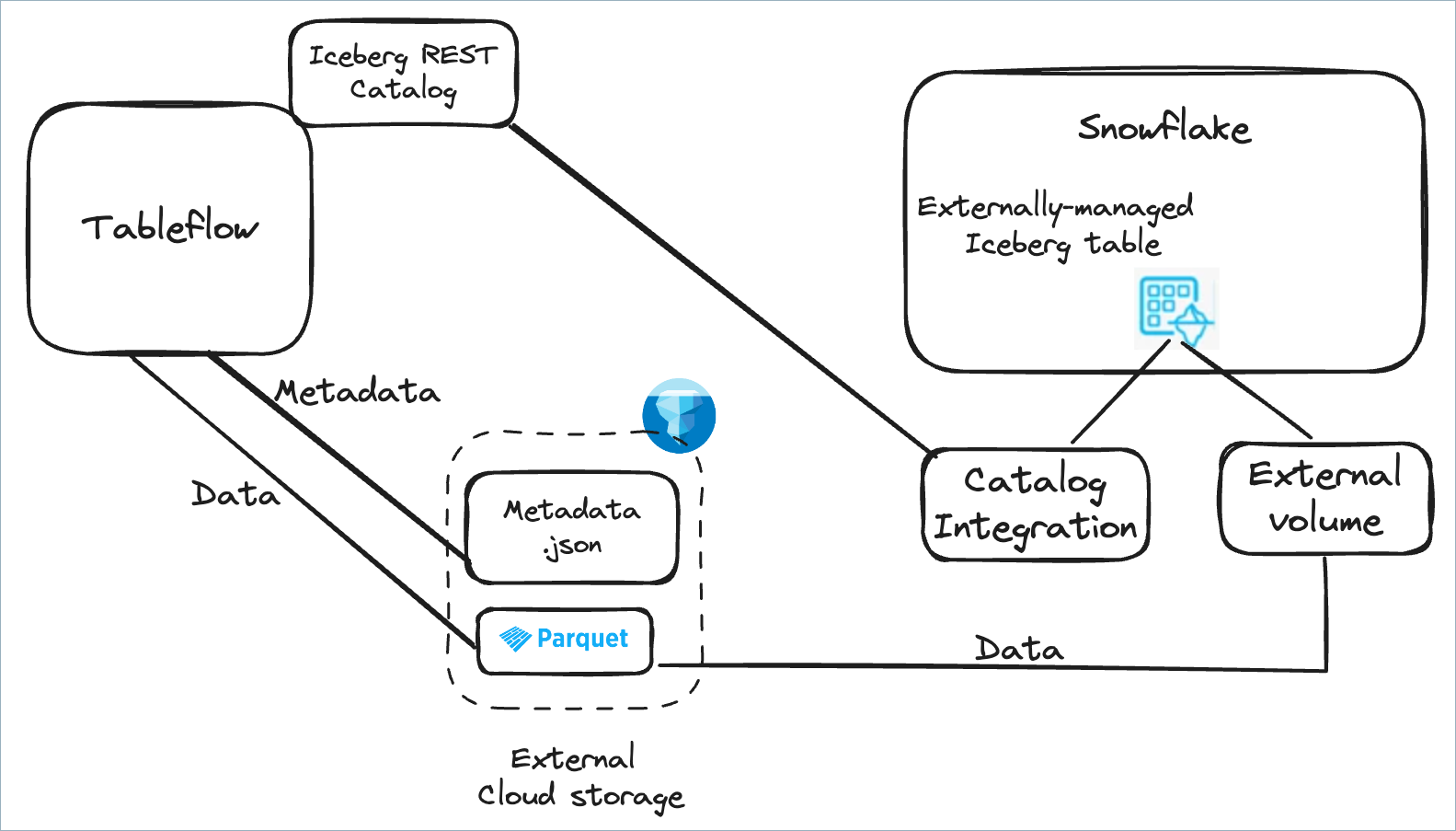
Step 1: Enable access to your S3 bucket
Enable Snowflake access to your S3 bucket by following the Snowflake documentation, and obtain the following properties for the storage bucket.
STORAGE_BASE_URL
STORAGE_AWS_ROLE_ARN
STORAGE_AWS_EXTERNAL_ID
Step 2: Create a Snowflake external volume
In Snowflake, run the following query to create a Snowflake external volume. Use the values from the previous step in the storage locations properties.
CREATE OR REPLACE EXTERNAL VOLUME stock_trades_volume
    STORAGE_LOCATIONS =
       (
           (
               NAME = 'tableflow-quickstart-storage'
               STORAGE_PROVIDER = 'S3'
               STORAGE_BASE_URL = 's3://tableflow-quickstart-storage'
               STORAGE_AWS_ROLE_ARN = '<role-arn>'
               STORAGE_AWS_EXTERNAL_ID = '<external-id>'
           )
       )
ALLOW_WRITES = FALSE;
In Snowflake, run the following command.
DESCRIBE EXTERNAL VOLUME stock_trades_volume
From the result, get the following properties and provide them to the Confluent Tableflow team to update the trust policies of the S3 bucket.
STORAGE_AWS_IAM_USER_ARN
STORAGE_AWS_EXTERNAL_ID
Step 3: Create the Snowflake catalog integration
Run the following query to create the Snowflake catalog integration. For
CATALOG_URI, use the REST Catalog Endpoint from the API access section of the Tableflow page in Confluent Cloud Console. ForOAUTH_CLIENT_IDandOAUTH_CLIENT_SECRET, use the key and secret of a Tableflow API key. To create a key, runconfluent api-key create --resource tableflow.CREATE OR REPLACE CATALOG INTEGRATION tableflow_rest_catalog_integration CATALOG_SOURCE=ICEBERG_REST TABLE_FORMAT=ICEBERG CATALOG_NAMESPACE='<cluster-id>' REST_CONFIG = ( CATALOG_URI = '<tableflow-catalog-uri>' CATALOG_API_TYPE = PUBLIC ) REST_AUTHENTICATION=( TYPE=OAUTH OAUTH_CLIENT_ID='<oauth-client-id>' OAUTH_CLIENT_SECRET='<oauth-client-secret>' OAUTH_ALLOWED_SCOPES=('catalog') ) ENABLED=true;
Step 4: Create the Iceberg table
Create the Iceberg table using the external volume and Snowflake catalog
integration you created in the previous steps. Replace <kafka-topic-name>
with tableflow-ea-stock-trades.
CREATE OR REPLACE ICEBERG TABLE snowflake_stock_trades
    EXTERNAL_VOLUME = 'stock_trades_volume'
    CATALOG = 'tableflow_rest_catalog_integration'
    CATALOG_TABLE_NAME = '<kafka-topic-name>'
Step 5: Query the Iceberg table
Run the following statement to query the Iceberg table:
SELECT * FROM snowflake_stock_trades;
Use Snowflake with AWS Glue Data Catalog integration
You can use the AWS Glue Data Catalog as the Iceberg catalog to query Iceberg tables created by Tableflow. To do this, first configure the AWS Glue Data Catalog as an external catalog. This enables the metadata of Iceberg tables materialized by Tableflow to be published to AWS Glue. Next, create a Snowflake catalog integration with AWS Glue to enable seamless access.
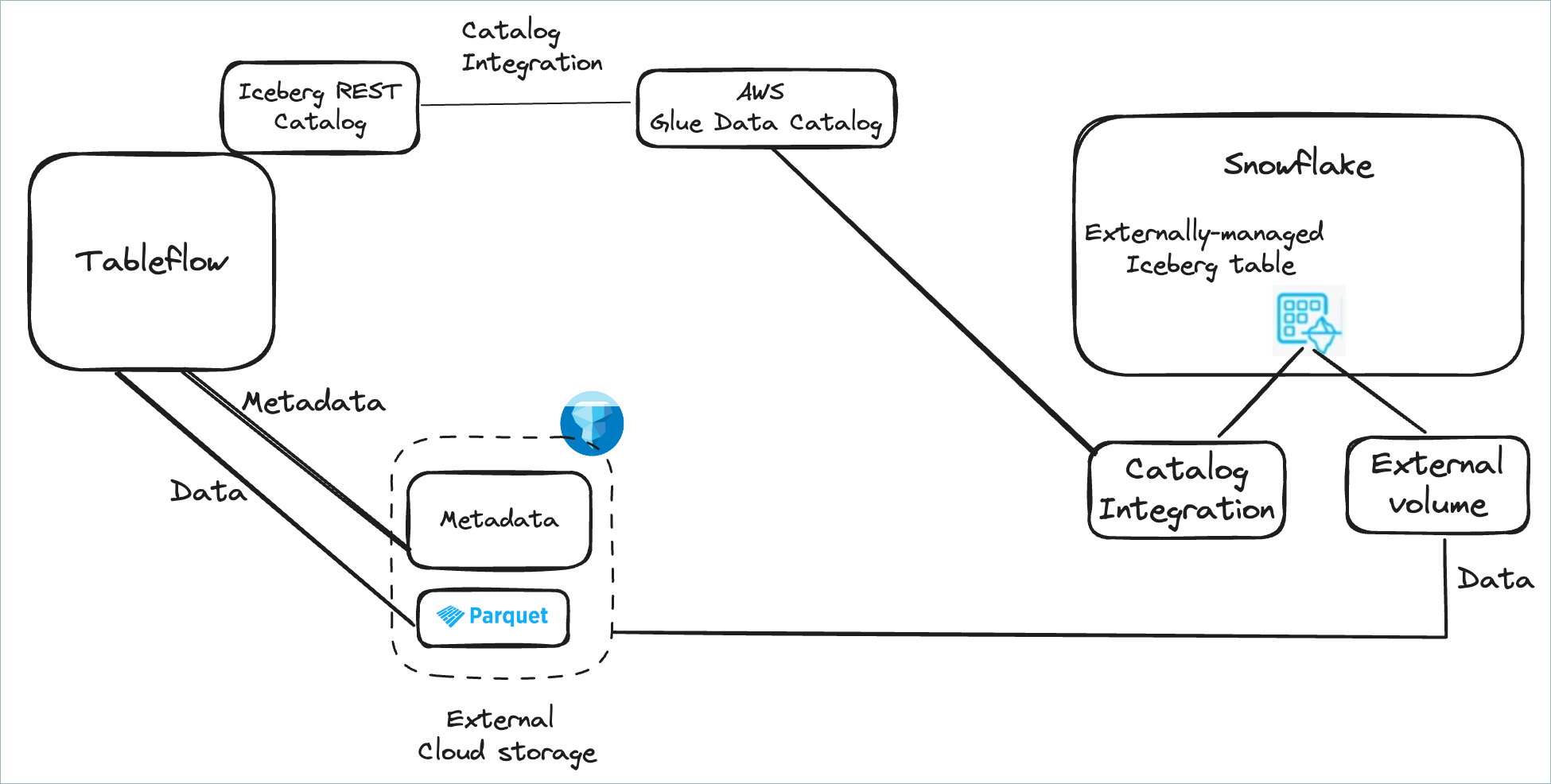
Step 1: Configure AWS Glue Data Catalog integration in Tableflow
To consume Tableflow tables in Snowflake with the AWS Glue Data Catalog, configure AWS Glue Catalog Integration.
Step 2: Create a Snowflake external volume and Snowflake catalog integration
Follow these steps to create a Snowflake external volume and Snowflake catalog integration.
Step 3: Configure access permissions for the AWS Glue Data Catalog
Configure access permission in AWS to enable Snowflake and AWS Glue Data Catalog connectivity by following the instructions in the Snowflake documentation.
Step 4: Create a catalog integration in Snowflake
In Snowflake, run the following SQL query to create a Snowflake catalog integration for the AWS Glue Data Catalog.
CREATE CATALOG INTEGRATION myGlueCatalogIntegration
  CATALOG_SOURCE = GLUE
  CATALOG_NAMESPACE = '<catalog-namespace>'
  TABLE_FORMAT = ICEBERG
  GLUE_AWS_ROLE_ARN = '<arn-for-aws-role-to-assume>'
  GLUE_CATALOG_ID = '<glue-catalog-id>'
  GLUE_REGION = '<aws-region-of-the-glue-catalog>'
  ENABLED = TRUE;
Step 5: Retrieve the AWS IAM user and external ID for your Snowflake account
Obtain the AWS IAM user ARN and external ID for your Snowflake account by following the instructions in the Snowflake documentation.
Step 6: Grant the IAM user permissions to access the AWS Glue Data Catalog
Update the trust policy for the same IAM role that you specified with the ARN when you created the catalog integration, by following the instructions in the Snowflake documentation.
Step 7: Create an Iceberg table
Create the Iceberg table using the external volume and Snowflake catalog integration that you created in Step 3. Replace <kafka-topic-name> with tableflow-stock-trades.
CREATE OR REPLACE ICEBERG TABLE snowflake_stock_trades
  EXTERNAL_VOLUME = 'stock_trades_volume'
  CATALOG = 'myGlueCatalogIntegration'
  CATALOG_TABLE_NAME = '<kafka-topic-name>'
Step 8: Query the Iceberg table
Run the following statement to query the Iceberg table.
SELECT * FROM snowflake_stock_trades;
Use Snowflake with Snowflake Open Catalog for existing deployments
You can use the Snowflake Open Catalog as the Iceberg catalog to query Iceberg tables created by Tableflow.
Warning
Use this method only for existing Open Catalog deployments. For new deployments, use Integrate Tableflow with Snowflake Horizon Catalog in Confluent Cloud. Snowflake no longer offers Open Catalog sign-up to new accounts. For more information, see the Snowflake Open Catalog overview.
Configure the Snowflake Open Catalog as an external catalog by using catalog integration in Tableflow. This enables the metadata of Iceberg tables materialized by Tableflow to be published to the Snowflake Open Catalog.
Create a Snowflake catalog integration with Snowflake Open Catalog to enable seamless access.
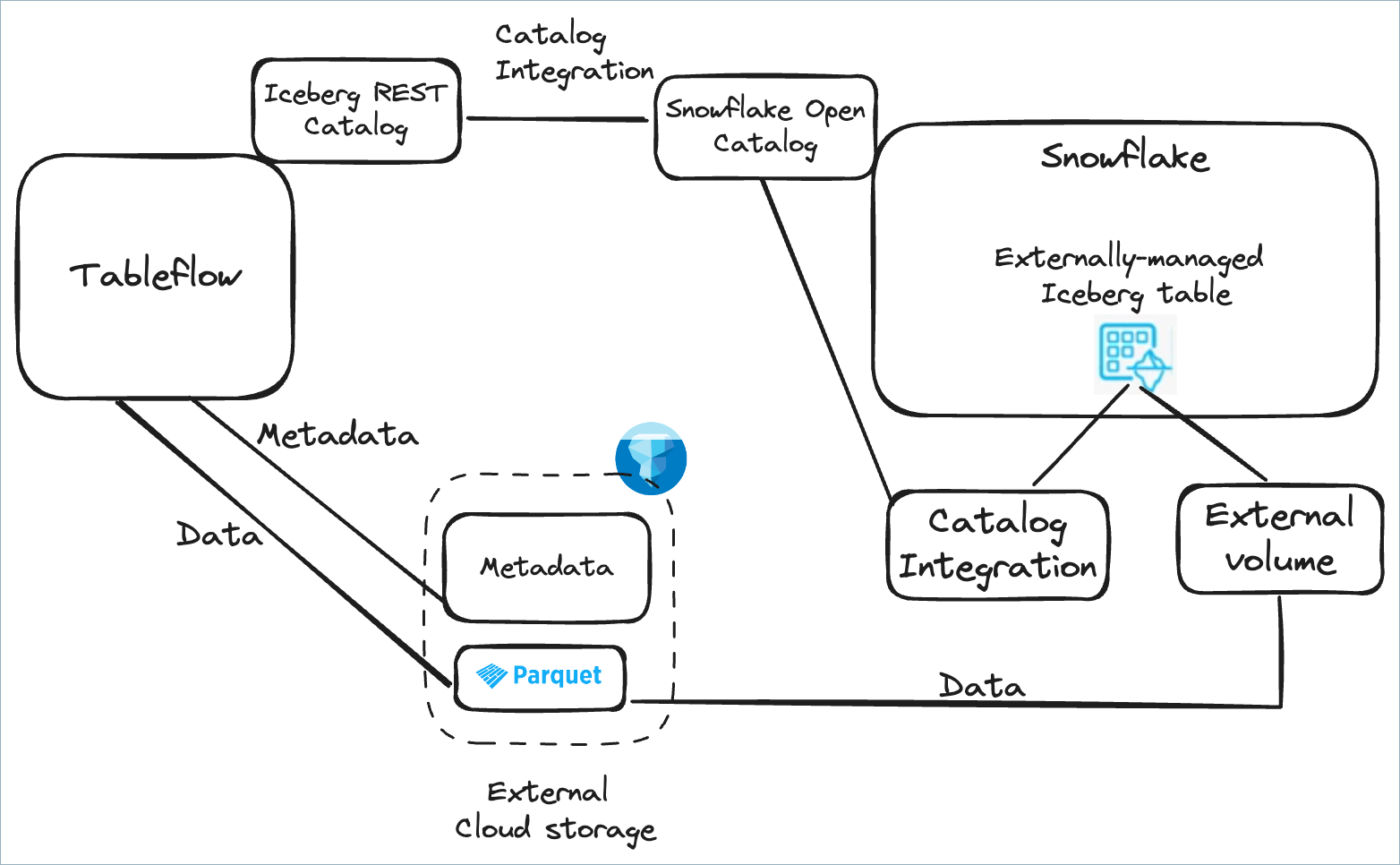
Configure Tableflow catalog integration for Snowflake Open Catalog by following the steps in Integrate Tableflow with Snowflake Open Catalog
To query Tableflow Iceberg tables published to Snowflake Open Catalog, you must create an external volume using the same storage bucket you used to store Iceberg tables by following the steps in Configure an external volume for Amazon S3.
To use Snowflake to query your Iceberg tables, you must create a catalog integration in Snowflake pointing to the Snowflake Open Catalog service by running the following query.
CREATE OR REPLACE CATALOG INTEGRATION my_snowflake_open_catalog_int
  CATALOG_SOURCE=POLARIS
  TABLE_FORMAT=ICEBERG
  CATALOG_NAMESPACE='<kafka-cluster-id>'
  REST_CONFIG = (
     CATALOG_URI ='https://<org-name>-<my-snowflake-open-catalog-account-name>.snowflakecomputing.com/polaris/api/catalog'
     WAREHOUSE = 'my_tableflow_ext_catalog'
  )
  REST_AUTHENTICATION = (
     TYPE=OAUTH
     OAUTH_CLIENT_ID='<my_client_id>'
     OAUTH_CLIENT_SECRET='<my_client_secret>'
     OAUTH_ALLOWED_SCOPES=('PRINCIPAL_ROLE:my_polaris_principal_role')
  )
  ENABLED=true;
Run the following query to create an externally managed Iceberg table.
CREATE ICEBERG TABLE open_catalog_orders_iceberg_table
  CATALOG = 'my_snowflake_open_catalog_int'
  EXTERNAL_VOLUME = 'my_tableflow_data_volume'
  CATALOG_TABLE_NAME = 'orders_topic';
Run the following query to query your data.
SELECT * FROM open_catalog_orders_iceberg_table;