

Troubleshoot Confluent Cloud Billing
If you encounter issues while signing up for or linking a Confluent Cloud account through a cloud provider marketplace, see the following common scenarios. Some scenarios are specific to a marketplace and appear under their provider section.
Common issues
Email already in use
- Symptoms
When you sign up for Confluent Cloud through a cloud provider marketplace, Confluent Cloud reports that your email address is already in use.
You sign in and see existing clusters.
Charges from your previous payment method continue to appear.
- Solution
Choose one option:
Register with a new email address to create a new Confluent Cloud organization while keeping your original billing method.
Select Link an existing account, then update the billing method of your existing Confluent Cloud organization to use your cloud provider marketplace account. For more information, see Manage your payment method.
Cannot link a pay-as-you-go account
- Symptoms
Linking fails with the error
Account cannot be linked, code 9201.- Solution
You cannot link a Confluent Cloud pay-as-you-go account to a marketplace pay-as-you-go account. Link your Confluent Cloud pay-as-you-go account to a usage-based commitment for your provider instead:
No active subscription
- Symptoms
The Confluent Cloud Console shows that you do not have an active subscription.
- Solution
Reactivate your subscription:
AWS: Subscribe again through the AWS Marketplace. Confluent migrates your existing clusters to the new organization. For more information, see Get Started with Confluent Cloud on the AWS Marketplace with Pay As You Go.
Google Cloud: Re-enable the project on Google Cloud to activate the organization.
Pending Confluent Cloud setup
- Symptoms
The Confluent Cloud Console displays the message “Your organization is being provisioned on Confluent Cloud.”
- Solution
Confluent Cloud is still completing tasks to create your organization. Confluent notifies you when setup is complete.
Amazon Web Services
Linking fails with a marketplace subscription error
- Symptoms
Your attempt to link a pay-as-you-go account fails with an error similar to the following:
We encountered an error while getting the marketplace subscription for
organization
- Solution
Wait a few minutes and retry by selecting Link another account. New AWS subscriptions can take a few minutes to propagate to Confluent Cloud.
Payment method not an invoicing plan
- Symptoms
Your payment method is set to something other than Invoicing Plan.
- Solution
Contact AWS Support to change your payment method. For more information, see the following AWS guides:
Timely renewal concerns
- Symptoms
You want to avoid service interruption if your AWS Marketplace commitment is not renewed before the expiration date.
- Solution
If you do not already have a pay-as-you-go subscription from the AWS Marketplace, create one on the same AWS account ID that you use for the AWS Marketplace commitment. With a pay-as-you-go subscription in place, the following happens at renewal:
If your commitment expires, Confluent automatically links your Confluent Cloud organization to your new pay-as-you-go subscription and sends you a confirmation email.
If your commitment renews before the expiration date, Confluent does not link your Confluent Cloud organization to your new pay-as-you-go subscription.
To create the pay-as-you-go subscription:
Sign in to AWS Marketplace.
Find the Apache Kafka® on Confluent Cloud™ tile and select Continue to Subscribe.
Select Subscribe.
After you subscribe, do not set up the account. Specifically, do not select Link a new or existing vendor account.
Microsoft Azure
Sign-up fails because your Microsoft Entra email is already in use
- Symptoms
When you sign up on the Azure portal, you get a conflict error.
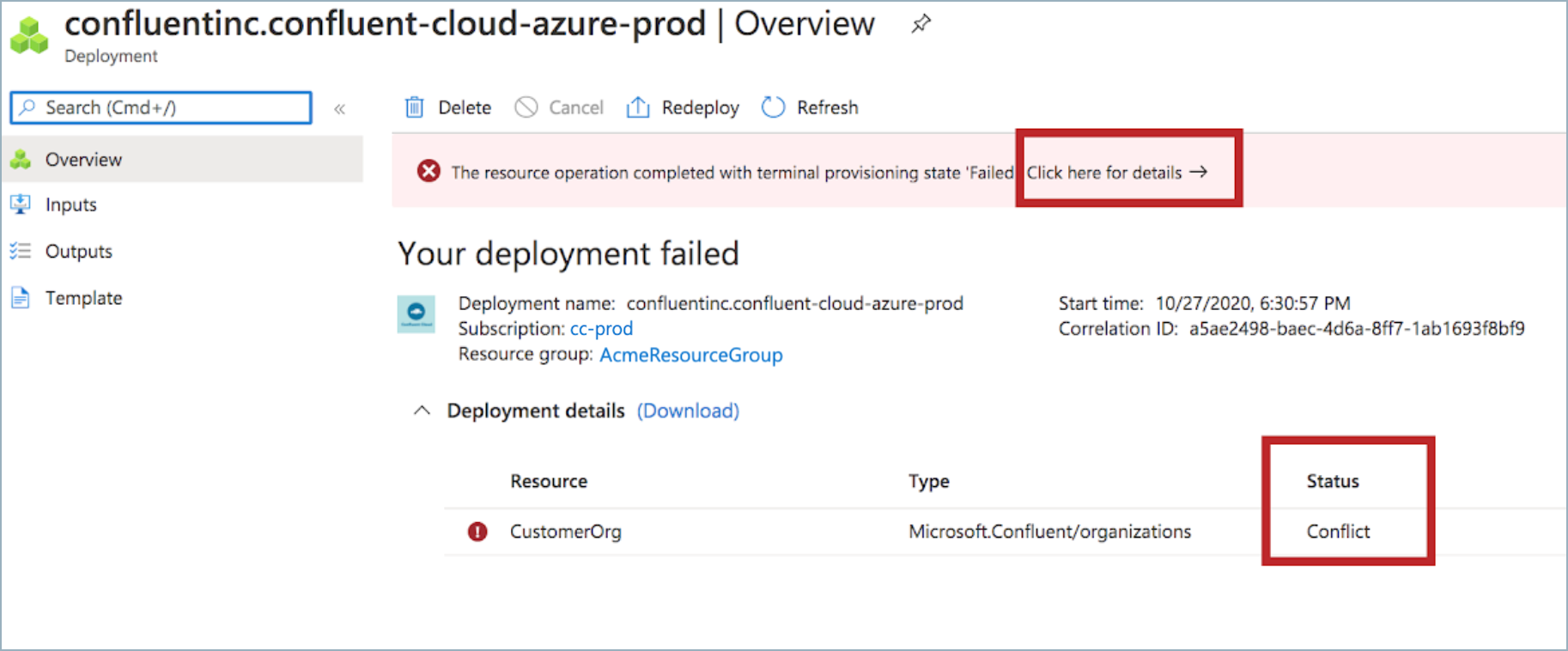
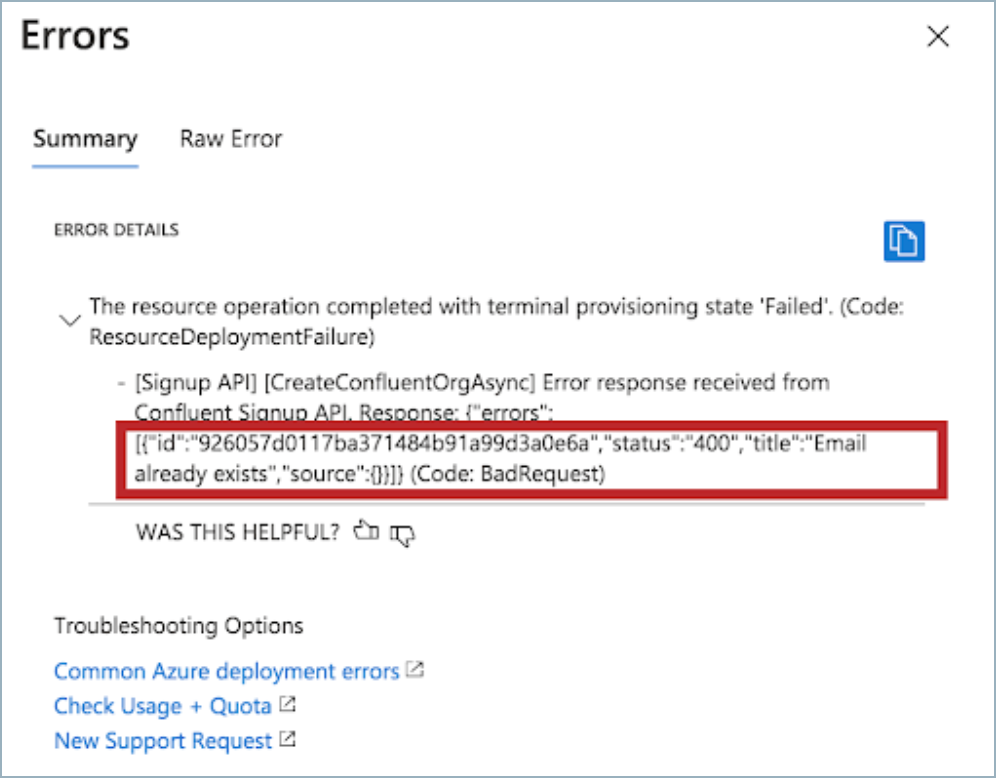
When you select the Click here for details link in the error message, “Email already exists” is shown as the reason for the sign-up failure.
- Solution
If your Microsoft Entra ID (formerly Azure Active Directory) email is already used for another Confluent Cloud organization, you cannot register for a new Confluent Cloud organization through the Azure Marketplace with that email. To resolve this, remove yourself from the existing organization or use a different email, then retry the sign-up. For details on removing yourself, see the Prerequisites.
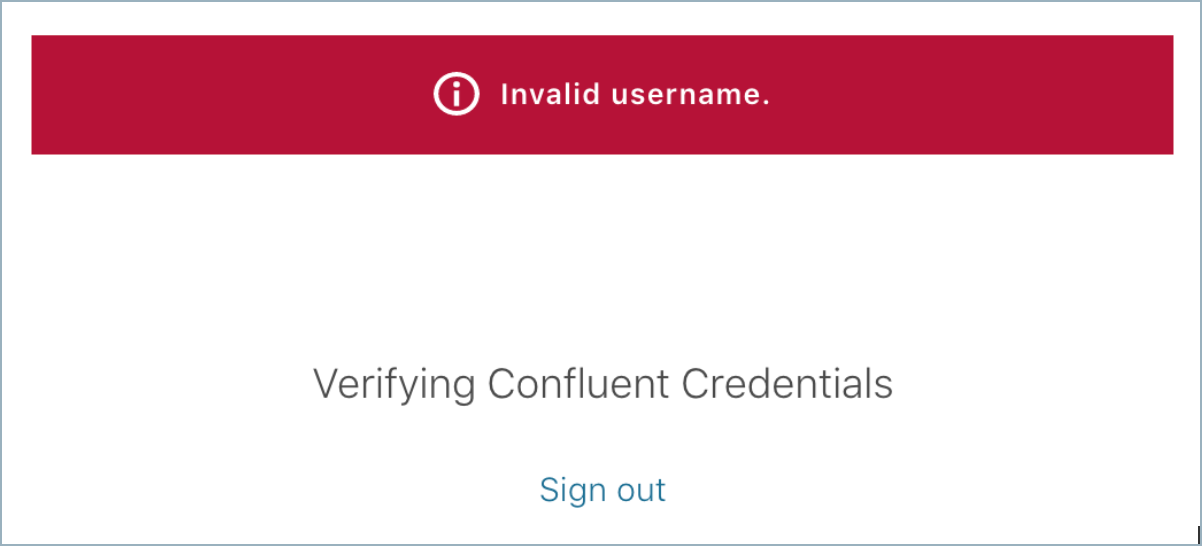
SSO login failure: invalid username
- Symptoms
You sign in with your Microsoft Entra credentials, but the email or User Principal Name (UPN) in your Microsoft Entra token is not registered with any Confluent Cloud organization, so you cannot sign in to Confluent Cloud.
- Solution
Ask your Confluent Cloud organization administrator to invite you to the Confluent Cloud organization. For more information, see Manage Single Sign-On (SSO) User Accounts on Confluent Cloud.
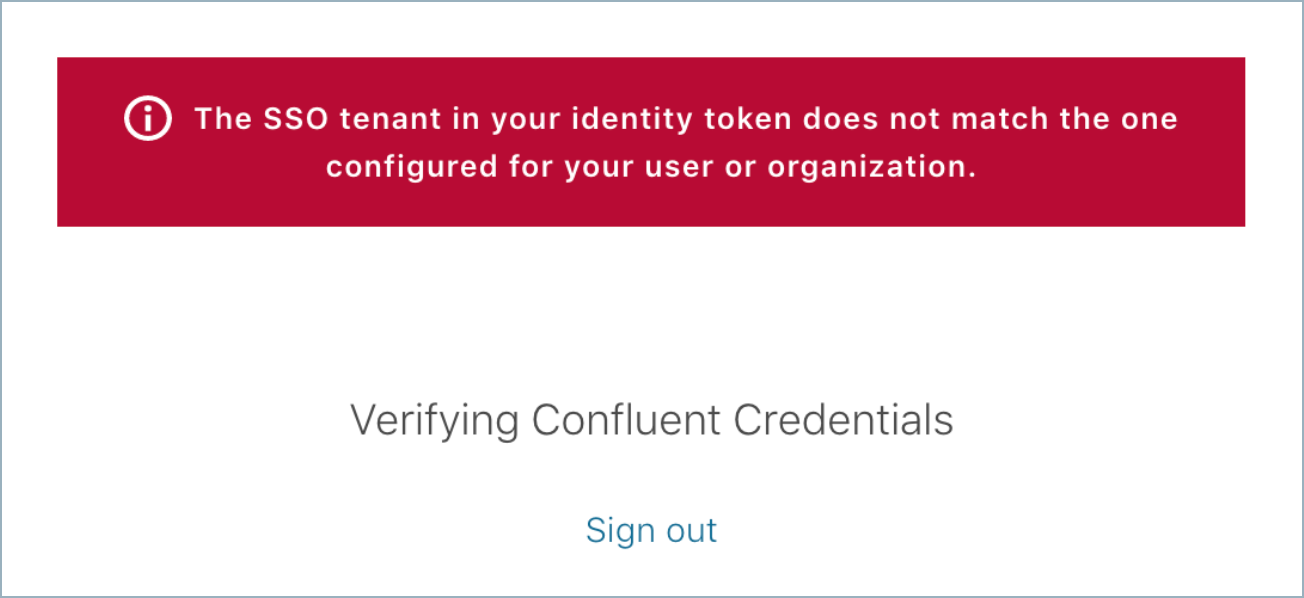
SSO login failure: tenant mismatch
- Symptoms
You sign in with your Microsoft Entra credentials, but your account does not belong to the Microsoft Entra tenant used during Confluent Cloud sign-up, so you cannot sign in to Confluent Cloud.
- Solution
Ask your Confluent Cloud organization administrator to add you to the Microsoft Entra tenant that you used during Confluent Cloud sign-up.
Cannot launch an Azure resource in a region
- Symptoms
A message on the Azure portal states that you cannot launch resources in a specific Azure region.
- Solution
Region restrictions come from an Azure policy assignment, typically the built-in Allowed locations policy. Because an administrator sets these policies, ask your Azure administrator to allow your region. For more information, see Azure Policy in the Azure documentation.
Deployment failed: could not create a Marketplace resource
- Symptoms
A message on the Azure portal states that the deployment operation failed.
- Solution
Make sure your subscription has Marketplace purchase permission, meaning your account has subscription owner or contributor permissions. For more information, see Assign Azure roles in the Azure documentation.
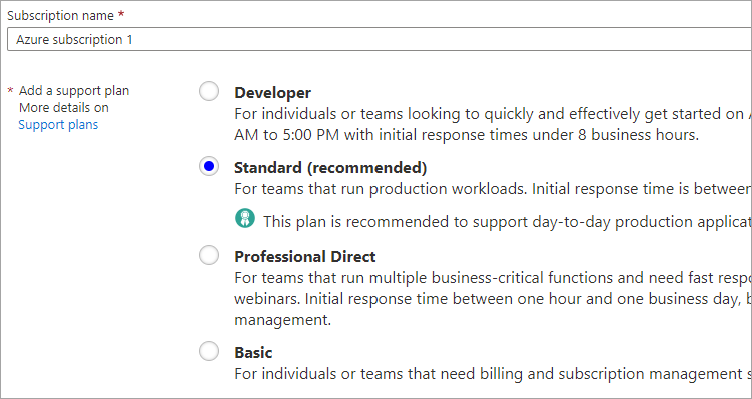
In addition, verify that you have an Azure Standard or higher support plan associated with your subscription. A Developer support subscription does not meet this requirement.
Administrator approval required for SSO
- Symptoms
When you sign in to Confluent Cloud using Azure default SSO, you receive an
Admin approval requirederror. This can happen the first time you sign in after you enable click-through or group mappings.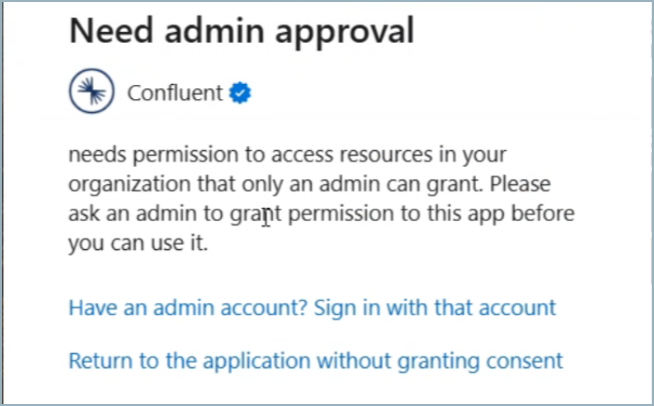
- Solution
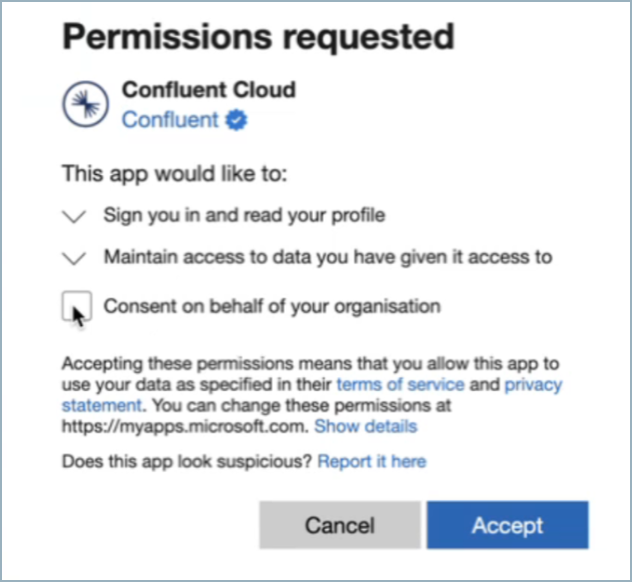
A Microsoft Entra ID Global Administrator must accept permissions for the Confluent application. After the Global Administrator selects SSO and approves, all users can sign in.
Administrator approval required for a private offer
- Symptoms
You try to accept a private offer and validation fails with the message, “Validation failed. Some payment validation issue happened for the subscription id.”
- Solution
In the rules for the collection, the Azure administrator must select Enable private products, which approves all private offers and private plans for your organization. For more information, see Collection rules in the Azure documentation.
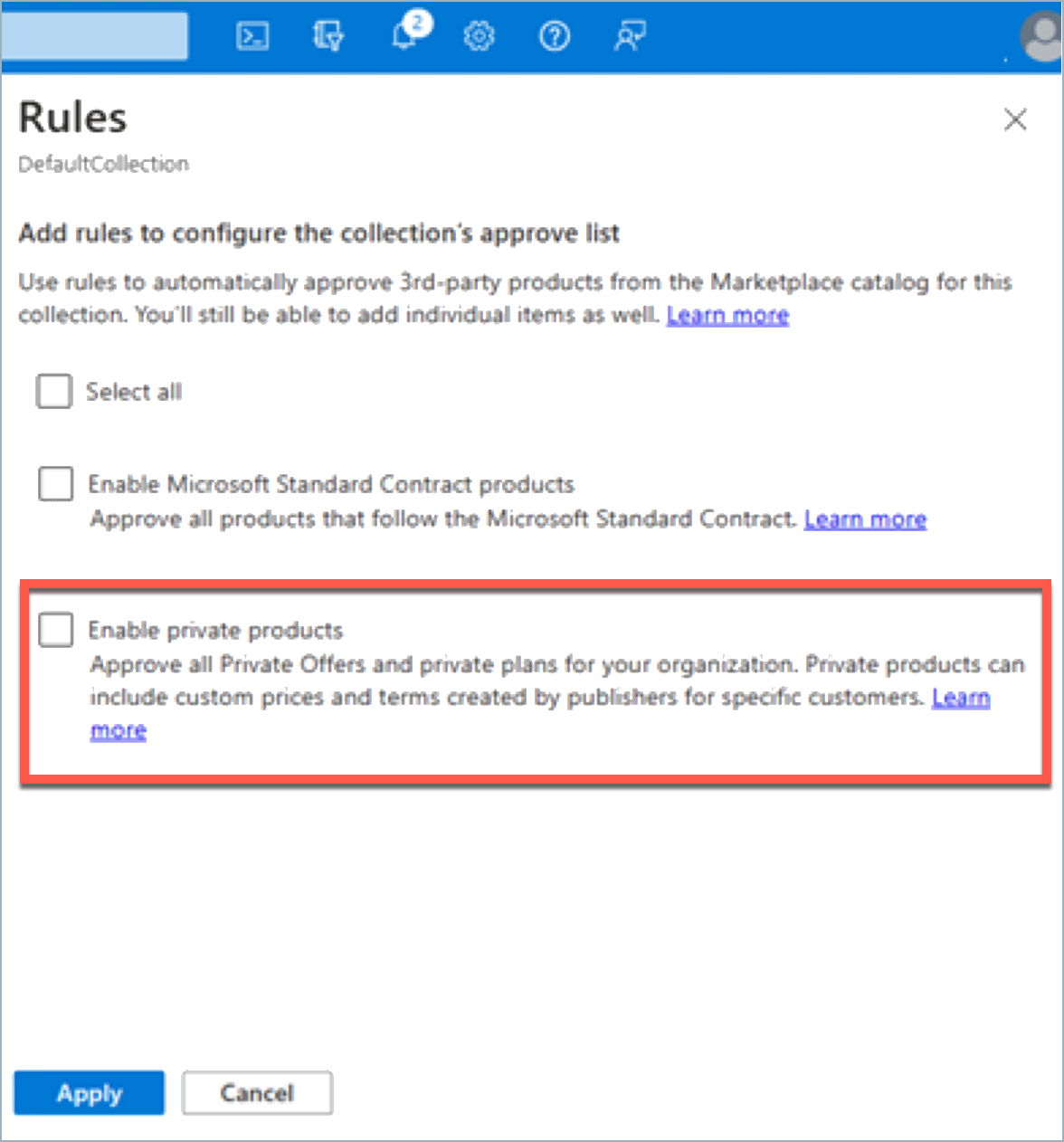
You cannot approve a specific private offer. You must give global permission for all private offers.
If you continue to get the validation error, you must re-enable Marketplace purchases. For more information, see Enabling Azure Marketplace purchases.
Cannot view a private offer
- Symptoms
You access the marketplace through portal.azure.com, but cannot view the private offer after you select View private products.
- Solution
Confirm with your Confluent Account Executive (AE) that a private offer has been created for your organization, and that you shared the correct billing account ID with your Confluent AE.
Billing account is a Microsoft Partner Agreement
- Symptoms
During click-through, you see the following error:
Validation failed. Microsoft.Confluent resource provider registration API failed with Unknown error.
Please retry after some time or if required, contact support at https://support.confluent.io. User can try to register manually by going to
subscription -> Resource providers -> search Microsoft.Confluent and click register.
- Solution
To determine your billing type, see Check the type of your billing account in the Azure documentation. If your billing account is a Microsoft Partner Agreement, contact Confluent Support to create an offer.
Jio Marketplace
Pay-as-you-go plans are not currently supported through the Jio Marketplace.
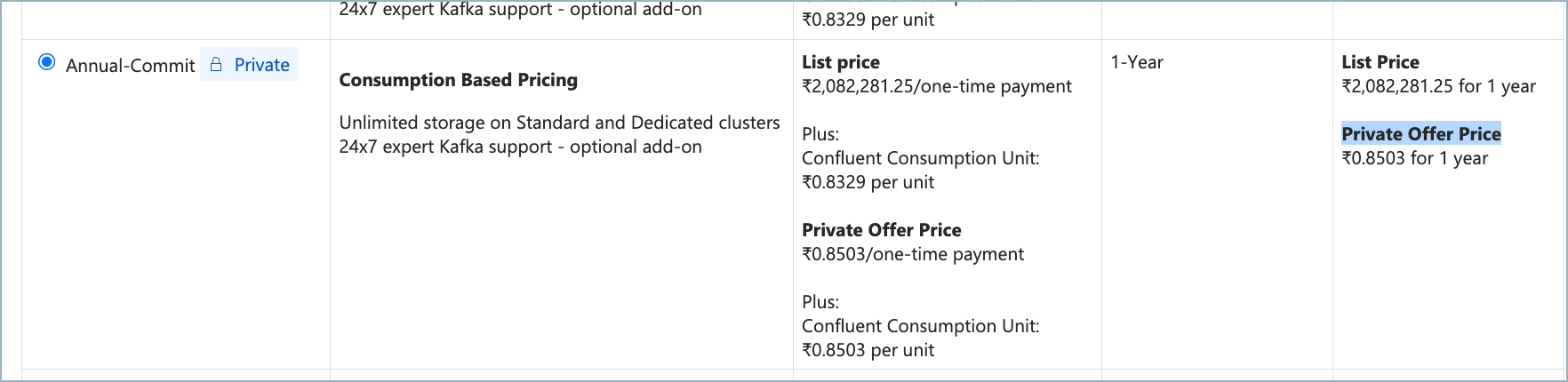
Private offer icon is not visible
- Symptoms
The private offer icon is not visible on public commits when you select the plan in the Azure Marketplace.
- Solution
If the private offer icon is not visible during a private offer subscription, your plan is not correctly configured or Azure has not enabled it. Contact Confluent Support.
Validation failed error
- Symptoms
You subscribed to Confluent through a Jio account on the Azure Marketplace and you see the following error:
Validation failed. Microsoft.Confluent resource provider registration API failed with Unknown error.
Please retry after some time or if required, contact support at https://support.confluent.io.
- Solution
Contact Confluent Support to create a specific private offer for your tenant.