

Get Started with Confluent Cloud on the AWS Marketplace
You can use Confluent Cloud through the AWS Marketplace with pay-as-you-go billing, where you pay only for what you use, or with a usage-based billing (UBB) commitment, where you commit to a minimum spend and get a discount on your committed usage.
Tip
You can pay for Confluent Cloud through your cloud provider’s Marketplace using Confluent Consumption Units (CCUs), the billing units used in cloud marketplace deployments. Pricing in the Marketplace is the same as direct purchase pricing. For more information, see Manage Billing in Confluent Cloud.
Pay As You Go on the AWS Marketplace
To start using Confluent Cloud with AWS Marketplace pay-as-you-go billing, subscribe through the AWS Marketplace, set up or link a Confluent Cloud organization, and create a cluster. With pay-as-you-go billing, you pay only for what you use, billed directly through AWS.
When you set this up on the AWS Marketplace, you can create a new Confluent Cloud organization or link to an existing organization.
Prerequisites
An AWS account. Billing flows directly through AWS.
A new email address, if you have previously registered for Confluent Cloud. The AWS Marketplace flow requires an email address that is not yet associated with a Confluent Cloud organization.
Permission to buy in the AWS Marketplace. Your AWS account ID must be enabled for purchases by your billing administrator.
Procedure
Go to the AWS Marketplace and search for “Confluent Cloud”.
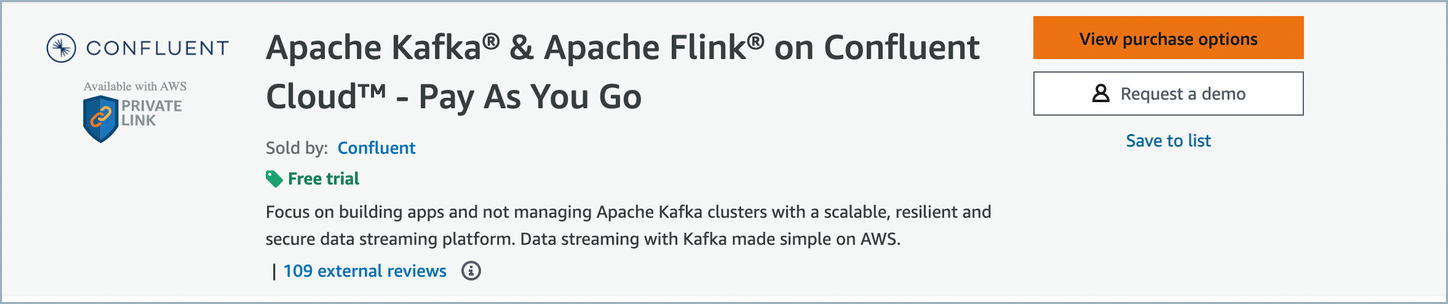
Find the Confluent Cloud tile and select Continue to Subscribe.
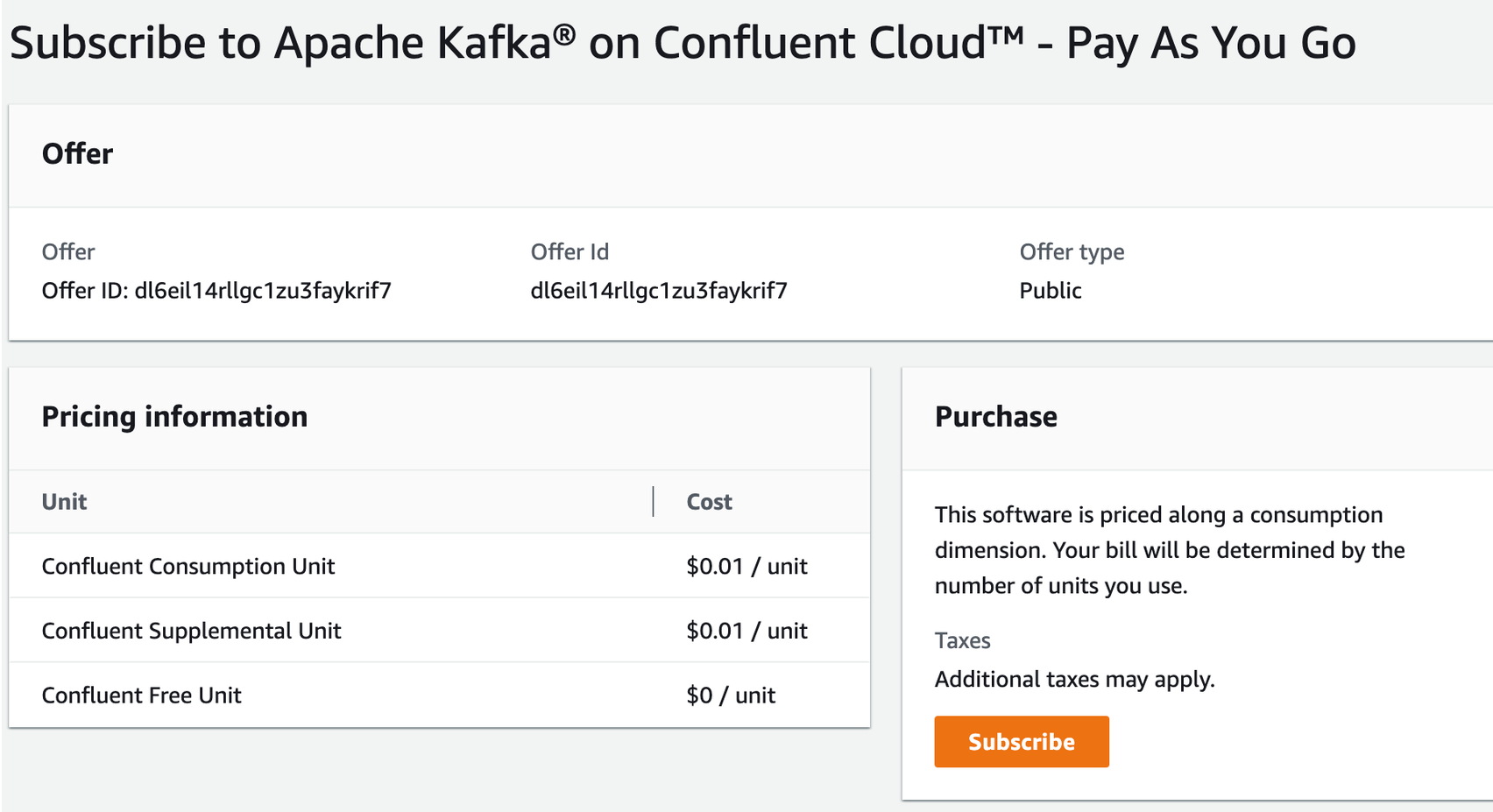
Confirm the pricing details and select Subscribe.
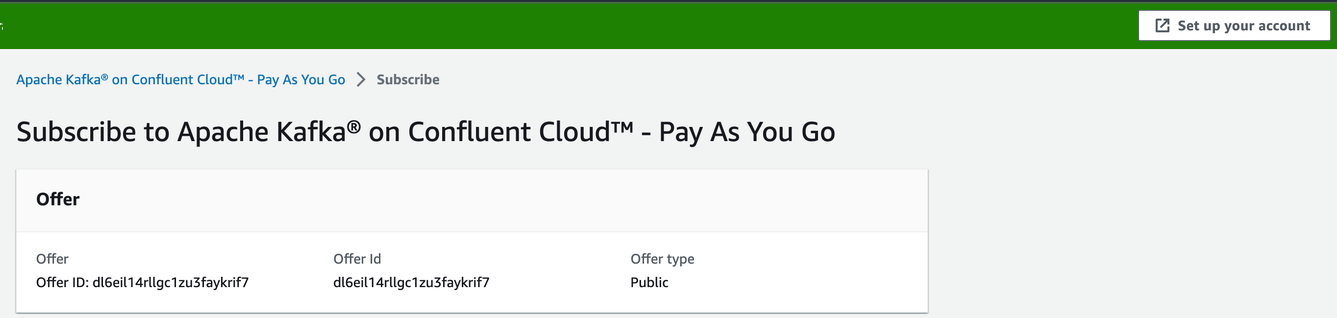
Select Set up your account.
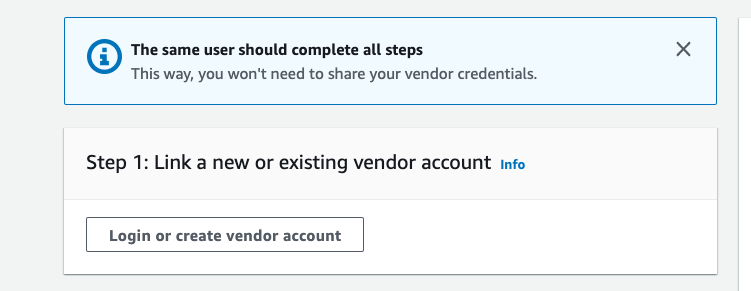
Select Login or create vendor account.
For the Confluent Cloud organization details, you can either create a new Confluent Cloud organization or link to an existing one. If you link to an existing organization, Confluent Cloud prompts you for your account credentials.
Provide the necessary information and click Sign up.
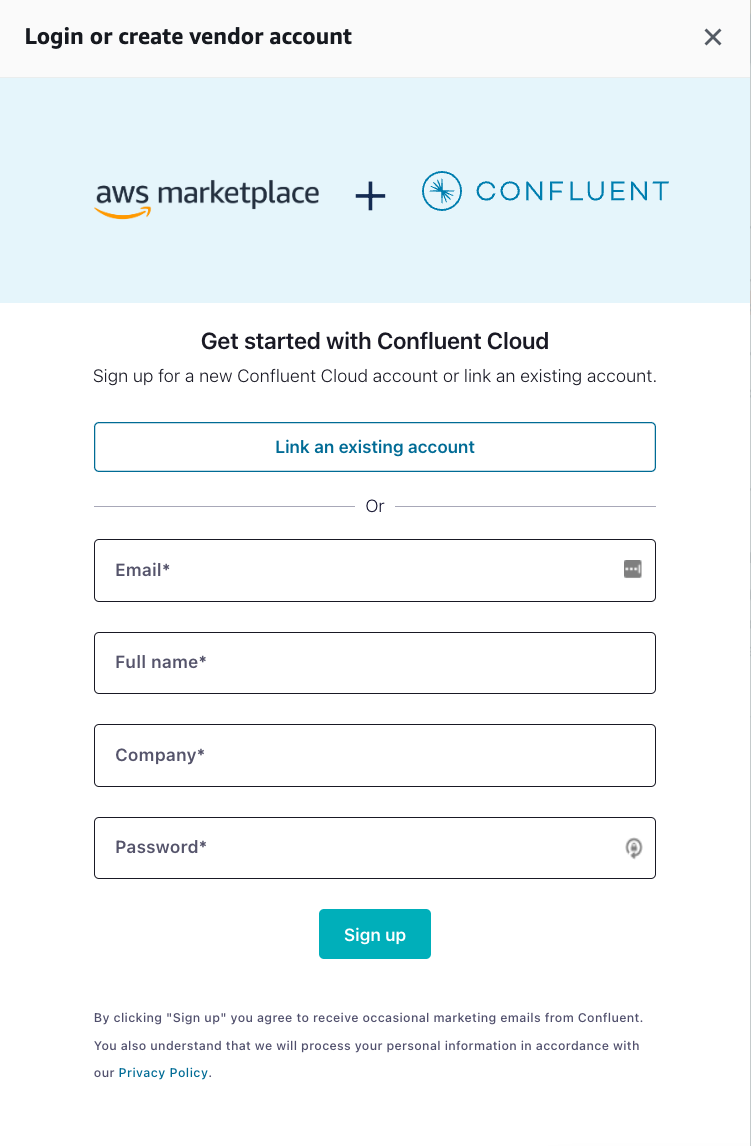
Confluent sends you a verification email. After you verify your email address, you are automatically signed in as the administrator of the new Confluent Cloud account.
Click Link an existing account to go to the Confluent Cloud login page.
Sign in with your Confluent Cloud credentials.
On Confirm billing updates, compare your current billing information with the new payment method. Because your Confluent Cloud account might have access to multiple organizations, make sure the organization is correct.
What to do if your organization is incorrect:
Click Cancel to open the Cloud Console. Switch to the account and organization you intend to link. For more information, see Sign in to an organization.
Go back to the AWS Marketplace and click Go back to register with Confluent Cloud. Restart these steps from the beginning.
Check each box to confirm that you understand the terms of service and billing terms.
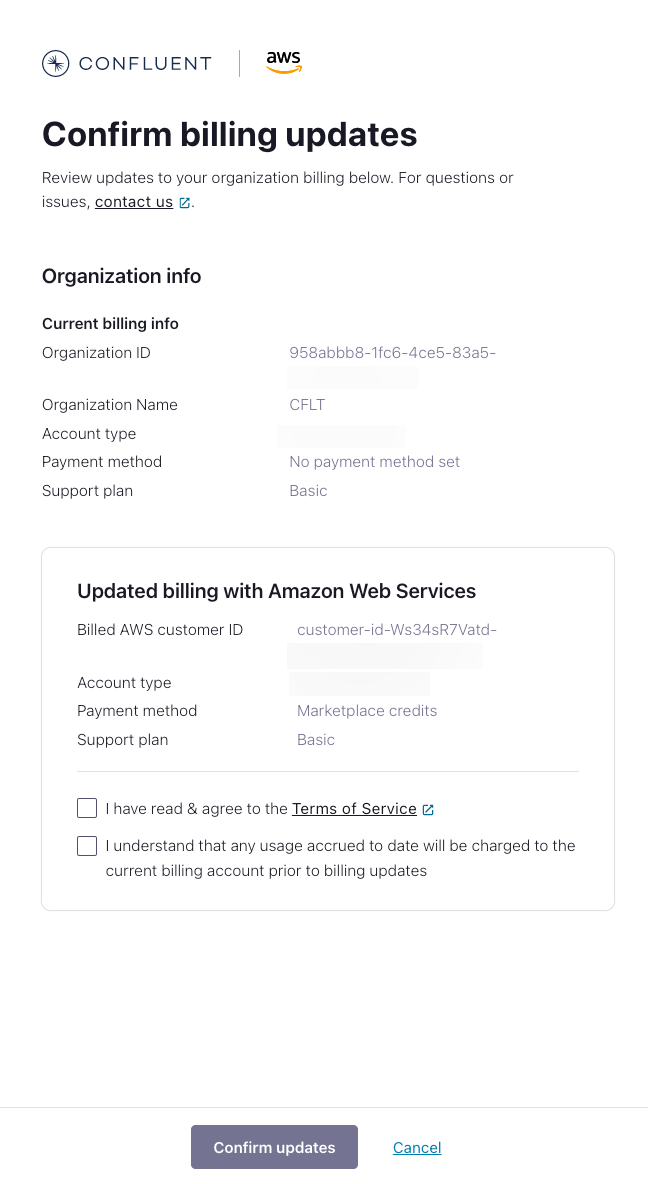
Click Confirm updates.
Watch the following video for a walkthrough of linking an existing Confluent Cloud organization from the AWS Marketplace.
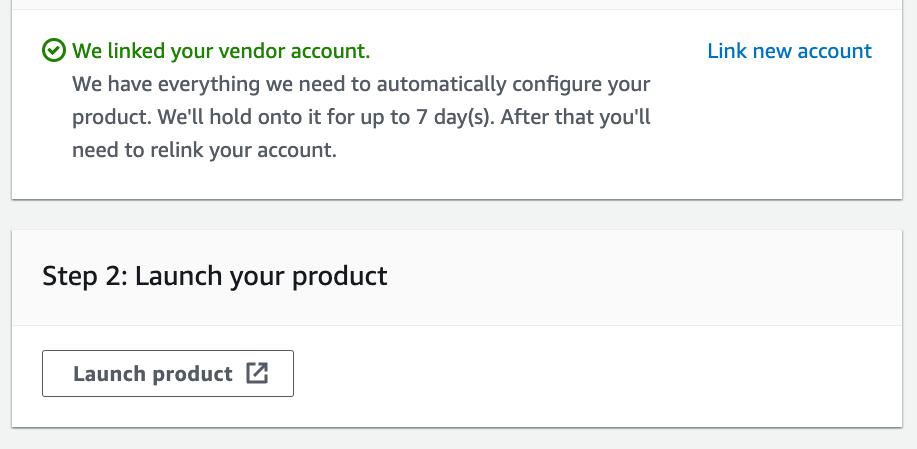
After you sign up or link your account, select Launch product to go to Confluent Cloud.
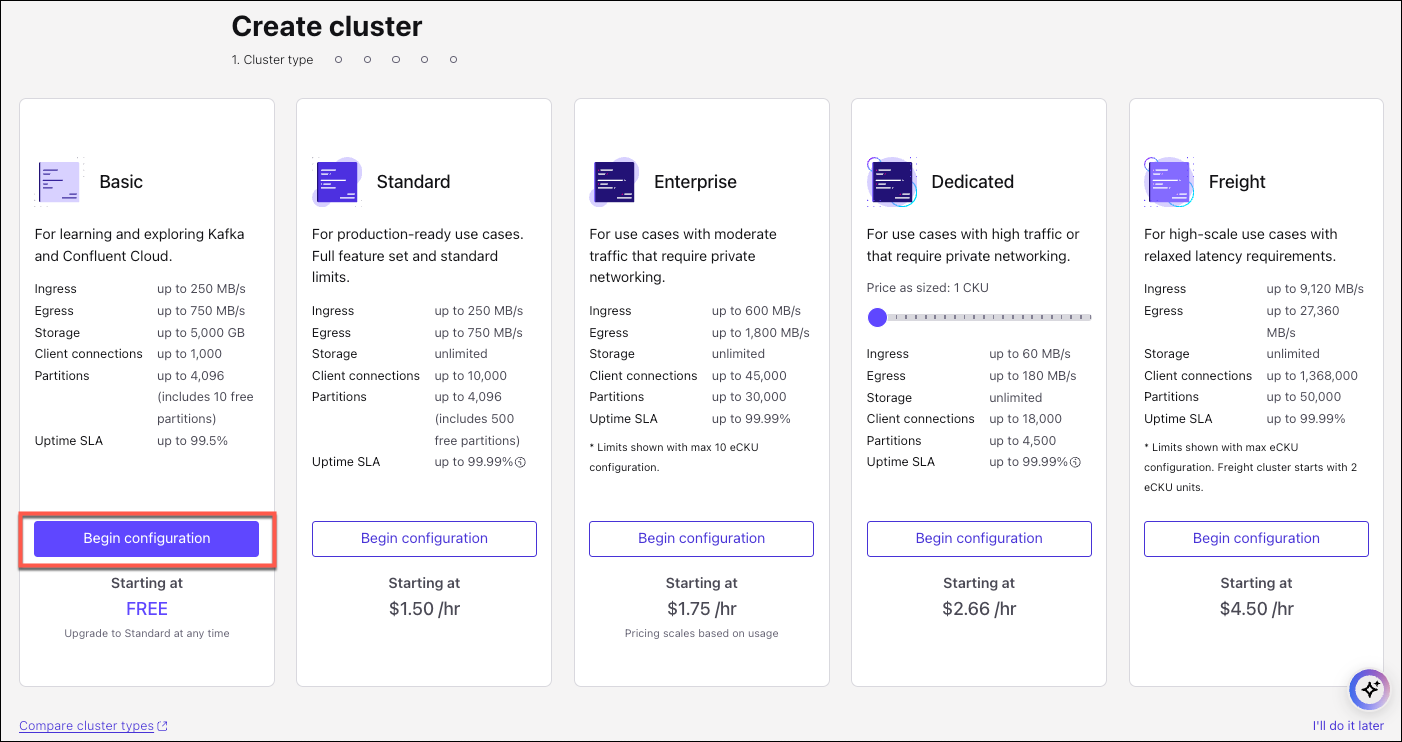
To create a new Confluent Cloud cluster, click Create cluster in the Cloud Console. For more information, see Create a Kafka Cluster.
Next steps
To create topics and produce or consume messages on your new Apache Kafka® cluster, see the Quick Start for Confluent Cloud.
Learn more about the advantages of using Apache Kafka as a service with Confluent Cloud on AWS.
For help with sign-up, linking, and subscription issues, see Troubleshoot Confluent Cloud Billing.
Commitments on the AWS Marketplace
With a Confluent Cloud usage-based billing (UBB) commitment, you commit to a minimum spend through the AWS Marketplace and get a discount on your committed usage of Confluent Cloud. This topic shows you how to purchase a commitment and link or create a Confluent Cloud organization.
Prerequisites
An AWS Marketplace account. Billing flows directly through AWS.
A new email address, if you have previously registered for Confluent Cloud. The AWS Marketplace flow requires an email address that is not yet associated with a Confluent Cloud organization.
Permission to buy in the AWS Marketplace. Your AWS account ID must be enabled for purchases by your billing administrator.
A default payment method set to Invoicing Plan on your AWS Buyer ID.
Procedure
Contact the Confluent sales team and request a private offer for an AWS Confluent Cloud commitment. You receive an AWS Marketplace private offer from the Confluent sales team.
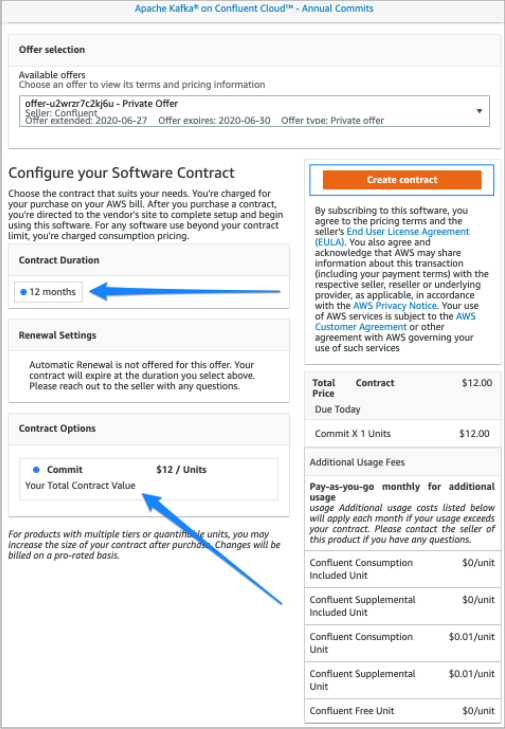
View the offer on the AWS Marketplace using the private offer link from the Confluent sales team. Review the terms of use, and select Create contract.
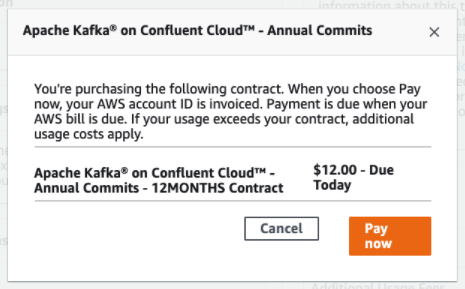
After you create a contract, a pop-up window opens with details of the amount invoiced to your AWS account.
Select Pay now. This amount is invoiced to your AWS account to subscribe to the service.
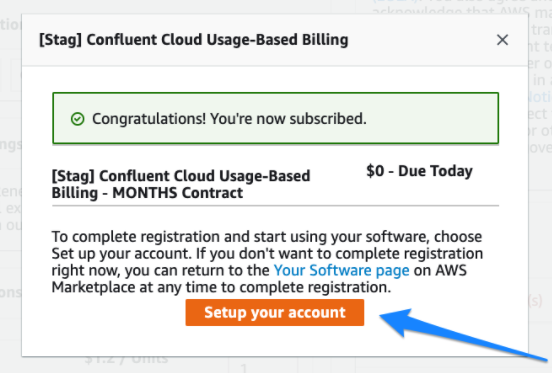
Select Setup your account. You are redirected to the Confluent Cloud sign-up page.
For the Confluent Cloud organization details, you can either create a new Confluent Cloud organization or link to an existing one. If you link to an existing organization, Confluent Cloud prompts you for your account credentials.
Provide the necessary information and click Sign up.
Confluent sends you a verification email. After you verify your email address, you are automatically signed in as the administrator of the new Confluent Cloud account.
Click Link an existing account to go to the Confluent Cloud login page.
Sign in with your Confluent Cloud credentials.
On Confirm billing updates, compare your current billing information with the new payment method. Because your Confluent Cloud account might have access to multiple organizations, make sure the organization is correct.
What to do if your organization is incorrect:
Click Cancel to open the Cloud Console. Switch to the account and organization you intend to link. For more information, see Sign in to an organization.
Go back to the AWS Marketplace and click Go back to register with Confluent Cloud. Restart these steps from the beginning.
Check each box to confirm that you understand the terms of service and billing terms.
Click Confirm updates.
Watch the following video for a walkthrough of linking an existing Confluent Cloud organization from the AWS Marketplace.
To create a new Confluent Cloud cluster, click Create cluster in the Cloud Console. For more information, see Create a Kafka Cluster.
Next steps
To create topics and produce or consume messages on your new Apache Kafka® cluster, see the Quick Start for Confluent Cloud.
Learn more about the advantages of using Apache Kafka as a service with Confluent Cloud on AWS.
For help with sign-up, linking, and subscription issues, see Troubleshoot Confluent Cloud Billing.