

Integrate Tableflow with the Lakehouse Runtime Catalog in Confluent Cloud
The Lakehouse runtime catalog, formerly BigLake metastore, is a Google Cloud catalog for Apache Iceberg™ tables. Tableflow publishes the Iceberg tables that it materializes to the Lakehouse runtime catalog automatically, so that you can query them from BigQuery.
The catalog integration works at the cluster level. Tableflow creates a namespace in the catalog and publishes each Iceberg-enabled topic in the cluster as a table in that namespace. By default, the namespace name is your Apache Kafka® cluster ID. BigQuery reads table metadata from the catalog and table data from your Google Cloud Storage bucket.
The Google Cloud APIs, Identity and Access Management (IAM) roles, and gcloud
commands for the catalog still use the name biglake. For an overview of
the catalog, see
About the Lakehouse runtime catalog
in the Google Cloud documentation.
Prerequisites
Before you begin, make sure that you meet the following requirements.
You need the following resources:
A Confluent Cloud cluster on Google Cloud.
At least one Tableflow-enabled topic in the cluster that uses the Iceberg table format and stores its data in your own Google Cloud Storage bucket. For the setup steps, see Tableflow Quick Start Using Your Storage on Google Cloud. Catalog integrations don’t support Confluent Managed Storage.
A Google Cloud provider integration for the service account that Tableflow impersonates. You can use the provider integration from the quick start or create one by following the steps in Create a Google Cloud Provider Integration in Confluent Cloud.
Permission in your Google Cloud project to create a Lakehouse runtime catalog and to grant IAM roles.
Your account needs one of the following sets of role-based access control (RBAC) roles in Confluent Cloud:
The
CloudClusterAdminrole on your Kafka cluster, and theAssignerorResourceOwnerrole on the provider integration.The
EnvironmentAdminorOrganizationAdminrole.
For more information, see Grant Role-Based Access for Tableflow in Confluent Cloud.
Limitations
The Lakehouse runtime catalog integration has the following limitations:
Each namespace in the catalog can use only one Google Cloud Storage bucket. Topics in the same cluster might write to different buckets but sync to the same catalog. If so, contact Confluent Support before you configure the integration. Confluent works with Google to enable multi-bucket namespaces for your project. You must also create a multi-bucket Lakehouse runtime catalog.
IAM role bindings for the Lakehouse runtime catalog apply at the project level. You can’t limit the
BigLake Adminrole to a single catalog.
Configure the Lakehouse runtime catalog integration
Complete the following steps, switching between the Google Cloud console and Confluent Cloud Console:
In the Google Cloud console, create the catalog and grant your service account the roles that it needs by doing the following:
Create a Lakehouse runtime catalog. Set its default storage location to the Google Cloud Storage bucket that Tableflow writes to. If topics in the cluster write to more than one bucket, see Limitations before you create the catalog. Keep the default end-user credential mode, because Tableflow doesn’t support catalogs that use credential vending mode. For more information, see Create a catalog in the Google Cloud documentation.
At the project level, grant your service account the
BigLake Adminrole (roles/biglake.admin).This role lets Tableflow create namespaces and register tables in the catalog. For more information, see Manage access to projects, folders, and organizations in the Google Cloud documentation.
On the bucket, grant your service account the
Storage Object Viewerrole (roles/storage.objectViewer).This role lets the catalog read the table metadata that Tableflow writes to the bucket. For more information, see Set and manage IAM policies on buckets in the Google Cloud documentation.
In Confluent Cloud Console, create the catalog integration by doing the following:
Sign in to the Confluent Cloud Console at https://confluent.cloud/.
In the navigation menu, click Environments.
Click the environment that contains your Google Cloud cluster.
Click Clusters.
Click your cluster.
In the cluster navigation menu, click Tableflow.
On the Tableflow page, in the External Catalog Integrations section, click Add integration.
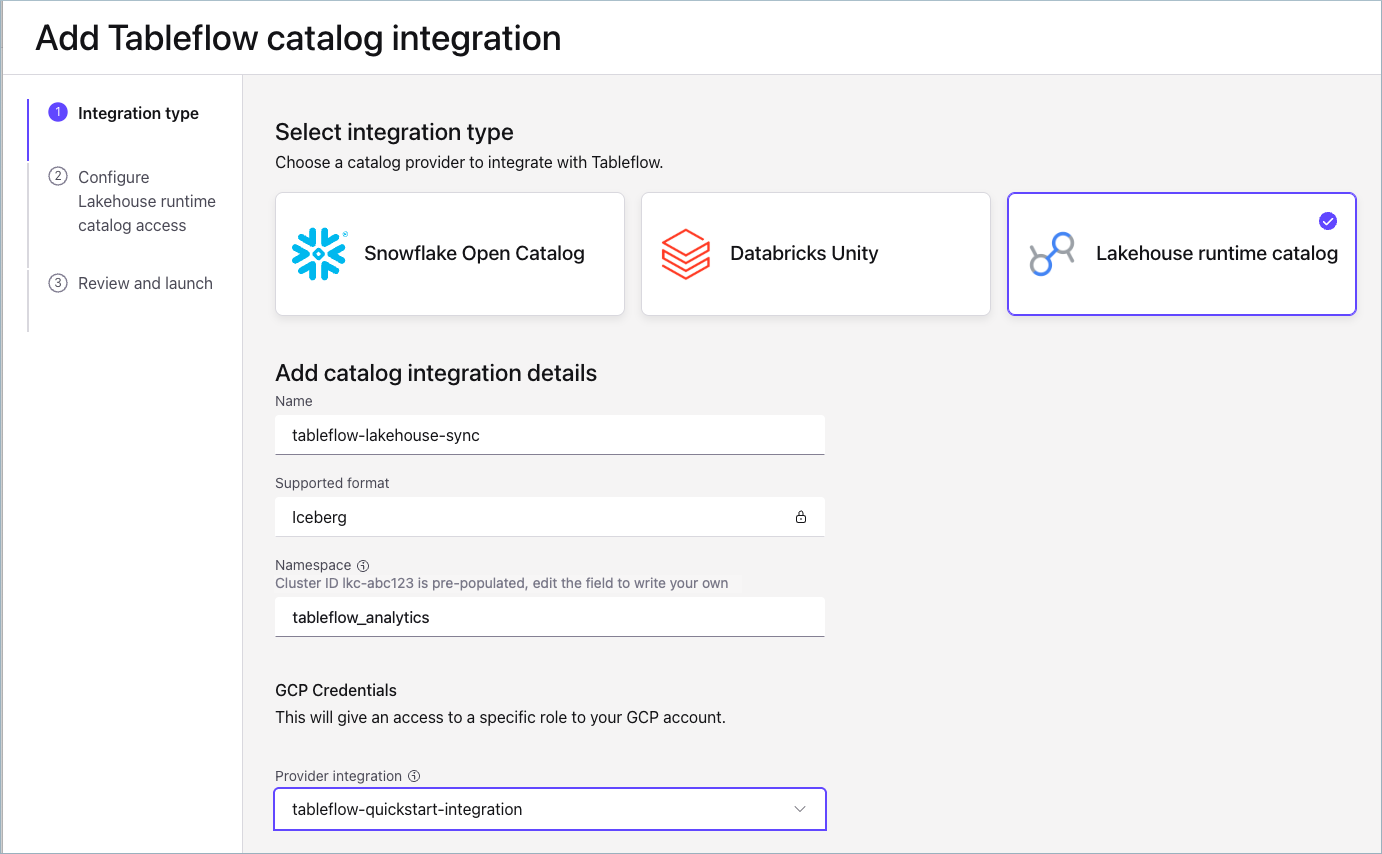
On the Integration type step, click Lakehouse runtime catalog.
For Name, enter a name to identify your catalog integration, for example,
tableflow-lakehouse-sync.For Namespace, keep the default, which is your Kafka cluster ID, or enter a user-defined namespace.
For Provider integration, select your Google Cloud provider integration.
The following image shows example values entered on the Integration type step.
Click Continue.
On the Configure Lakehouse runtime catalog access step, for GCP Project ID, enter your Google Cloud project ID.
For Lakehouse runtime catalog name, enter the name of the catalog that you created.
Click Continue.
On the Review and launch step, click Launch.
Verify the integration
Follow these steps to confirm that Tableflow publishes your tables to the catalog:
On the Tableflow page for your cluster, in the External Catalog Integrations section, check that the status of your catalog integration is Connected.
In the row for your catalog integration, click the Associated topics link.
For each Tableflow-enabled topic, check that the Catalog sync status isn’t Failed.
Tableflow commits Iceberg snapshots to its own catalog first and then publishes them to the Lakehouse runtime catalog. Allow a few minutes for new tables and snapshots to appear. For more information, see Topic catalog sync status.
Query tables from BigQuery
Your Google Cloud account needs the following IAM roles to query the table:
The
BigLake Viewerrole (roles/biglake.viewer) on the project.The
Storage Object Viewerrole (roles/storage.objectViewer) on the bucket.
Follow these steps to query a Tableflow table from BigQuery:
In the Google Cloud console, open BigQuery.
Run a query on the table, as in the following example:
SELECT * FROM `<project_id>.<catalog_name>.<namespace>.<table_name>` LIMIT 10;
By default, the namespace is your Kafka cluster ID, and the table name is the topic name.
If the query returns no rows right after you configure the integration, wait for Tableflow to materialize data. Then run the query again. The first snapshot of a table can contain only its schema. For more information, see Query a table in the Google Cloud documentation.
Troubleshooting
The following issues are specific to the Lakehouse runtime catalog integration.
The catalog can’t read table metadata
Symptom: The catalog integration fails with the error
BigLake Metastore could not read the table metadata from Cloud Storage.
Cause: The service account that your provider integration uses doesn’t have read access to the bucket.
Resolution: On the bucket, grant the service account the
Storage Object Viewer role. The provider integration wizard doesn’t list
this role, so you must grant it yourself.
Impersonation fails or BigLake returns a 403 error
Symptom: The integration can’t impersonate your service account, or BigLake returns a 403 error, right after you create the service account or grant a role.
Cause: New service accounts and role grants can take a few minutes to apply in Google Cloud IAM.
Resolution: Wait a few minutes. Then try again. Don’t remove and re-add the role grants, because that restarts the delay.