

Troubleshoot connectors with Confluent Assistant
Use the Connect Troubleshooting Agent in Confluent Assistant to diagnose a failed fully managed connector, review a recommended fix, and apply it with your approval.
The Connect Troubleshooting Agent is the first agent available in Confluent Assistant. For more information, see Confluent Assistant overview.
Note
The Connect Troubleshooting Agent is an Early Access Program feature in Confluent Cloud.
An Early Access feature is a component of Confluent Cloud introduced to gain feedback. This feature should be used only for evaluation and non-production testing purposes or to provide feedback to Confluent, particularly as it becomes more widely available in follow-on preview editions.
Early Access Program features are intended for evaluation use in development and testing environments only, and not for production use. Early Access Program features are provided: (a) without support; (b) “AS IS”; and (c) without indemnification, warranty, or condition of any kind. No service level commitment will apply to Early Access Program features. Early Access Program features are considered to be a Proof of Concept as defined in the Confluent Cloud Terms of Service. Confluent may discontinue providing preview releases of the Early Access Program features at any time in Confluent’s sole discretion.
To request access, contact your Confluent account team. The feature is available at no extra charge during Early Access.
How the agent works
The agent follows the same loop each time you start troubleshooting a failed connector:
Diagnose: The agent inspects the connector’s configuration, metrics, and logs to identify the root cause.
Recommend: The agent proposes a specific fix, such as a configuration change or a restart.
Confirm: You review the recommendation and approve or decline it. The agent doesn’t change the connector or restart it until you confirm.
Apply: After you approve the recommended action, the agent updates the connector configuration or restarts the connector.
Verify: The agent checks whether the connector recovered and reports the outcome.
The agent works on one fix at a time. Some fixes reveal new issues, so the agent might propose more than one recommendation in a session. If the agent can’t get the connector running, you can revert the changes it made.
Early Access scope
The agent in this Early Access release has a deliberately narrow scope. For other limitations, see Limitations.
Supported scenario
The agent diagnoses a fully managed connector in the Failed state when the failure is a runtime error. When a connector fails, Confluent Cloud validates its configuration again. If validation passes, the failure is a runtime error, and the agent is available. If validation fails, the failure is a validation error, and the agent isn’t available, even if the connector ran before. For example, changing a connector’s credentials causes a validation error.
The agent can diagnose failures such as these:
Bad records when the connector’s
errors.toleranceproperty isnone, such as a record in the wrong format, a null value in aNOT NULLsink column, or a value of the wrong type for a sink columnA row that exceeds the message size limit
A schema change that Schema Registry rejects as incompatible
A duplicate key when the
insert.modeproperty isINSERTA missing sink table
A dropped source publication
The agent doesn’t support the following scenarios:
A connector that has never run successfully, for example, a failure caused by bad credentials or a malformed configuration when you create the connector.
A connector with a validation error, such as changed or revoked credentials, an endpoint that can’t be reached, an invalid configuration value, or an unhealthy Schema Registry.
A failure that shows a Client-Side Field Level Encryption error, a stack trace without an AI error summary or an override message, or a link to a knowledge-base article.
A connector that reports Running but doesn’t move data. For example, after a source table is renamed or a topic is deleted. The connector shows no error, so the agent isn’t offered. The same is true for bad records that go to a dead letter queue under the default error tolerance.
Supported connectors
The agent supports the following fully managed connectors:
Amazon S3 Sink
BigQuery Storage Sink
Google Cloud Storage (GCS) Source and Sink
HTTP V2 Source and Sink
IBM MQ Source and Sink
JDBC Source and Sink for IBM Db2 (source only), Microsoft SQL Server, MySQL, Oracle Database, and PostgreSQL
Microsoft SQL Server CDC (Debezium) V2 Source
MongoDB Atlas Source and Sink
MySQL CDC (Debezium) V2 Source
Oracle XStream CDC Source
PostgreSQL CDC (Debezium) V2 Source
Pub/Sub Source
Snowflake Sink
Availability
The Early Access release is available in the Cloud Console only. The agent isn’t available through the Confluent CLI, the Confluent Cloud REST API, or the Model Context Protocol (MCP).
The agent works with public and private networking, all cluster types, and AWS, Google Cloud, and Azure in all regions. Confluent enables the agent for each organization ID and cluster ID. Request access for each cluster in your organization that needs the agent.
What the agent can and can’t do
The agent can read the connector’s configuration, metrics, logs, and Confluent’s troubleshooting knowledge base. It can update non-sensitive configuration fields and restart the connector. It saves the previous values of any field it changes, so you can revert the changes.
The agent doesn’t change the following:
Topics
Offsets
Authentication settings
Encryption settings
Role bindings for role-based access control (RBAC)
Access control lists (ACLs)
Dead letter queues
The agent doesn’t fix problems that depend on external systems, such as databases, SaaS APIs, networks, or firewalls, and it doesn’t make changes outside the connector you’re troubleshooting. For these problems, the agent shows you recommendations, but you must apply them yourself.
Data access and permissions
The agent can’t read the data that you produce to or consume from your Kafka topics. The agent never accesses message contents.
The agent acts as the person who starts the session, not as Confluent. It uses your existing Confluent Cloud RBAC permissions. If you don’t have permission to restart a connector or update its configuration, the agent can’t do that on your behalf. For example, if your account doesn’t have the permissions the agent needs, the panel shows a permission-denied message and disables Apply.
Troubleshoot a failed connector
Prerequisites
A Confluent Cloud account with permission to view and manage the connector.
An environment and cluster that Confluent has enabled for the Early Access program. To request access, contact your account team with your organization ID and the cluster IDs you want to enable.
AI-Assisted Troubleshooting turned on for your organization. Confluent Cloud turns it on by default, and an organization administrator can turn it off. For details, see AI-Assisted Troubleshooting for Confluent Cloud Connectors.
A connector of a supported type that is in the Failed state because of a runtime error.
Start a troubleshooting session
In the Confluent Cloud Console, open the connector that failed.
On the connector’s Overview page, click Help me fix this below the error message.
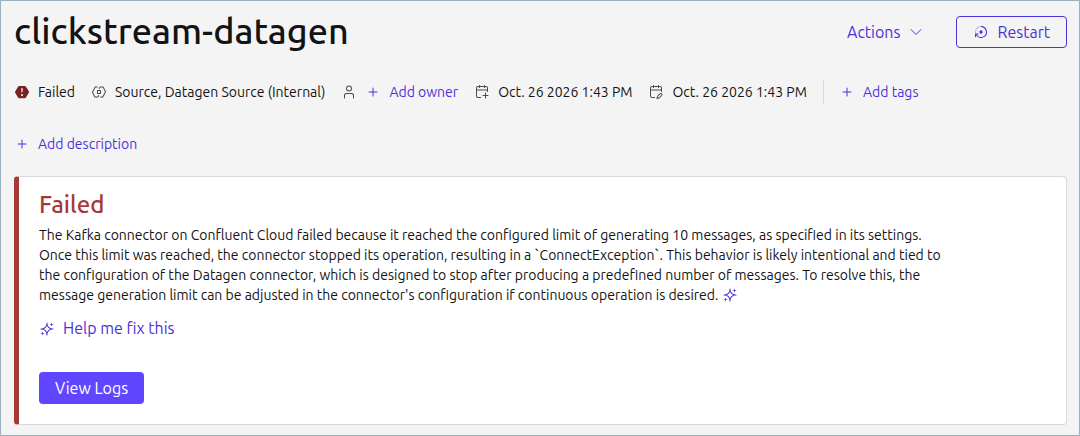
The first time you view a failed connector, a Try AI Troubleshooting tooltip points to this button.
Help me fix this appears only for runtime errors that show an AI error summary or an override message. For details, see Early Access scope.
In the Troubleshooting agent panel, review what the agent can and can’t do, and click Start troubleshooting.
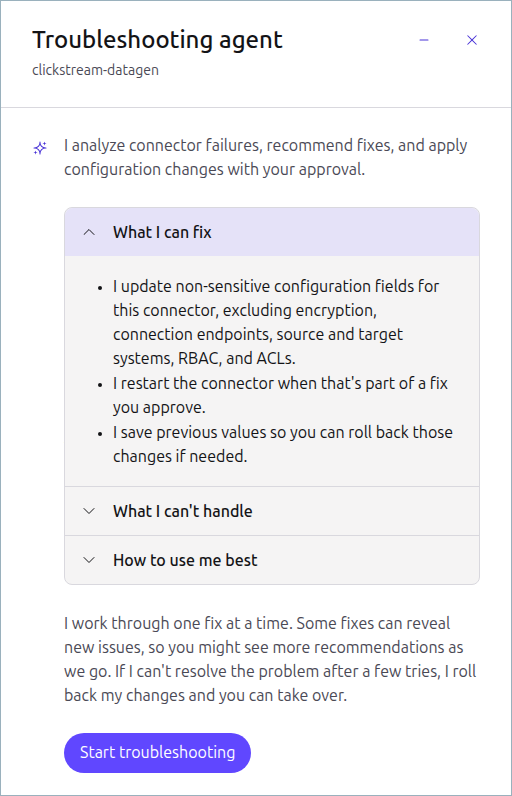
The agent analyzes the connector, which can take a minute or more. When it finishes, the panel shows the root cause and a Recommended changes card.
Apply a fix
Review the root cause and the Recommended changes card. The card lists each configuration field the agent proposes to change, with the current and proposed values.
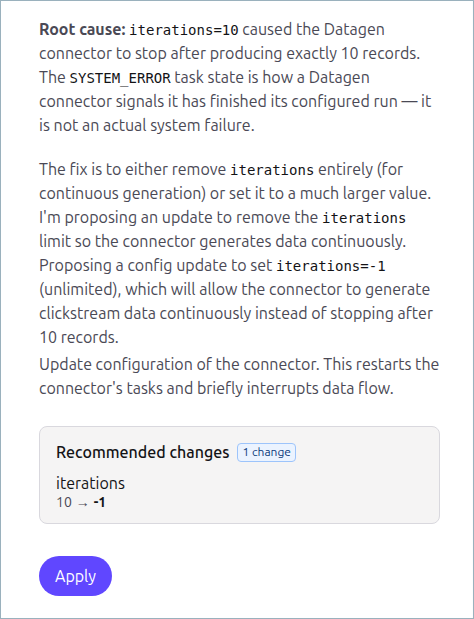
You can also apply the proposed change yourself by using the values on the card, for example, through an infrastructure-as-code pipeline. The agent doesn’t integrate directly with Terraform.
To approve the fix, click Apply.
After the agent applies a change, the panel shows a notification such as Changes applied or Connector restarted. The agent then checks the connector status.
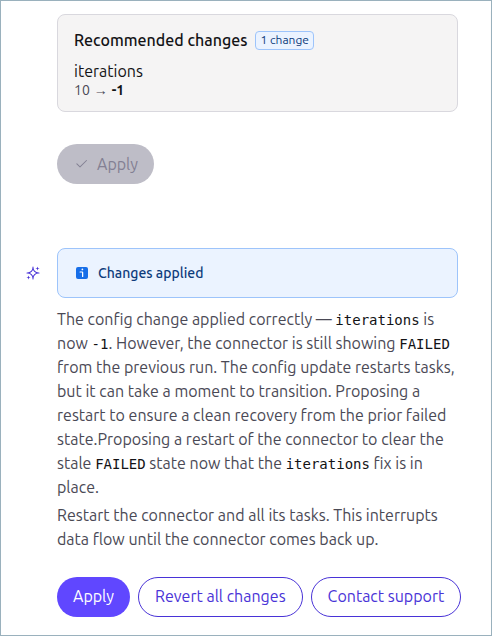
The agent can propose a follow-up fix, such as a restart after a configuration change. Approve each fix separately.
Note
After a restart, the connector status can take several minutes to update. If the agent doesn’t see the connector return to the Running state, check the connector status on the Overview page again after a few minutes.
To undo a configuration change the agent made, click Revert all changes. This option appears after the agent changes the connector configuration.
Manage your session
Each time you start troubleshooting a failed connector, the agent opens a session.
Closing or minimizing the panel keeps your conversation. If you reload the page, click View diagnosis to resume the session.
A session expires after eight hours. The panel shows a countdown during the last 15 minutes and shows Session ended when the session expires.
You can have up to five active sessions at a time. If you reach the limit, the panel shows Session creation limit reached. End one of your sessions, wait for an earlier session to expire, or contact your Confluent account team.
To end a session, close the panel and confirm in the Close the troubleshooting agent? dialog.
When a session ends, you can rate it with a thumbs up or thumbs down and choose a reason.
Resolve agent problems
Problem |
What to check |
|---|---|
Help me fix this doesn’t appear |
Confirm that Confluent enabled your organization ID and cluster ID, that AI-Assisted Troubleshooting is turned on, that the connector is a supported type, and that the failure is a runtime error. For details, see Early Access scope. |
The agent can’t restart the connector or update its configuration |
You might not have permission to manage the connector. The agent uses your RBAC permissions. |
The agent can’t apply a proposed change |
Confluent Cloud can reject a proposed change, or you might not have permission to make it. Review the message in the panel. |
The agent says the connector is still Failed after you apply a fix |
The connector status can take several minutes to update. Check the status on the Overview page again after a few minutes. If the connector is still Failed, the agent might propose a follow-up fix. |
Session creation limit reached appears |
End an earlier session, wait for an earlier session to expire, or contact your Confluent account team. |
The connector shows Running but doesn’t move data |
The agent doesn’t cover this scenario. Check the connector’s metrics and logs. For more information, see View Connector Events for Confluent Cloud. |
Limitations
The following limitations apply to the Connect Troubleshooting Agent during Early Access. For details about the supported scenario and connectors, see Early Access scope.
Runtime failures only: The agent diagnoses only a connector in the Failed state with a runtime error. It doesn’t evaluate validation errors, degraded connectors, or connectors that report Running but don’t move data.
Supported connectors only: The agent works only with the listed fully managed connectors.
Cloud Console only: The agent isn’t available through the Confluent CLI, the Confluent Cloud REST API, or MCP.
Limited actions: The agent can apply only configuration changes and restarts. For every other type of fix, it shows recommendations that you apply yourself.
No Terraform integration: The agent doesn’t integrate directly with Terraform. To apply a proposed change through infrastructure as code, use the values on the Recommended changes card.
AI-generated results: A diagnosis or recommendation might be incomplete or incorrect. Review each recommendation before you approve it.
Delayed status updates: After a restart, the connector status can take several minutes to update, so the agent might report that the connector hasn’t recovered when it has.
Session limits: Each session expires after eight hours, and each user can have up to five active sessions.
No audit history: You can’t view in Confluent Cloud which actions the agent took, who started them, or past sessions. Confluent can provide this information on request. Contact your Confluent account team.
No formal support: Formal Support Services and service level agreements don’t apply to Early Access features. Send questions and feedback through the channel your account team sets up.
FAQ
Can I use the agent in production?
No. Early Access is for evaluation and non-production testing only. Don’t enable the agent on production clusters.
How do I enable the agent on my clusters?
Contact your Confluent account team with your organization ID and the IDs of the clusters you want to enable.
Can the agent see the messages that I produce or consume?
No. The agent can read only the connector’s configuration, metrics, and logs. It never reads topic data.
Who can use the agent?
Anyone who has permission to view and manage the connector can use the agent. The agent uses the same RBAC permissions that your account already has, and it doesn’t grant new access.
What happens if I don’t approve a recommended fix?
Nothing changes. The agent doesn’t change the connector or restart it unless you click Apply.
Does the agent cost anything during Early Access?
No. Participating in Early Access doesn’t increase your costs.
Can I see a history of what the agent did?
No. Audit details, such as which actions the agent took, who started them, and past sessions, aren’t available in the Confluent Cloud Console during Early Access. Confluent can provide this information on request. Contact your Confluent account team.
Does the agent work with Terraform?
Not directly. The agent shows the proposed change, and you can apply the same values through your infrastructure-as-code pipeline.
Why doesn’t my failed connector show “Help me fix this”?
The agent is available only for runtime errors. For example, a connector with changed credentials fails with a validation error, so the button doesn’t appear. For details, see Early Access scope.
Why do I see “Session creation limit reached”?
You’ve reached the limit of active troubleshooting sessions. Sessions expire after eight hours, so slots free up automatically. End an earlier session, wait for an earlier session to expire, or contact your Confluent account team.
Can I stop participating in Early Access?
Yes. Tell your Confluent account team, and Confluent disables the agent on your clusters.
What happens after Early Access ends?
Confluent uses the feedback from Early Access to decide whether and how the agent becomes more widely available. Your account team follows up with you about next steps.
Give feedback
Your feedback shapes the product during Early Access. You can share feedback at any time through the shared Slack channel or email thread that your account team sets up. The following areas are especially useful:
Whether the flow is clear and easy to follow.
Whether the agent identified the correct root cause.
Whether the recommended fix was correct and resolved the failure.
How long the full session took.
Which failure types the agent handled well, and which it couldn’t handle.