

Get Started with Lightning Tables in Confluent Cloud
Enable a Lightning Table for an Apache Kafka® topic, and then query it with SQL in the Confluent Cloud Console.
Important
Lightning Tables are rolling out to Confluent Cloud accounts in phases. If you don’t see this feature, it’s not available for your account at this time.
Prerequisites
Before you begin, make sure that you have the following:
A Kafka topic in a Confluent Cloud cluster.
A schema for the topic. If the topic doesn’t have one, the Cloud Console prompts you to create one when you enable the Lightning Table. For more information, see Enable a Lightning Table for a topic without a schema.
Enable a Lightning Table for a topic
When you enable a Lightning Table for a topic, Confluent Cloud makes the topic data available for low-latency SQL queries. To enable one, complete the following steps.
Sign in to the Confluent Cloud Console at https://confluent.cloud/.
From the navigation menu, select Environments.
Select your environment.
From the navigation menu, select Clusters.
Select your cluster.
From the navigation menu, select Lightning Tables.
On the Lightning Tables page, click Add Lightning Table.
If the cluster doesn’t have any Lightning Tables yet, click Enable Lightning Table instead.
A dialog opens that lists the topics in your cluster. The list shows only topics that have a schema. To show topics without a schema, clear the Has schema checkbox.
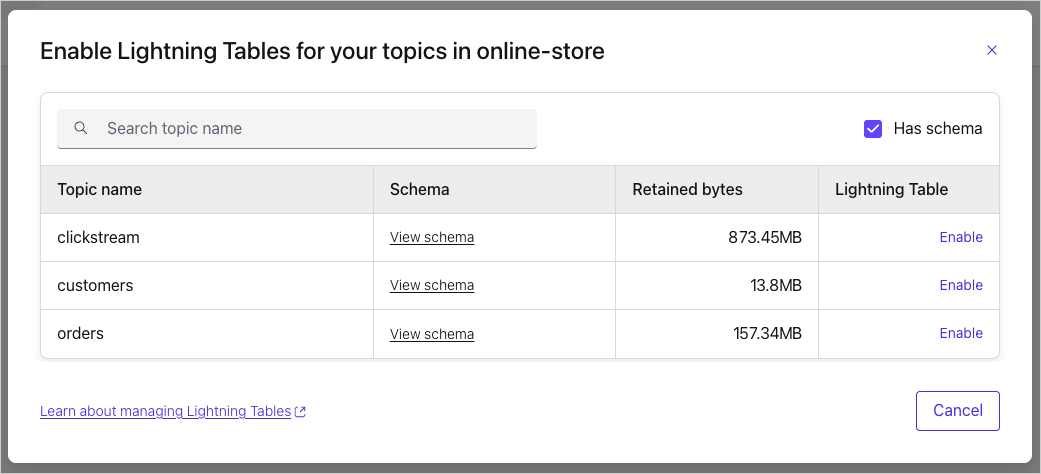
Topic list for enabling a Lightning Table
In the Lightning Table column for your topic, click Enable.
In the confirmation dialog, click Enable.
Enabling a Lightning Table takes several minutes. You can close the dialog and check back later.
Query the Lightning Table
When setup completes, a dialog opens that confirms the Lightning Table is enabled. Here, you can query the Lightning Table with SQL.
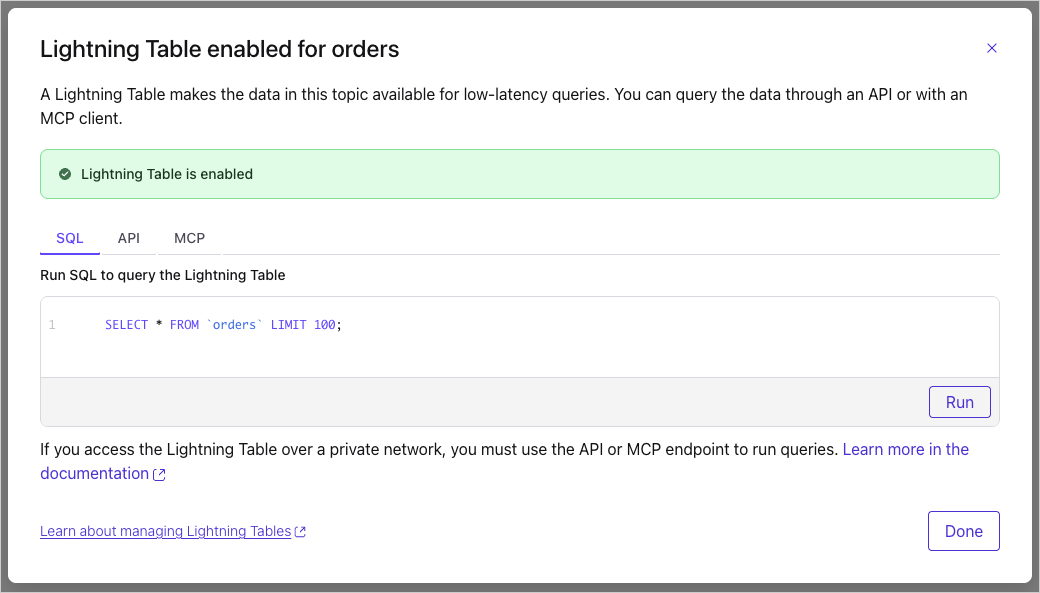
Prefilled SQL query for a new Lightning Table
To run your first query, complete the following steps.
On the SQL tab, review the prefilled query.
The query returns up to 100 rows from your topic:
SELECT * FROM `<topic_name>` LIMIT 100;
Click Run.
The dialog closes, and the Preview Lightning Table pane opens and shows the results. To explore your data further, you can edit the query in the pane and run it again.
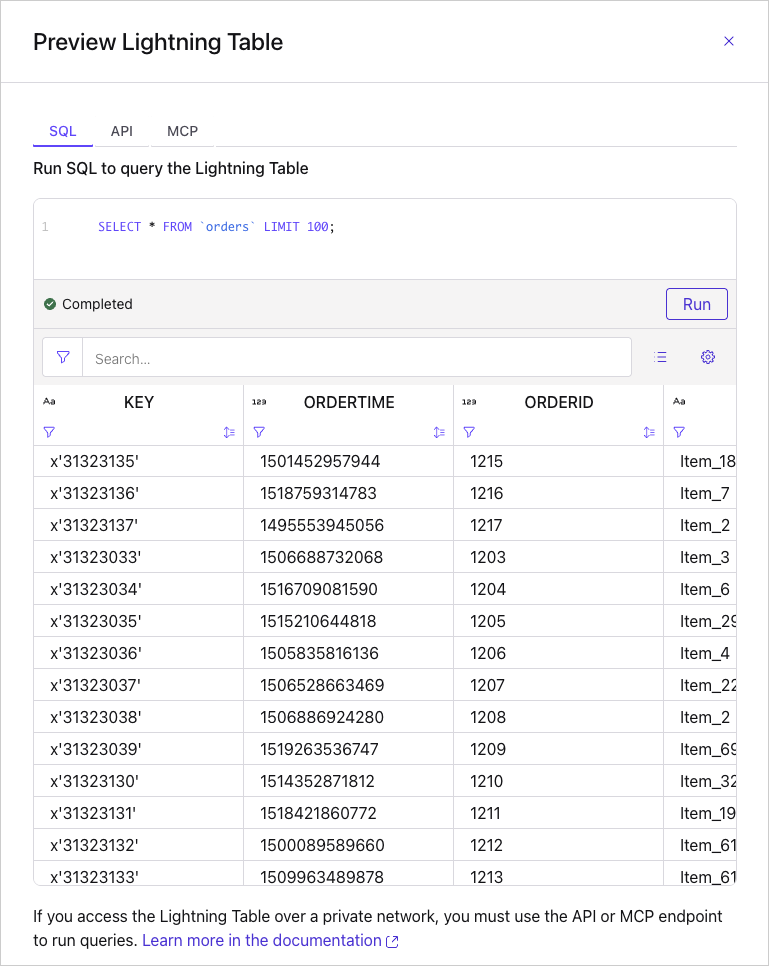
Query results in the Preview Lightning Table pane
When you finish querying, close the pane.
In addition to the SQL tab, the pane has the following tabs with sample code that you can copy:
API: A curl command that sends a POST request to query the Lightning Table.
MCP: An
npxcommand that opens the MCP Inspector, so you can try the Model Context Protocol (MCP) server for the Lightning Table.
To open the pane again later, see Query a Lightning Table in the Cloud Console.
If you access the Lightning Table over a private network, you can’t run queries in the Cloud Console. Use the associated private endpoint for the API or MCP instead. For more information, see Private Networking for Lightning Tables in Confluent Cloud.
Next steps
To learn more about working with Lightning Tables, see the following pages:
Note
This website includes content developed at the Apache Software Foundation under the terms of the Apache License v2.