

Deregister a Connect Cluster from USM
When you deregister a Connect cluster, Confluent Cloud removes it as a Unified Stream Manager (USM) entity.
The USM Agent continues to run in your self-managed environment and emits events, but Confluent Cloud rejects them because the cluster no longer has a corresponding mapping in Confluent Cloud.
To stop these events, remove the USM-specific configuration from the Connect cluster. After you remove the configuration, you can remove the USM Agent if no other Kafka or Connect cluster is using the agent.
This page describes how to deregister a Connect cluster that’s registered against either a Confluent Platform Kafka cluster or a Confluent Cloud Kafka cluster.
For a Confluent Platform Kafka cluster
In the Confluent Cloud Console, navigate to Environments and select your environment.
In the navigation menu, click Clusters and select your Confluent Platform cluster.
In the navigation menu, click Connectors.
On the Connectors page, click Connect cluster list.
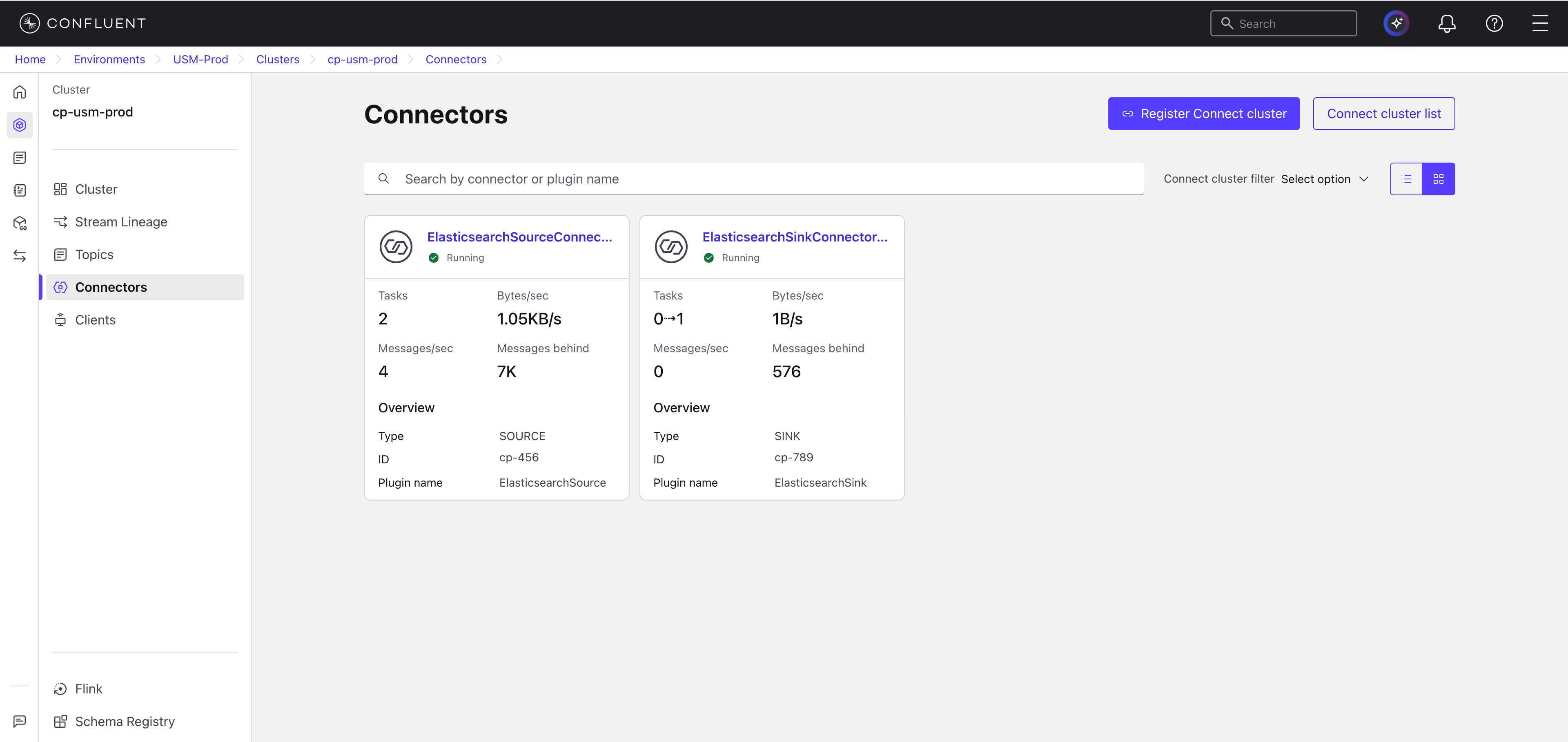
In the Connect cluster list panel, locate the Connect cluster to deregister. You can search by name or Confluent Cloud ID, or sort the list by clicking a column header.
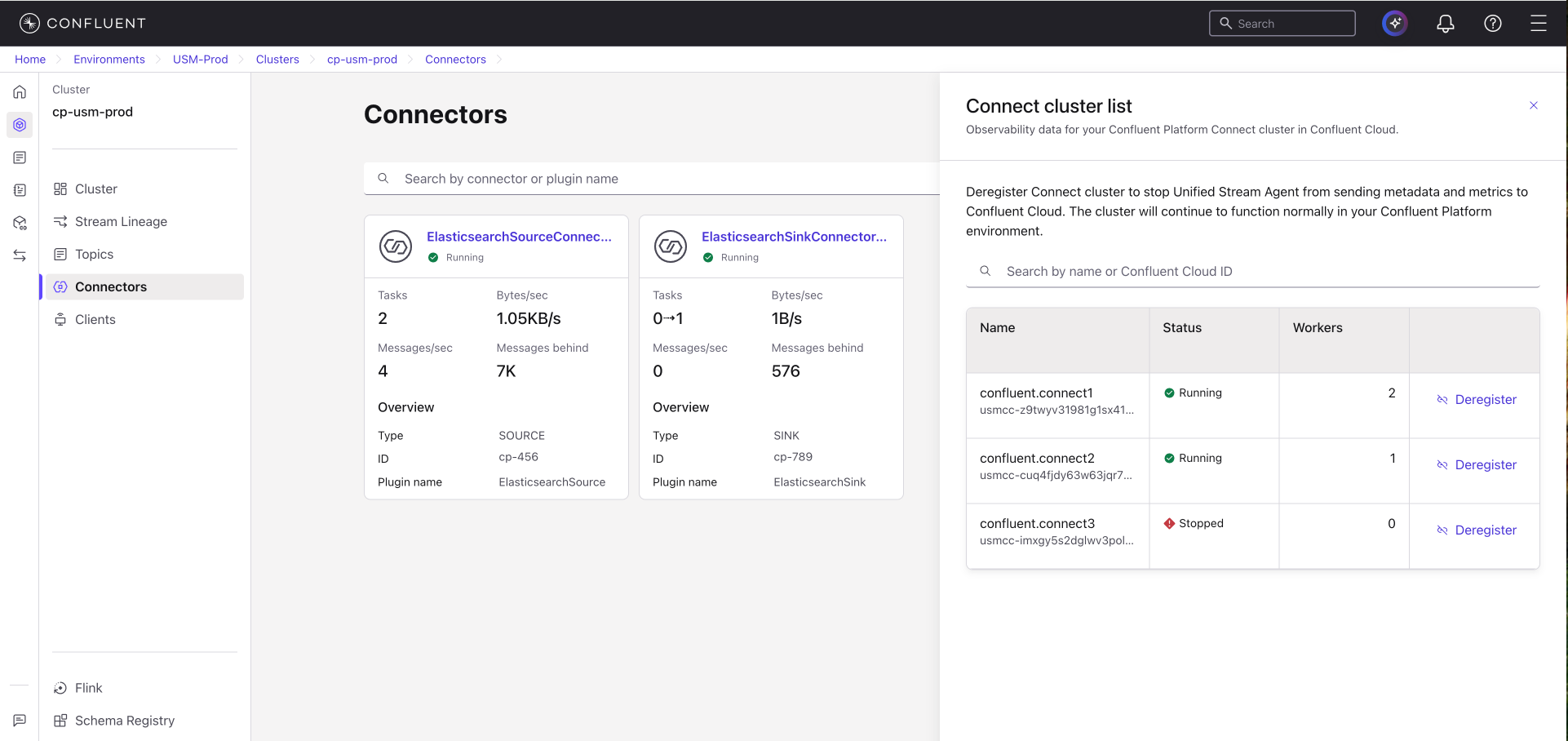
In the row for the cluster to deregister, click Deregister.
In the Deregister Connect cluster dialog, enter the cluster name exactly as shown.
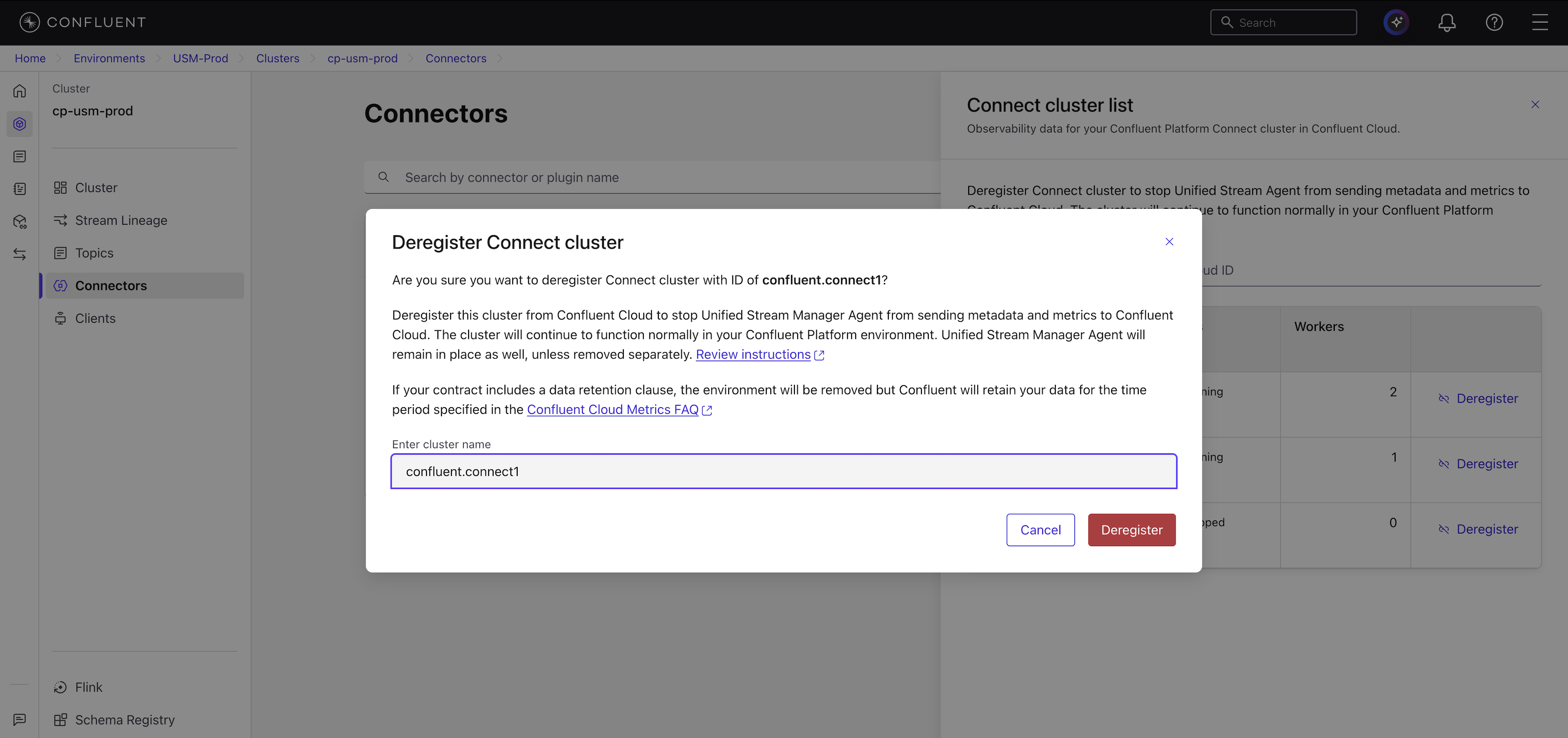
Click Deregister.
Confluent Cloud removes the cluster from the Connect cluster list.
For a Confluent Cloud Kafka cluster
In the Confluent Cloud Console, navigate to Environments and select your environment.
In the navigation menu, click Clusters, click Confluent Cloud, and select your Confluent Cloud Kafka cluster.
In the navigation menu, click Connectors, and then click Self-managed.
On the Connectors page, click Connect cluster list.
In the Connect cluster list panel, locate the Connect cluster to deregister. You can search by name or Confluent Cloud ID, or sort the list by clicking a column header.
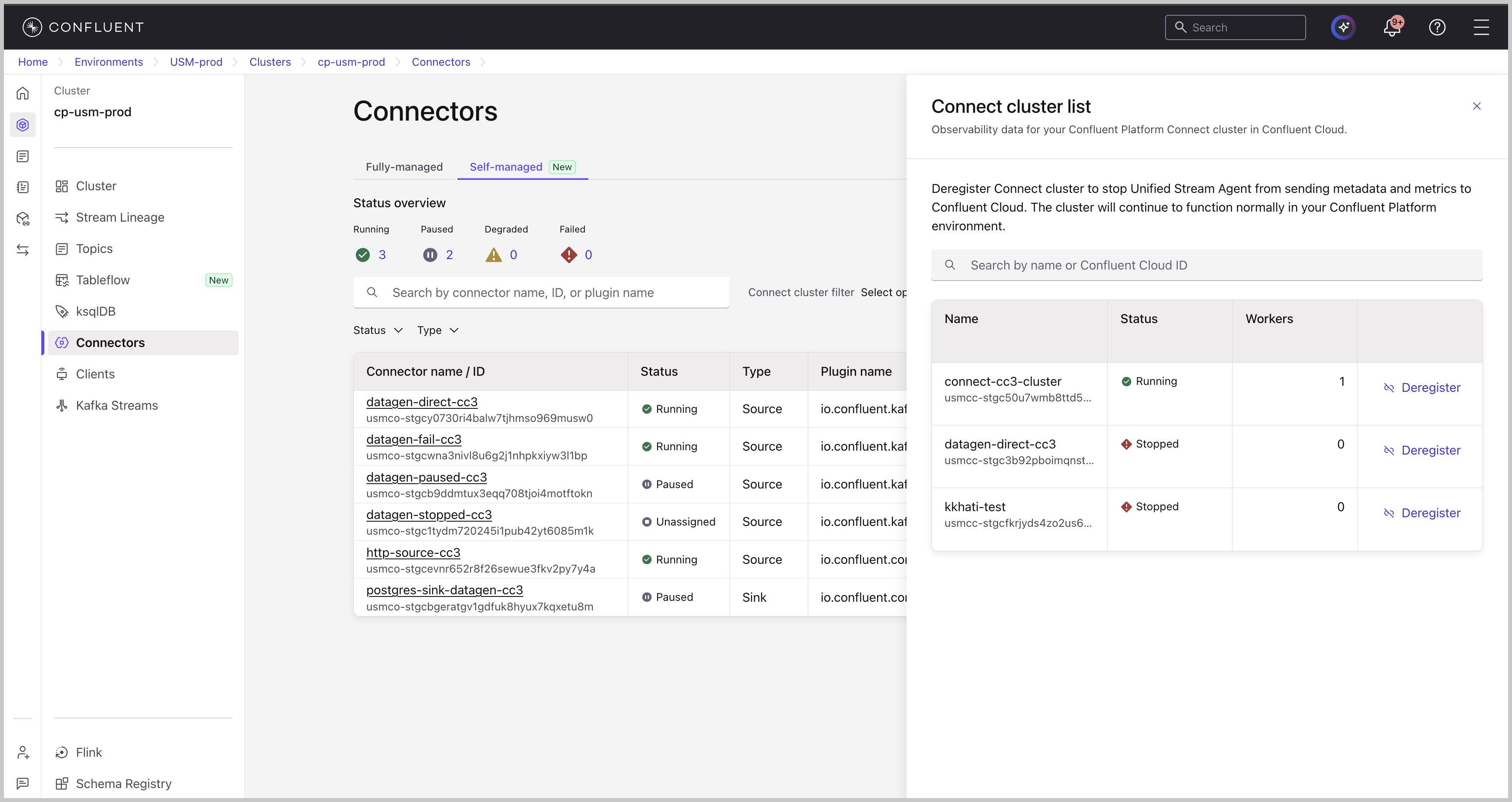
In the row for the cluster to deregister, click Deregister.
In the Deregister Connect cluster dialog, enter the cluster name exactly as shown.
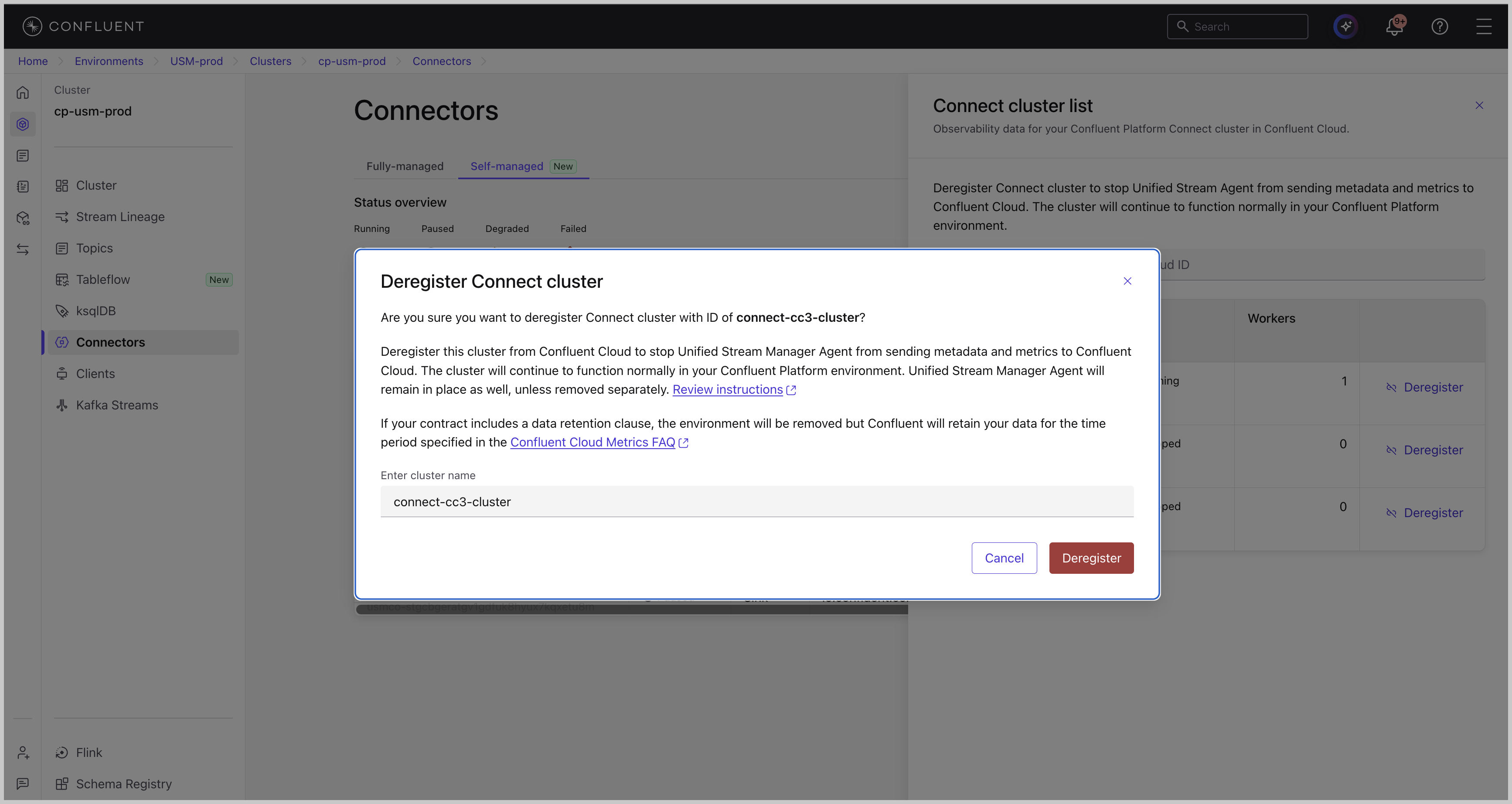
Click Deregister.
Confluent Cloud removes the cluster from the Connect cluster list.
Log in to the Confluent CLI.
confluent loginGet the Environment ID using the following steps:
In the Confluent Cloud Console, navigate to Environments and select your environment.
Click Details and copy the ID from the About section.
Run the list command to see all USM registered Connect clusters in your environment. This allows you to find the specific
USM_CONNECT_CLUSTER_IDrequired for deregistration.confluent usm connect-cluster list --environment <YOUR_ENVIRONMENT_ID>
From the output, identify the Connect cluster you want to remove and copy its ID. A
USM_CONNECT_CLUSTER_IDalways starts with the prefixusmcc-.Use the
confluent usm connect-cluster deregistercommand with theusmcc-ID you copied. You can pass more than one ID to deregister multiple Connect clusters at once.confluent usm connect-cluster deregister <USM_CONNECT_CLUSTER_ID> --environment <YOUR_ENVIRONMENT_ID>
The following example deregisters a Connect cluster with the ID
usmcc-abc123in the environmentenv-12345.confluent usm connect-cluster deregister usmcc-abc123 --environment env-12345
The CLI prompts you for confirmation. Type
yand press Enter to proceed. To skip this prompt, add the--forceflag to the command.Are you sure you want to deregister USM Connect cluster "usmcc-abc123"? (y/n): y Deregistered USM Connect cluster "usmcc-abc123".
After deregistration, the corresponding Connect cluster card is removed from the Confluent Cloud Console.
For a complete reference of related commands, see the confluent usm CLI documentation.