

Quick Start: Build a Streamhouse on Confluent Cloud
Build a small Streamhouse for River Air, a fictional airline, entirely in Confluent Cloud. When an inbound flight runs late, you keep one current state for every connecting passenger, serve it as Lightning Tables, let an AI agent rebook the passengers who miss their connections, and answer questions about history from the same data.
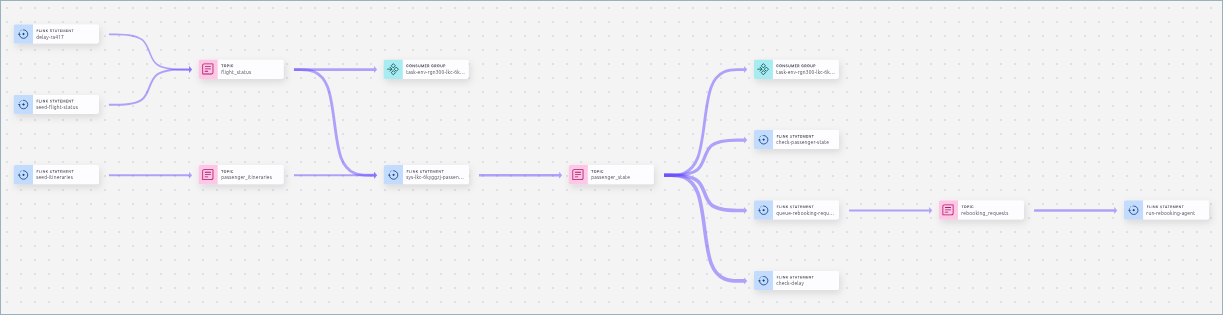
The finished River Air Streamhouse in Stream Lineage, from the source tables through the passenger_state materialized table to the rebooking agent.
This quick start takes about 30 minutes. You don’t need any other accounts or infrastructure: the AI model is a managed model that runs in Confluent Cloud, and Tableflow stores the history in Confluent-managed storage.
The resources that you create in this quick start incur Confluent Cloud charges. To stop the charges when you’re done, follow the steps in Step 8: Clean up.
In this quick start, you perform the following steps:
Prerequisites
Access to Confluent Cloud, with permission to create an environment, a cluster, a compute pool, and API keys.
The Confluent CLI, to create a global API key and a connection for the AI agent in Step 6. For more information, see Use API Keys to Authenticate to Confluent Cloud.
Step 1: Create an environment, a cluster, and a compute pool
Create the resources in a region that supports managed AI models, Lightning
Tables, and Tableflow. This quick start uses AWS us-east-1. For other
regions, see Confluent Cloud Regions and Availability by Cloud Provider.
In Confluent Cloud Console, create an environment named
river-air.In the environment, create a Standard cluster on AWS in
us-east-1.Create an Apache Flink® compute pool on AWS in
us-east-1.Open a SQL workspace on the compute pool, and set the catalog to
river-airand the database to your cluster.
For more information, see Flink SQL Quick Start with Confluent Cloud Console.
Step 2: Create the source tables
River Air’s operational data arrives as three streams: flight status, passenger itineraries, and hotel room availability. Each table has a primary key and is backed by a compacted Apache Kafka® topic, so it holds the latest value for each key.
In the SQL workspace, run the following statements to create the tables.
CREATE TABLE flight_status (
  flight_id STRING,
  origin STRING,
  destination STRING,
  scheduled_time TIMESTAMP(3),
  estimated_time TIMESTAMP(3),
  status STRING,
  PRIMARY KEY (flight_id) NOT ENFORCED
) DISTRIBUTED BY (flight_id) INTO 1 BUCKETS
WITH ('changelog.mode' = 'upsert', 'kafka.cleanup-policy' = 'compact');

CREATE TABLE passenger_itineraries (
  passenger_id STRING,
  inbound_flight_id STRING,
  connecting_flight_id STRING,
  PRIMARY KEY (passenger_id) NOT ENFORCED
) DISTRIBUTED BY (passenger_id) INTO 1 BUCKETS
WITH ('changelog.mode' = 'upsert', 'kafka.cleanup-policy' = 'compact');

CREATE TABLE hotel_inventory (
  hotel STRING,
  available_rooms INT,
  nightly_rate DECIMAL(10, 2),
  PRIMARY KEY (hotel) NOT ENFORCED
) DISTRIBUTED BY (hotel) INTO 1 BUCKETS
WITH ('changelog.mode' = 'upsert', 'kafka.cleanup-policy' = 'compact');
Run the following statements to add flights, three passengers on inbound flight RA417 from Chicago, and three airport hotels.
INSERT INTO flight_status VALUES
  ('RA417', 'ORD', 'SFO', TIMESTAMP '2026-11-04 13:00:00',
    TIMESTAMP '2026-11-04 13:00:00', 'ON_TIME'),
  ('RA210', 'SFO', 'SEA', TIMESTAMP '2026-11-04 14:00:00',
    TIMESTAMP '2026-11-04 14:00:00', 'ON_TIME'),
  ('RA214', 'SFO', 'SEA', TIMESTAMP '2026-11-04 15:30:00',
    TIMESTAMP '2026-11-04 15:30:00', 'ON_TIME'),
  ('RA226', 'SFO', 'SEA', TIMESTAMP '2026-11-04 17:45:00',
    TIMESTAMP '2026-11-04 17:45:00', 'ON_TIME'),
  ('RA232', 'SFO', 'SEA', TIMESTAMP '2026-11-05 07:15:00',
    TIMESTAMP '2026-11-05 07:15:00', 'ON_TIME');

INSERT INTO passenger_itineraries VALUES
  ('P-001', 'RA417', 'RA210'),
  ('P-002', 'RA417', 'RA214'),
  ('P-003', 'RA417', CAST(NULL AS STRING));

INSERT INTO hotel_inventory VALUES
  ('Airport Bayfront Inn', 0, 189.00),
  ('Harbor Point Hotel', 12, 214.00),
  ('Runway View Suites', 5, 239.00);
Step 3: Keep one current state with a materialized table
A materialized table keeps the result of a query continuously up to date. The following table joins each itinerary to its inbound and connecting flights and computes each passenger’s connection time and risk. It keeps one current row per passenger.
Run the following statement to create the materialized table.
CREATE MATERIALIZED TABLE passenger_state (
  PRIMARY KEY (passenger_id) NOT ENFORCED
)
DISTRIBUTED BY (passenger_id) INTO 1 BUCKETS
WITH ('changelog.mode' = 'upsert')
AS SELECT
  p.passenger_id,
  p.inbound_flight_id,
  p.connecting_flight_id,
  COALESCE(onward.destination, inbound.destination) AS final_destination,
  inbound.estimated_time AS inbound_arrival,
  TIMESTAMPDIFF(MINUTE, inbound.estimated_time, onward.estimated_time)
    AS connection_minutes,
  CASE
    WHEN p.connecting_flight_id IS NULL THEN 'NO_CONNECTION'
    WHEN TIMESTAMPDIFF(MINUTE, inbound.estimated_time,
                       onward.estimated_time) < 45 THEN 'AT_RISK'
    ELSE 'OK'
  END AS risk
FROM passenger_itineraries p
JOIN flight_status inbound
  ON p.inbound_flight_id = inbound.flight_id
LEFT JOIN flight_status onward
  ON p.connecting_flight_id = onward.flight_id;
Set the workspace Mode to Snapshot.
Run the following query. Results can take a minute or two to appear the first time, while the materialized table processes the source data.
SELECT passenger_id, connecting_flight_id, inbound_arrival,
       connection_minutes, risk
FROM passenger_state;
Your output should resemble:
passenger_id  connecting_flight_id  inbound_arrival   connection_minutes  risk
P-001         RA210                 2026-11-04 13:00  60                  OK
P-002         RA214                 2026-11-04 13:00  150                 OK
P-003         NULL                  2026-11-04 13:00  NULL                NO_CONNECTION
For more information, see Materialized Tables in Confluent Cloud for Apache Flink.
Step 4: Delay the inbound flight
Flight RA417 is now expected to land at 14:50, almost two hours late. Update its status, and watch the passenger state change.
Set the workspace Mode back to Streaming.
Run the following statement.
INSERT INTO flight_status VALUES
  ('RA417', 'ORD', 'SFO', TIMESTAMP '2026-11-04 13:00:00',
    TIMESTAMP '2026-11-04 14:50:00', 'DELAYED');
In Snapshot mode, run the query from Step 3 again. Within about a minute, both connecting passengers are at risk.
passenger_id  connecting_flight_id  inbound_arrival   connection_minutes  risk
P-001         RA210                 2026-11-04 14:50  -50                 AT_RISK
P-002         RA214                 2026-11-04 14:50  40                  AT_RISK
P-003         NULL                  2026-11-04 14:50  NULL                NO_CONNECTION
You didn’t change passenger_state. The materialized table recomputed the
affected rows when the flight’s status changed.
Step 5: Serve the current state with Lightning Tables
A Lightning Table serves a topic’s current state for low-latency reads by applications and AI agents.
In Confluent Cloud Console, go to your cluster’s Lightning Tables page and click Add Lightning Tables.
For each of the
passenger_state,flight_status, andhotel_inventorytopics, click Enable, and then click Enable to confirm. Each table’s status changes from Pending to Active within about a minute.To preview the data, click the code icon for
passenger_statein the Preview column, and then click Run on the SQL tab. The results show the same three passengers as the snapshot query in Step 4.
For more information, see Enable the Real-Time Context Engine on a topic and Lightning Tables in Confluent Cloud.
Step 6: Ground a rebooking agent in the current state
A Streaming Agent can read Lightning Tables through the Real-Time Context Engine over the Model Context Protocol (MCP). In this step, you create an agent that runs on a managed model, looks up live flights and hotel rooms, and proposes two rebooking offers for each at-risk passenger.
Create a global API key for your user account. The agent’s MCP connection authenticates with it.
confluent api-key create --resource global
Save the key and secret. Each user account can have only two global API keys. For more information, see Use API Keys to Authenticate to Confluent Cloud.
Create the connection to the Real-Time Context Engine MCP endpoint. Replace
<org_id>,<env_id>, and<cluster_id>with your IDs, and<api_key>and<api_secret>with the global API key. If you created your resources in a region other than AWSus-east-1, also replaceawsandus-east-1in the command and the endpoint URL with your cloud provider and region.confluent flink connection create rtce-connection \ --cloud aws --region us-east-1 --environment <env_id> \ --type mcp_server \ --endpoint https://mcp.us-east-1.aws.confluent.cloud/mcp/v1/context-engine/organizations/<org_id>/environments/<env_id>/kafka-clusters/<cluster_id> \ --username <api_key> --password <api_secret> \ --transport-type STREAMABLE_HTTP
Creating the connection with the CLI keeps the secret out of your SQL statement history.
In the SQL workspace, in Streaming mode, run the following statements to create a managed model, a tool that queries Lightning Tables over MCP, and the agent. The managed model runs in Confluent Cloud, so it needs no endpoint or API key of its own.
CREATE MODEL rebooking_model
INPUT (prompt STRING)
OUTPUT (response STRING)
WITH (
  'provider' = 'confluent',
  'task' = 'text_generation',
  'confluent.model' = 'anthropic.claude-sonnet-4-6'
);

CREATE TOOL river_air_live_context
USING CONNECTION `rtce-connection`
WITH (
  'type' = 'mcp',
  'allowed_tools' = 'getMetadata,queryData',
  'request_timeout' = '30'
);

CREATE AGENT rebooking_agent
USING MODEL rebooking_model
USING PROMPT 'You are the River Air rebooking agent. The passenger in
the task missed a connection at SFO. Use the queryData tool (arguments:
topic_name, query, max_result_rows) to read live data:
1. Query the flight_status topic for flights from SFO to the
passenger''s final_destination. Offer the first two flights whose
estimated_time is at least 45 minutes after the passenger''s
inbound_arrival. Skip CANCELLED flights.
2. If an offered flight leaves 6 or more hours after inbound_arrival,
query the hotel_inventory topic and choose the first hotel, in
alphabetical order, with available_rooms above 0.
Reply with exactly one line and nothing else:
OFFER1=<flight_id>;OFFER2=<flight_id>;HOTEL=<hotel or NONE>'
USING TOOLS river_air_live_context
WITH ('max_iterations' = '10');
To see the managed models available in your region, run
SHOW MODELS.Agents read append-only input, so copy the at-risk passengers into a table of rebooking requests. Run the
CREATE TABLEstatement in Streaming mode. Then switch to Snapshot mode and run theINSERTstatement.CREATE TABLE rebooking_requests ( passenger_id STRING, final_destination STRING, inbound_arrival TIMESTAMP(3) ); INSERT INTO rebooking_requests SELECT passenger_id, final_destination, inbound_arrival FROM passenger_state WHERE risk = 'AT_RISK';
In Snapshot mode, run the agent for each request.
SELECT q.passenger_id, r.agent_status, r.response
FROM rebooking_requests AS q,
LATERAL TABLE(AI_RUN_AGENT(
  'rebooking_agent',
  CONCAT('passenger_id=', q.passenger_id,
         '; final_destination=', q.final_destination,
         '; inbound_arrival=', CAST(q.inbound_arrival AS STRING)),
  q.passenger_id
)) AS r(agent_status, response);
After about a minute, your output should resemble the following. The agent skips RA214, which now leaves only 40 minutes after landing, and adds a hotel for the overnight flight. The model might add a sentence before the
OFFER1line, and its wording can vary.passenger_id agent_status response P-001 SUCCESS OFFER1=RA226;OFFER2=RA232;HOTEL=Harbor Point Hotel P-002 SUCCESS OFFER1=RA226;OFFER2=RA232;HOTEL=Harbor Point Hotel
For more information, see Streaming Agents with Confluent Intelligence in Confluent Cloud, Run Managed Model Inference with Confluent Cloud for Apache Flink, CREATE TOOL Statement in Confluent Cloud for Apache Flink, CREATE AGENT Statement in Confluent Cloud, and AI_RUN_AGENT.
Step 7: Answer questions with history
Tableflow materializes a topic as an Iceberg table, and a snapshot query reads the history in that table together with the newest events in Kafka. In this step, you record past flights, enable Tableflow on them, and ask how River Air’s flights have performed. Because you add these rows only minutes before you query them, the result can come entirely from Kafka. As the topic ages, the same query reads the older records from the Iceberg table.
In Streaming mode, run the following statements to create a flight history and add a few past flights.
CREATE TABLE flight_history (
  flight_id STRING,
  flight_date DATE,
  delay_minutes INT,
  affected_passengers INT
);

INSERT INTO flight_history VALUES
  ('RA417', DATE '2026-09-24', 12, 0),
  ('RA417', DATE '2026-09-25', 0, 0),
  ('RA417', DATE '2026-10-02', 95, 120),
  ('RA210', DATE '2026-10-02', 40, 18),
  ('RA417', DATE '2026-10-09', 5, 0),
  ('RA214', DATE '2026-10-16', 130, 64);
In Confluent Cloud Console, go to the
flight_historytopic and click Enable Tableflow. Keep Iceberg selected, and click Use Confluent storage. The topic shows Tableflow sync pending until the table is ready, in about a minute.In Snapshot mode, run the following query.
SELECT flight_id,
       COUNT(*) AS flights,
       SUM(CASE WHEN delay_minutes > 15 THEN 1 ELSE 0 END) AS delayed,
       SUM(affected_passengers) AS impacted
FROM flight_history
GROUP BY flight_id;
Your output should resemble:
flight_id  flights  delayed  impacted
RA214      1        1        64
RA210      1        1        18
RA417      4        1        120
For more information, see Tableflow in Confluent Cloud and Snapshot Queries in Confluent Cloud for Apache Flink.
Step 8: Clean up
To stop incurring charges, delete the resources you created.
In Confluent Cloud Console, delete the
river-airenvironment. Deleting the environment deletes its cluster, compute pool, topics, Lightning Tables, Tableflow tables, and Flink statements.Delete the global API key that you created in Step 6:
confluent api-key delete <api_key>
Which Streamhouse solutions this quick start shows
Solution |
Where it shows up in the quick start |
Learn more |
|---|---|---|
Maintain one consistent state |
|
|
Decide across five seconds and five years |
The agent acts on live state in Step 6, and a snapshot query in Step 7 answers questions about past flights from the Tableflow history. |
|
Ground and adapt an AI agent |
The rebooking agent reads live flights and hotel rooms through the Real-Time Context Engine before it proposes offers. |
|
Monitor the business |
|
Next steps
For a fuller version of this scenario, with an operations app, a live data stream, and 30 days of history, deploy the quickstart-streamhouse repository to your own Confluent Cloud environment.
For the pattern behind this quick start, see Start here: the always-current table.
To go further, try two tutorials on Confluent Developer, each in three parts: Streamhouse for Analytics, which adds Spark and a live dashboard, and Streamhouse for AI Agents, which builds a Streaming Agent that calls a tool over MCP.