

Monitor Self-Managed Connectors Running Against Confluent Cloud Kafka
Unified Stream Manager (USM) monitors self-managed Connect workers that produce to and consume from a Confluent Cloud Kafka cluster. You can view the status and performance of these connectors from the same Connectors page that lists your Confluent Cloud fully managed connectors.
Self-managed Connect workers can produce to and consume from either a Confluent Platform Kafka cluster or a Confluent Cloud Kafka cluster. Either way, you deploy and operate the workers yourself. This page covers the Confluent Cloud Kafka case. For self-managed Connect workers that use a Confluent Platform Kafka cluster instead, see Monitor Confluent Platform Connectors with USM.
Required permissions
To view self-managed connectors on the Self-managed tab, a principal needs role bindings at two levels:
Read access to the Confluent Cloud Kafka cluster. Options include the Operator role bound at the cluster level, the DataDiscovery role bound at the environment level, or the DeveloperRead role bound to a single topic on that cluster.
Granular role-based access control (RBAC) at the Connect cluster level.
You need both role bindings to view self-managed connectors.
Before you begin
Register the self-managed Connect cluster with USM. For registration steps, see Confluent Cloud Kafka as the Metadata Cluster.
View self-managed connectors
In the Confluent Cloud Console, navigate to Environments and select your environment.
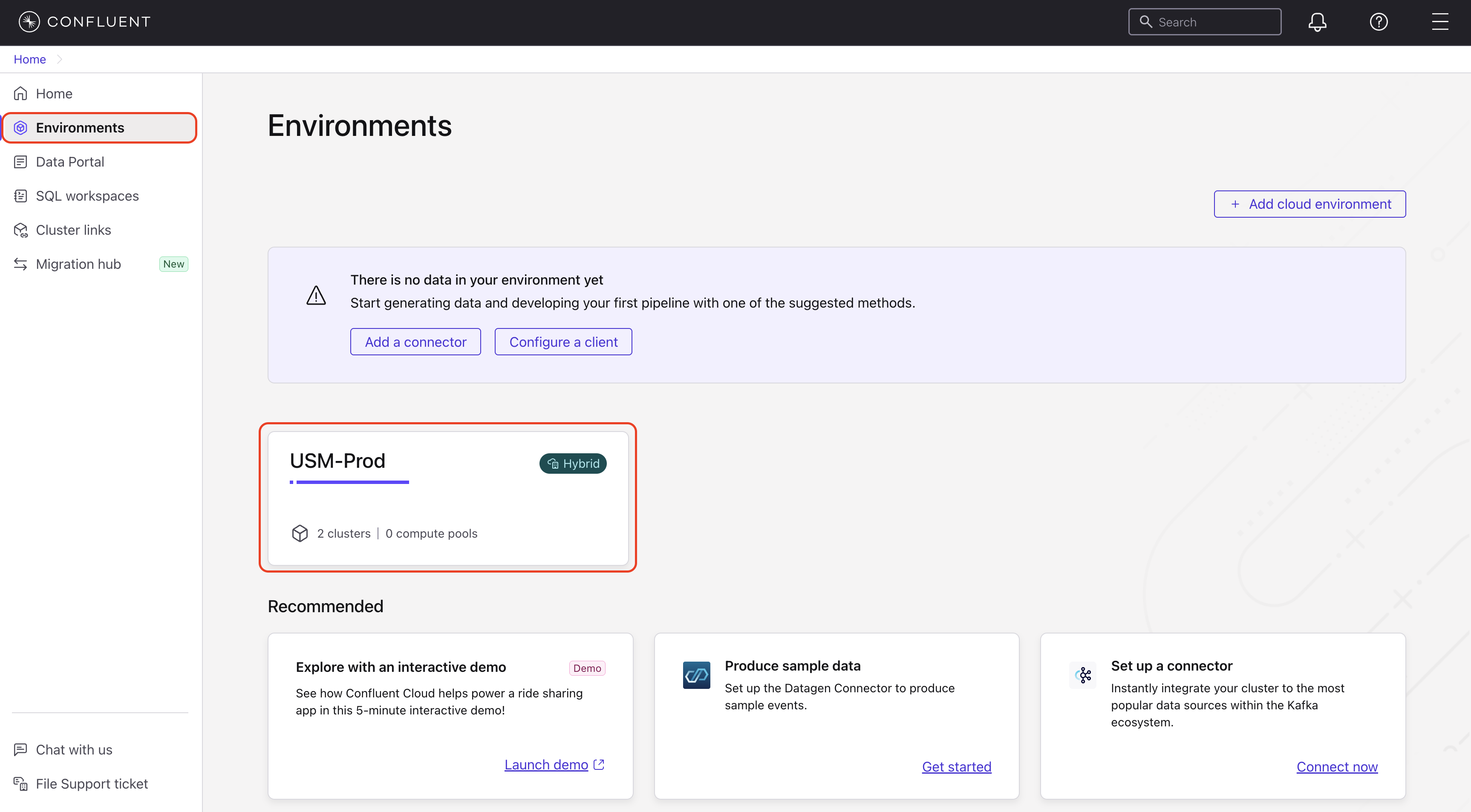
In the navigation menu, click Clusters and select your Confluent Cloud Kafka cluster.
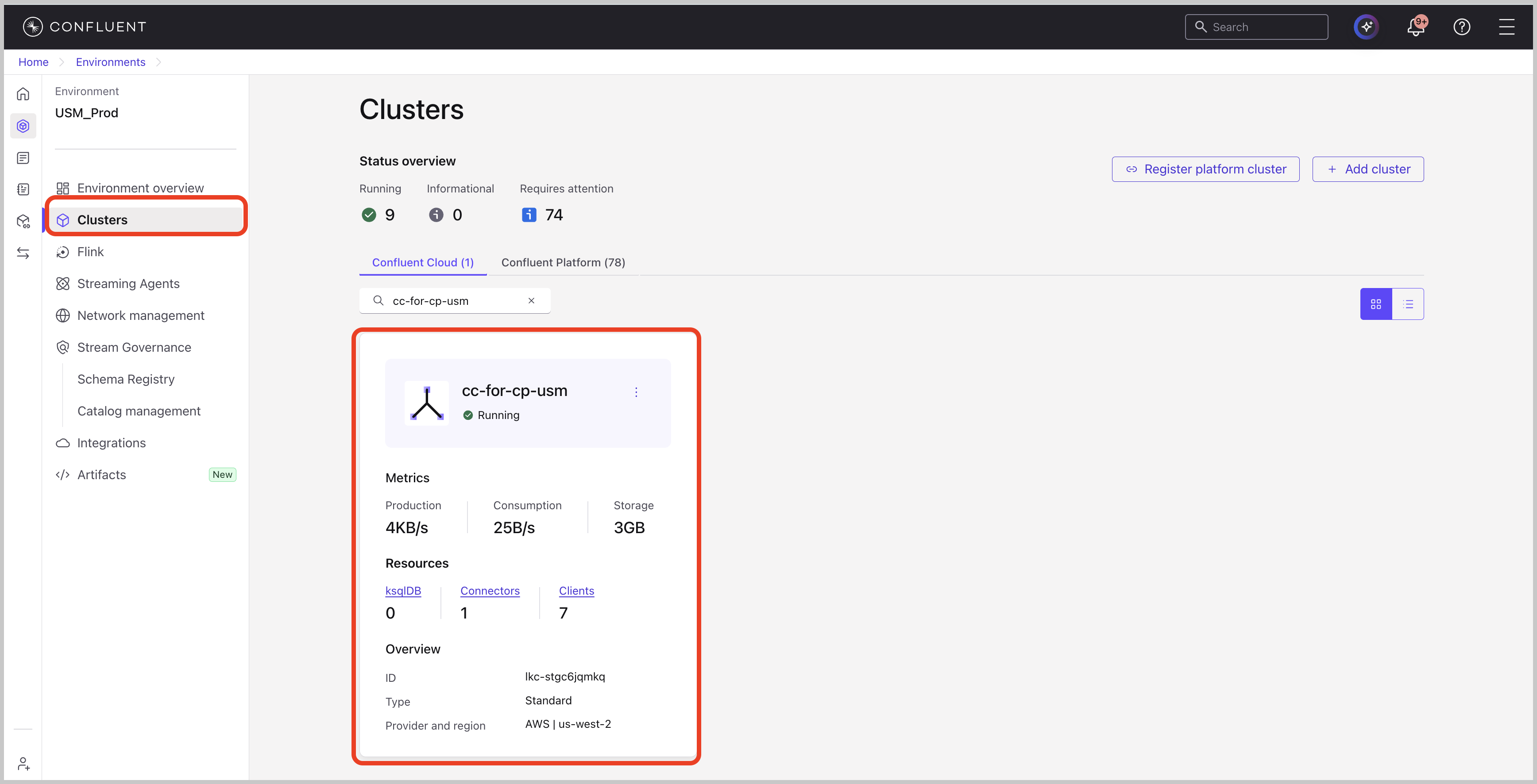
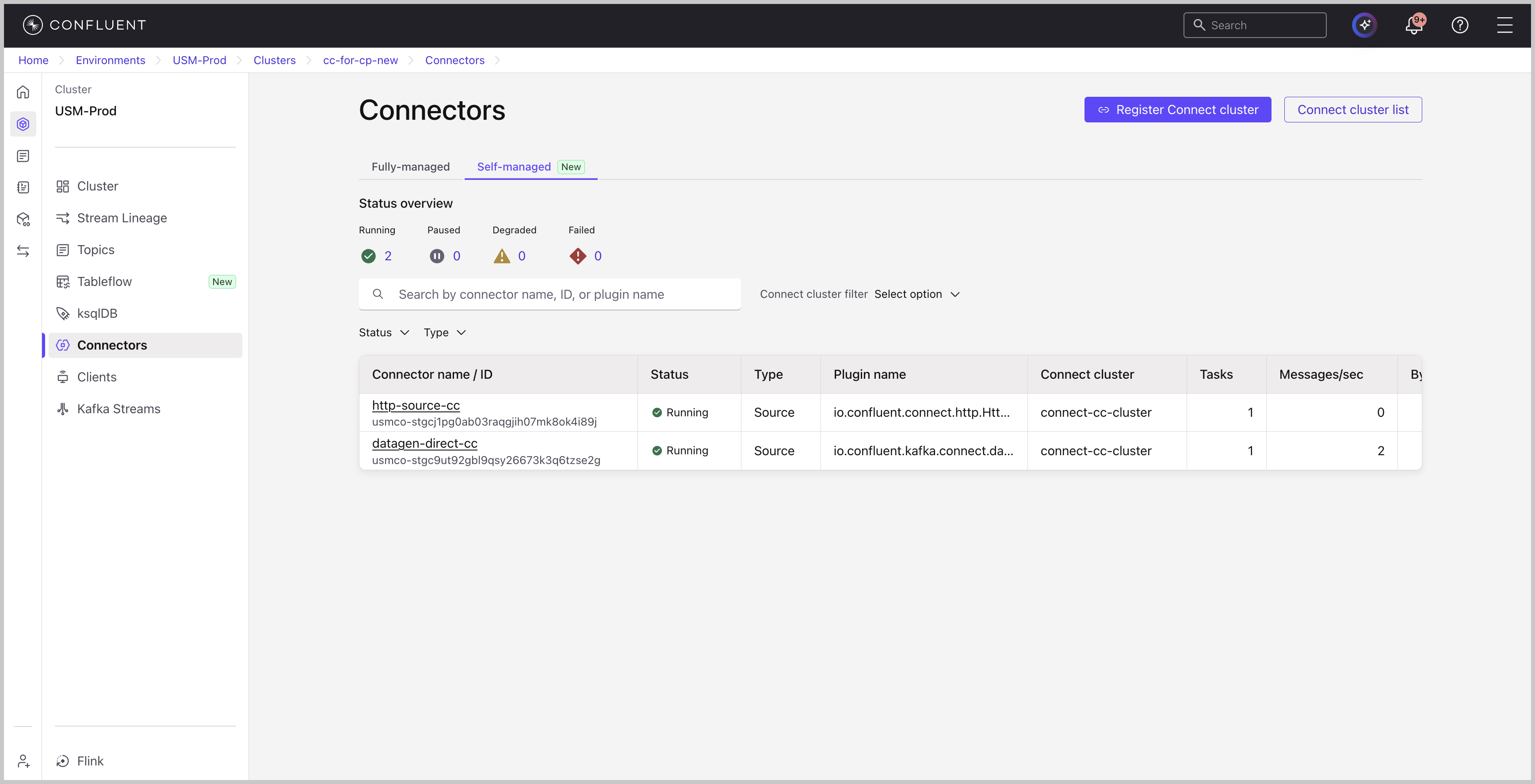
In the navigation menu, click Connectors.
Click Self-managed.
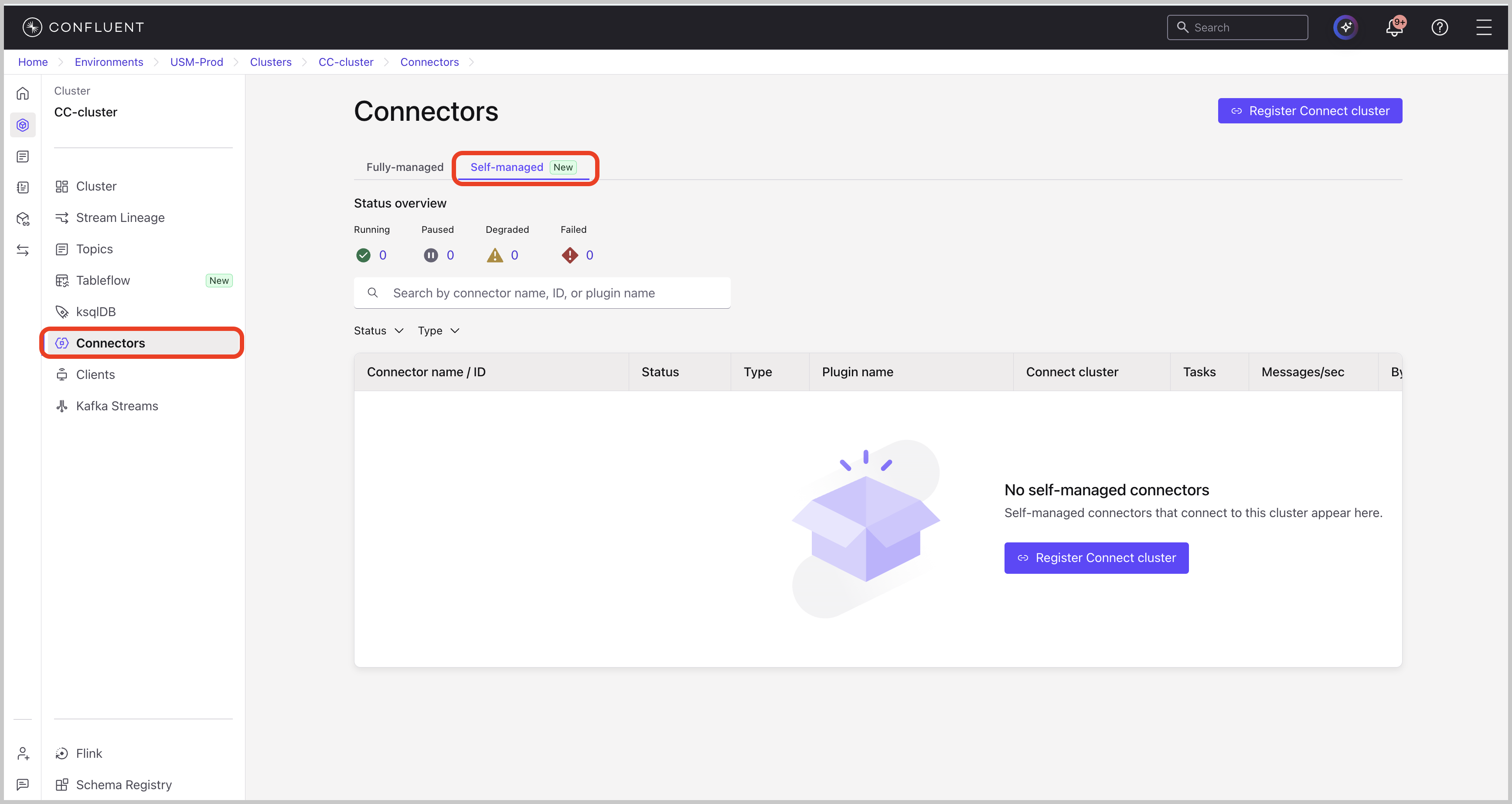
If no self-managed connectors are visible to USM for the Confluent Cloud Kafka cluster, the page displays a message. Confirm that you registered the Connect cluster with USM and that the USM Agent is deployed and running. For instructions, see Confluent Cloud Kafka as the Metadata Cluster.
Status overview
Above the connector list, a status overview summarizes the number of self-managed connectors in each state:
Running: The number of connectors that are running normally.
Paused: The number of paused connectors.
Degraded: The number of connectors that are running with some tasks failed or unassigned.
Failed: The number of connectors that have failed.
Understand the connector list
The Self-managed tab displays a paginated table of the self-managed connectors that run against the Confluent Cloud Kafka cluster. The table includes the following fields for each connector:
Name: The connector name and unique ID.
Status: The state of the connector.
Type: Whether the connector is a Source or Sink connector.
Plugin name: The connector class.
Connect cluster: The name of the Connect cluster that the connector belongs to.
Tasks: The total number of tasks for the connector.
Messages / sec: The data throughput rate, in messages per second.
Bytes / sec: The data throughput rate, in bytes per second.
Messages behind: The lag for a source connector, which indicates the number of unprocessed messages.
Messages in DLQ: The number of messages sent to the dead letter queue.
Use the search box to find a connector by name or plugin name. Use the Connect cluster filter dropdown to narrow the list to a specific Connect cluster, or the Filter by Status and Filter by Type dropdowns to narrow the list by connector state or connector type.
Manage registered Connect clusters
Click Connect cluster list to view the Connect clusters registered against the Confluent Cloud Kafka cluster.
The panel displays the following information for each registered cluster:
Name: The name and Confluent Cloud ID of the Connect cluster.
Status: The state of the cluster.
Workers: The number of active workers in the cluster.
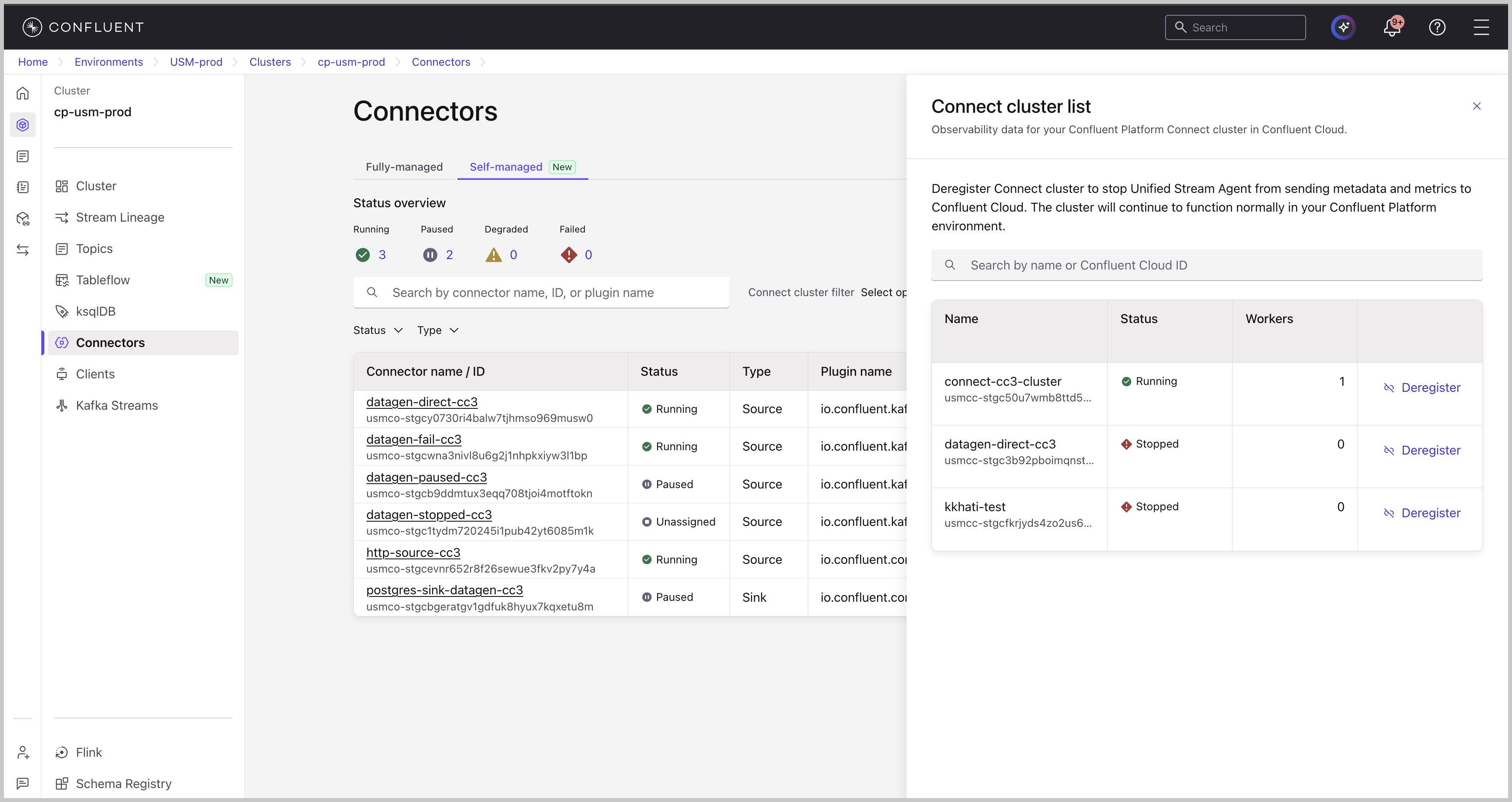
To deregister a Connect cluster, click Deregister next to the cluster in this panel. For instructions, see Deregister a Connect cluster.
View individual connector details
To view the details of a specific self-managed connector, click its row in the Self-managed tab. This opens a detailed view with five tabs: Overview, Monitor, Logs, Settings, and Details. The Overview tab displays by default.
Overview tab
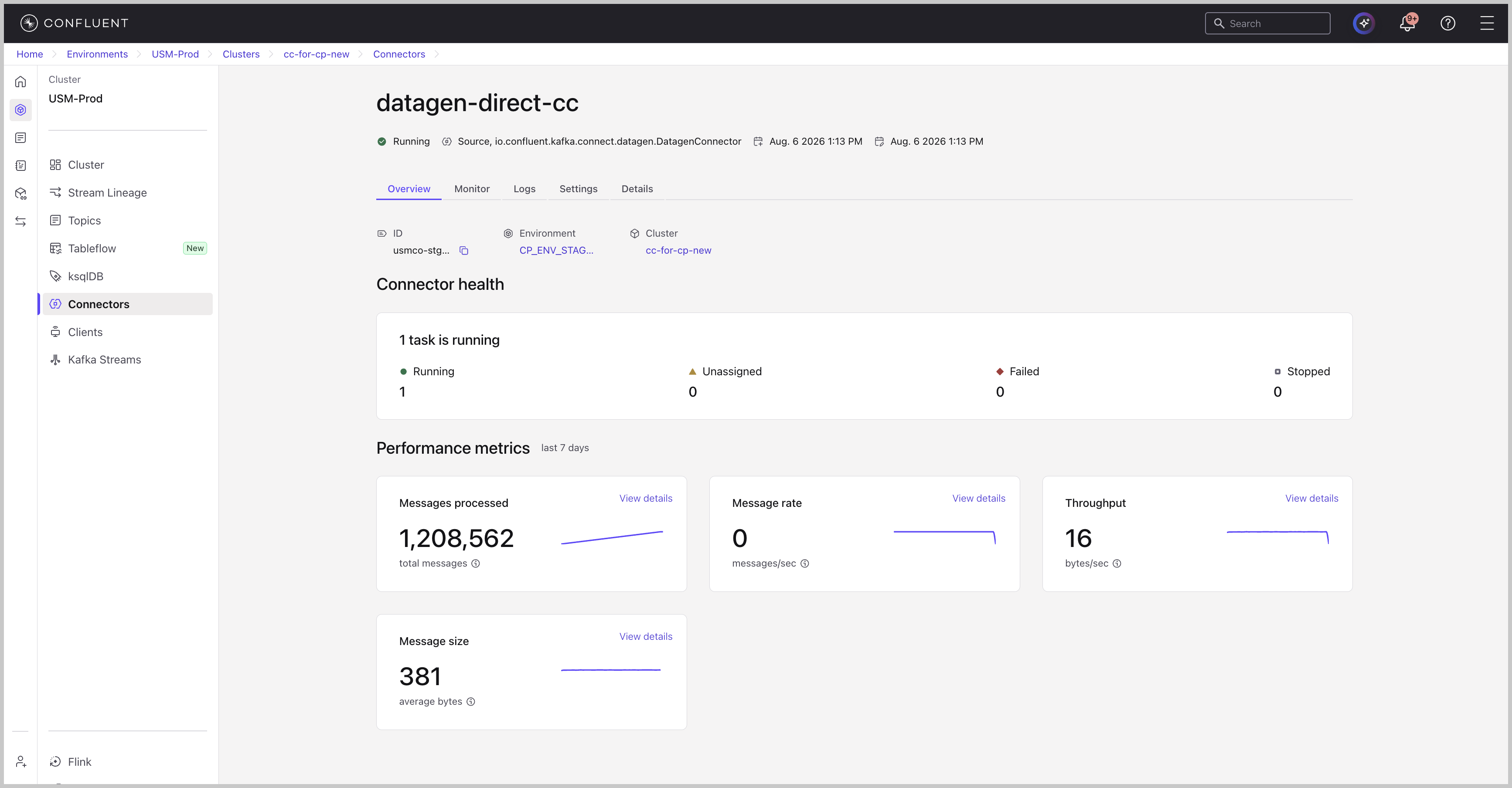
The Overview tab summarizes the connector’s identification, health, and recent performance.
The tab displays the following information:
ID: The unique identifier for the connector.
Environment: The Confluent Cloud environment where the connector is registered.
Cluster: The Confluent Cloud Kafka cluster that the connector runs against.
The Connector health section shows the number of tasks in each state:
Running: The number of running tasks.
Unassigned: The number of tasks that aren’t assigned to a worker.
Failed: The number of failed tasks.
Stopped: The number of stopped tasks.
The Performance metrics section summarizes connector activity over the last seven days:
Messages processed: The total number of messages that the connector processed.
Message rate: The rate of processed messages, in messages per second.
Throughput: The data throughput rate, in bytes per second.
Message size: The average size of messages that the connector processed, in bytes.
To open the Monitor tab, click View details next to any metric.
Monitor tab
The Monitor tab provides historical performance metrics for the connector over the time range that you select from the dropdown menu.
The Performance metrics section shows graphs for Messages processed and Throughput. The Message characteristics section shows the size and batching of the data that flows through the connector.
Logs tab
The Logs tab explains how to access connector logs. Logs for self-managed connectors don’t stream to Confluent Cloud Console. To access logs, use the Confluent Platform command-line tool from within your on-premises network.
Settings tab
The Settings tab displays the connector configuration as a read-only
list of key-value properties, such as connector.class,
key.converter, value.converter, and tasks.max.
Details tab
The Details tab provides metadata and organizational information about the connector.
The tab includes the following sections:
About
ID: The unique identifier for the connector.
Category: The connector type, such as
SourceorSink.Type: The full plugin name, such as
io.confluent.kafka.connect.datagen.DatagenConnector.
Timeline
Date created: The creation date and time for the connector.
Last modified: The date and time of the most recent modification to the connector.
Location
Environment: The Confluent Cloud environment where the connector is registered.
Cluster: The Confluent Cloud Kafka cluster that the connector runs against.
Limitations
This feature has the following limitations:
Connector management operations, such as pausing, restarting, or deleting a connector, aren’t supported for self-managed connectors that run against a Confluent Cloud Kafka cluster.
Environment-level connector listing isn’t available. You can only view self-managed connectors from a specific cluster’s Connectors page.