

Confluent Cloud Kafka as the Metadata Cluster
This page covers registering a self-managed Connect cluster that produces to and consumes from a Confluent Cloud Kafka cluster, which serves as its metadata cluster. For Confluent Platform Kafka deployments, see Confluent Platform Kafka as the Metadata Cluster.
Registering a Connect cluster alone does not make its connector data appear in Confluent Cloud. Displaying connector data requires the Unified Stream Manager (USM) Agent. Registration only creates a mapping in Confluent Cloud between the Connect cluster and the Confluent Cloud Kafka cluster it produces to and consumes from. Unlike a Connect cluster that uses a Confluent Platform Kafka cluster, the Confluent Cloud Kafka cluster itself does not require separate registration because Confluent Cloud recognizes it natively.
The USM Agent is a separate component that collects connector metadata and metrics from your self-managed environment and sends them to Confluent Cloud over a secure network connection. The Self-managed tab on the Connectors page does not populate until you deploy the USM Agent and it starts running.
Before you begin
Ensure that your Confluent Cloud environment has the Advanced Governance package, which USM requires.
Configure a private network connection for the USM Agent. For instructions, see Private Networking for USM.
Create a service account for the USM Agent. For instructions, see Configure a Service Account for the USM Agent.
Deploy the USM Agent in your self-managed environment, pointed at the Connect worker fleet. For instructions, see Deploy the USM Agent.
Get the Confluent Cloud Kafka cluster ID (
lkc-...) that the Connect worker produces to and consumes from. Runconfluent kafka cluster listto get the cluster ID. For more information, see List and view Kafka clusters.
If you already configured network access, created a service account, and deployed a USM Agent, choose Existing agent in the wizard below. If you haven’t, choose New agent to complete those steps inside the wizard.
Register a Connect cluster against Confluent Cloud Kafka
To register a self-managed Connect cluster:
In the Confluent Cloud Console, navigate to Environments and select your environment.
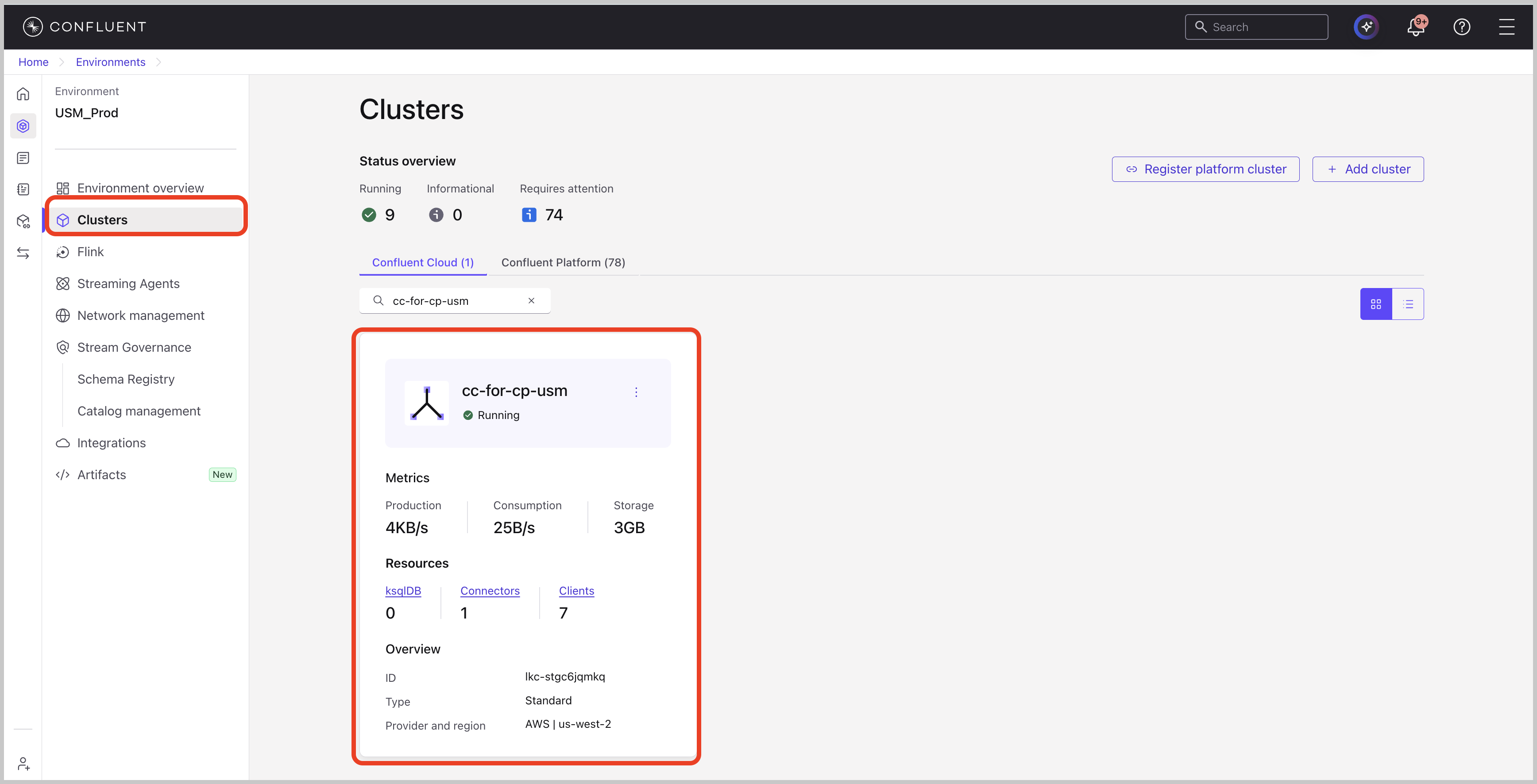
In the navigation menu, click Clusters and select your Confluent Cloud Kafka cluster.
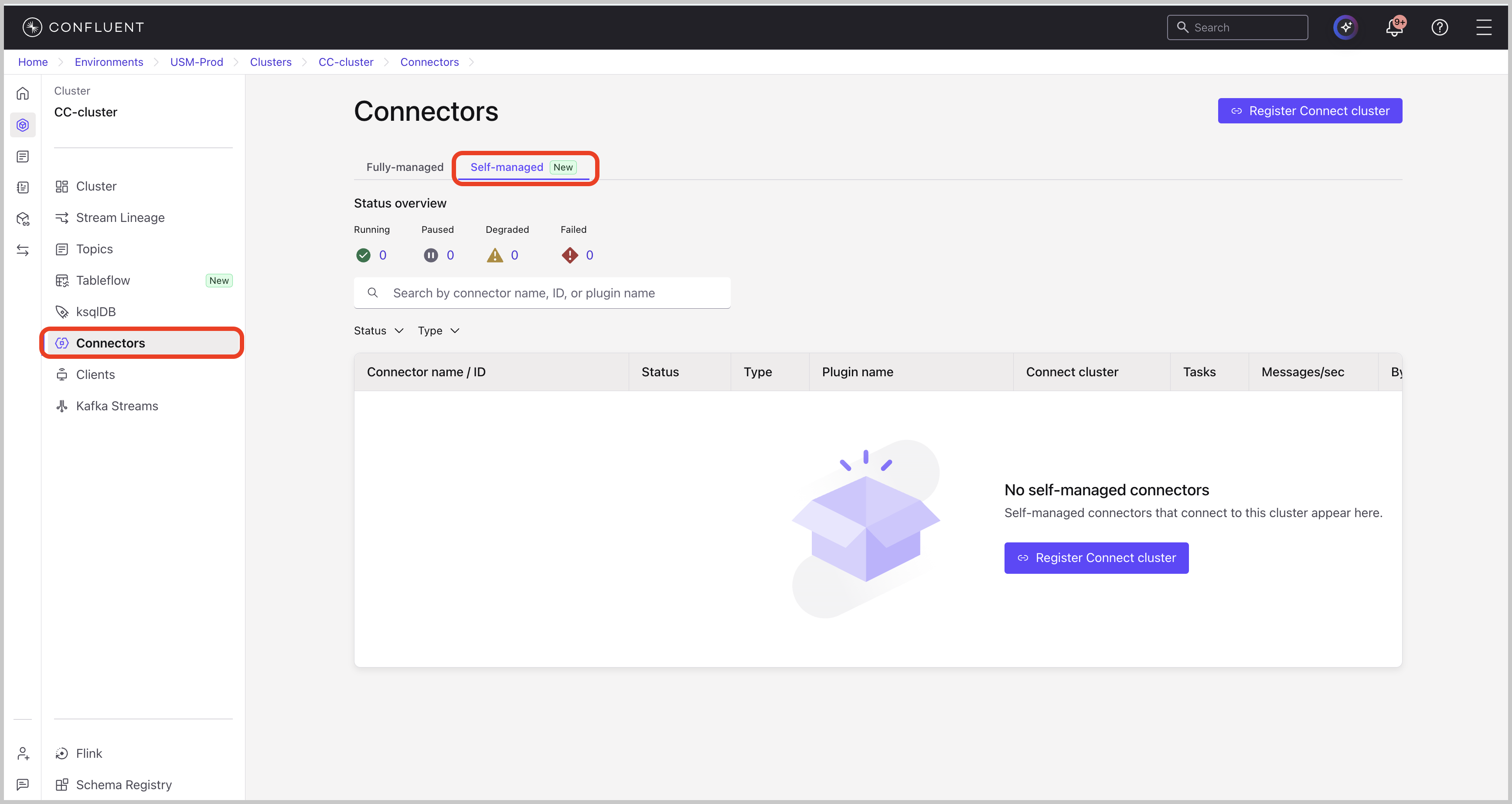
In the navigation menu, click Connectors, then click Self-managed.
Click Register Connect cluster.
Choose New agent or Existing agent.
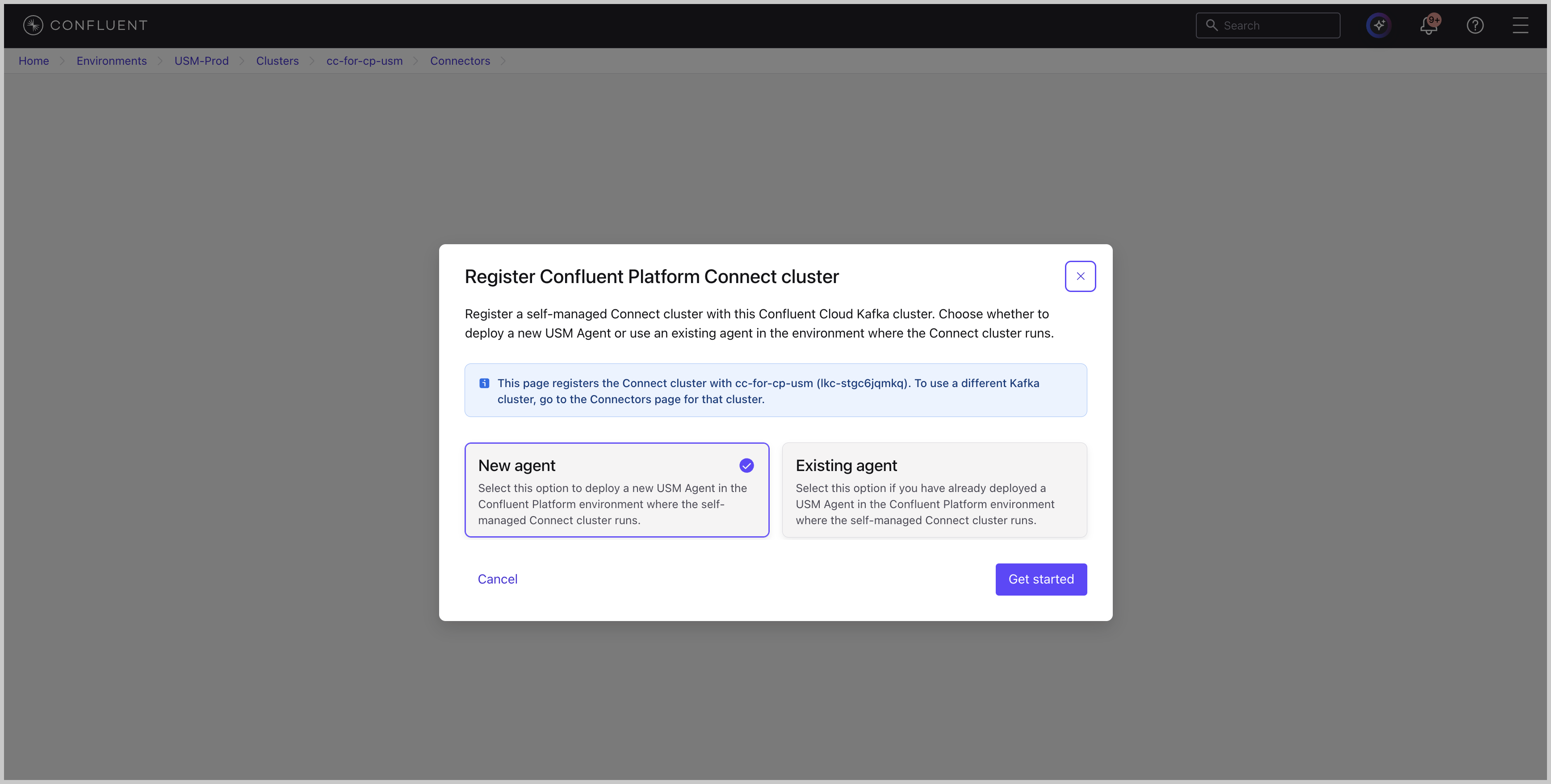
Click Get started. The remaining wizard steps depend on your choice:
If you chose New agent, complete the following steps:
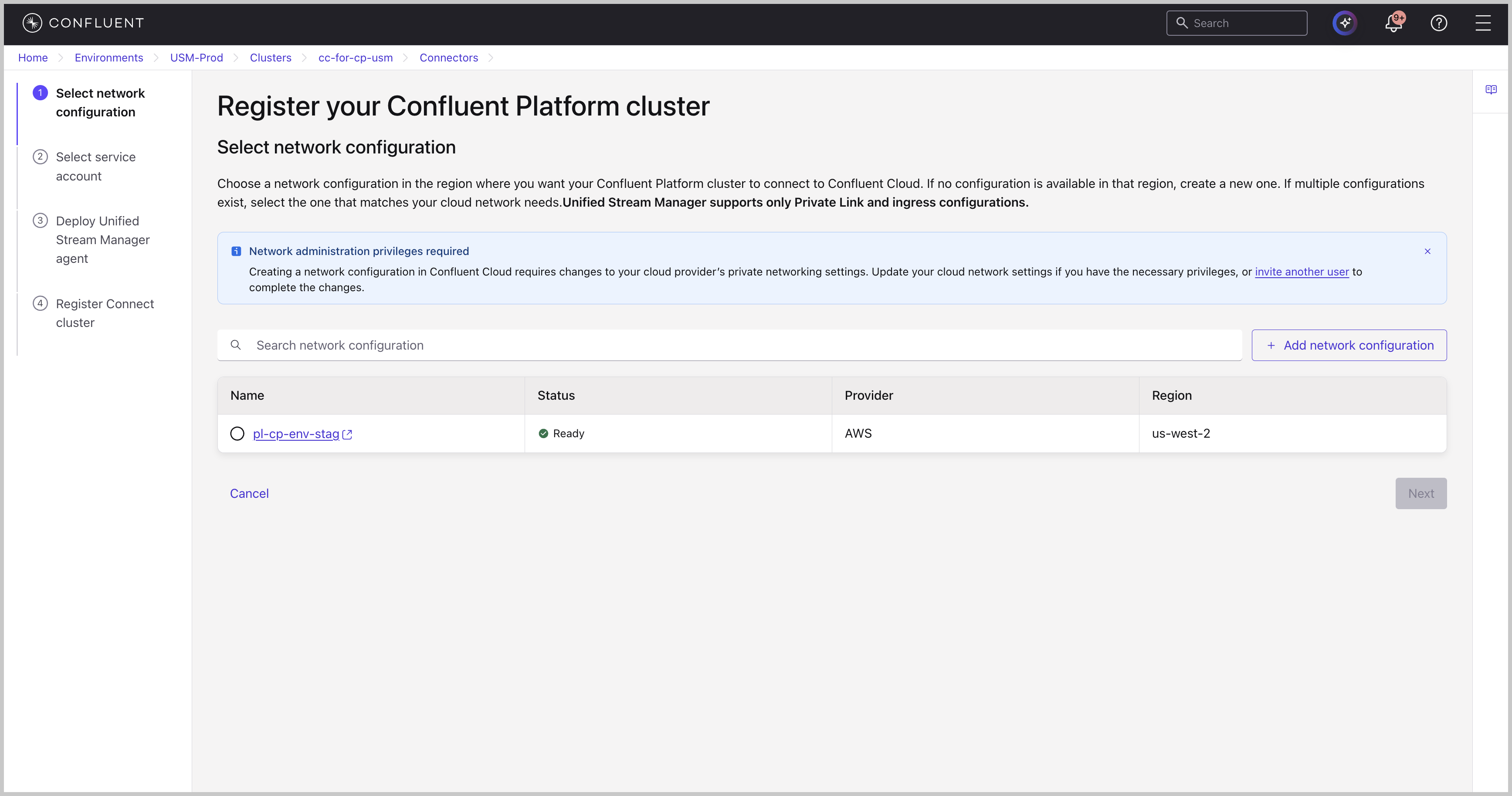
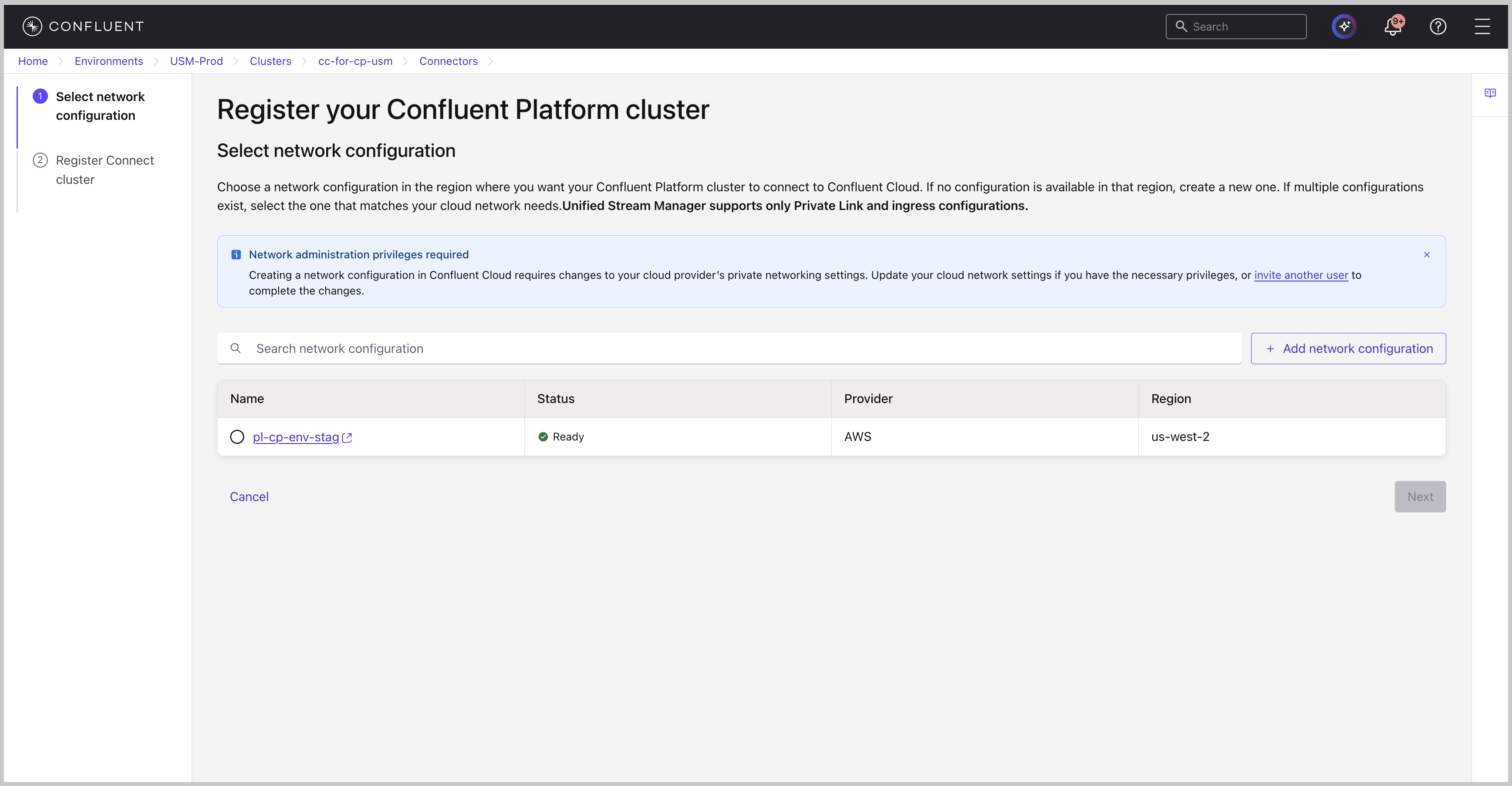
On the Select network configuration step, select an existing network configuration, or click Add network configuration to create one. For instructions, see Private Networking for USM.
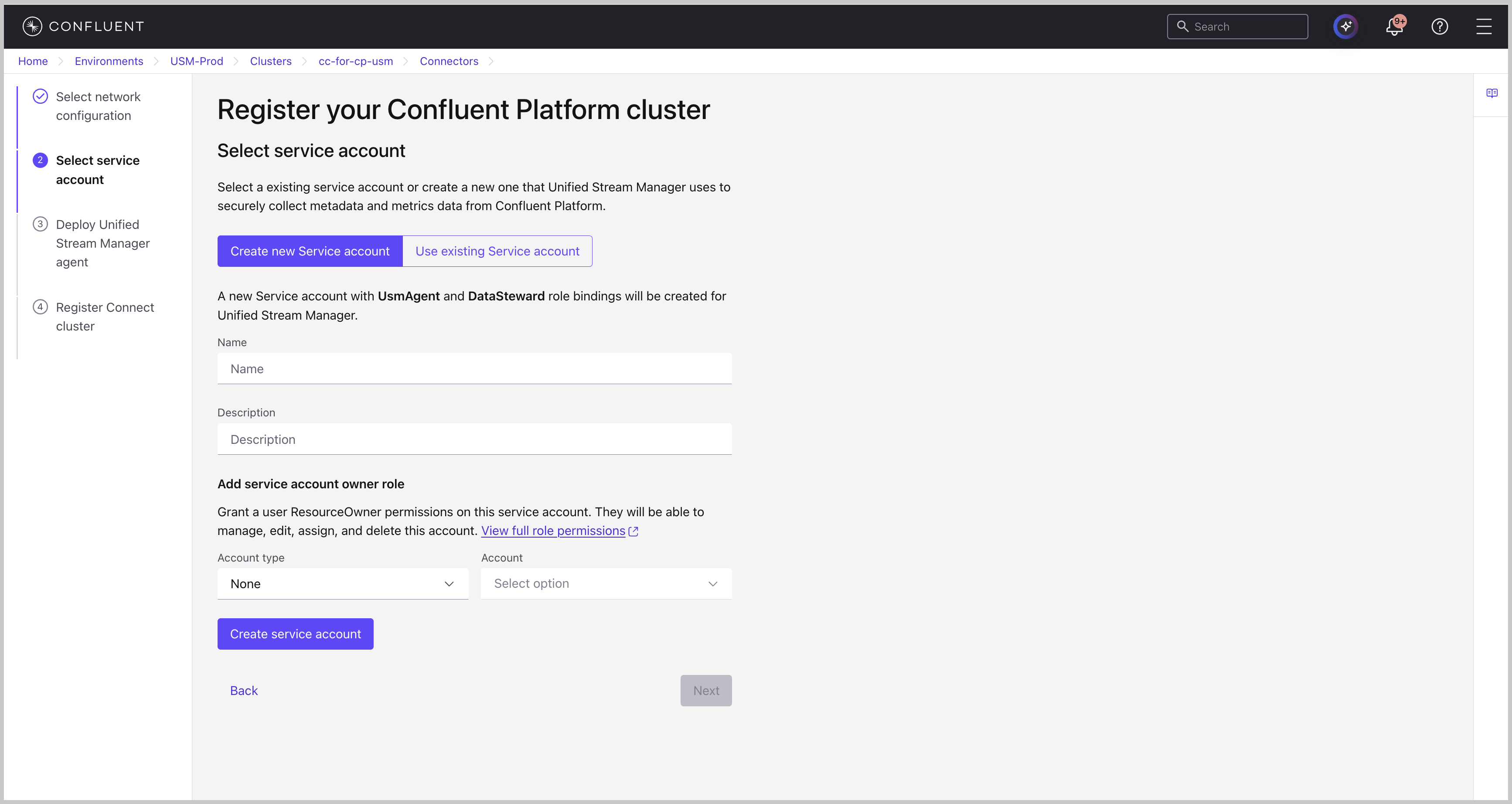
On the Select service account step, select an existing service account or create one for the USM Agent. For instructions, see Configure a Service Account for the USM Agent.
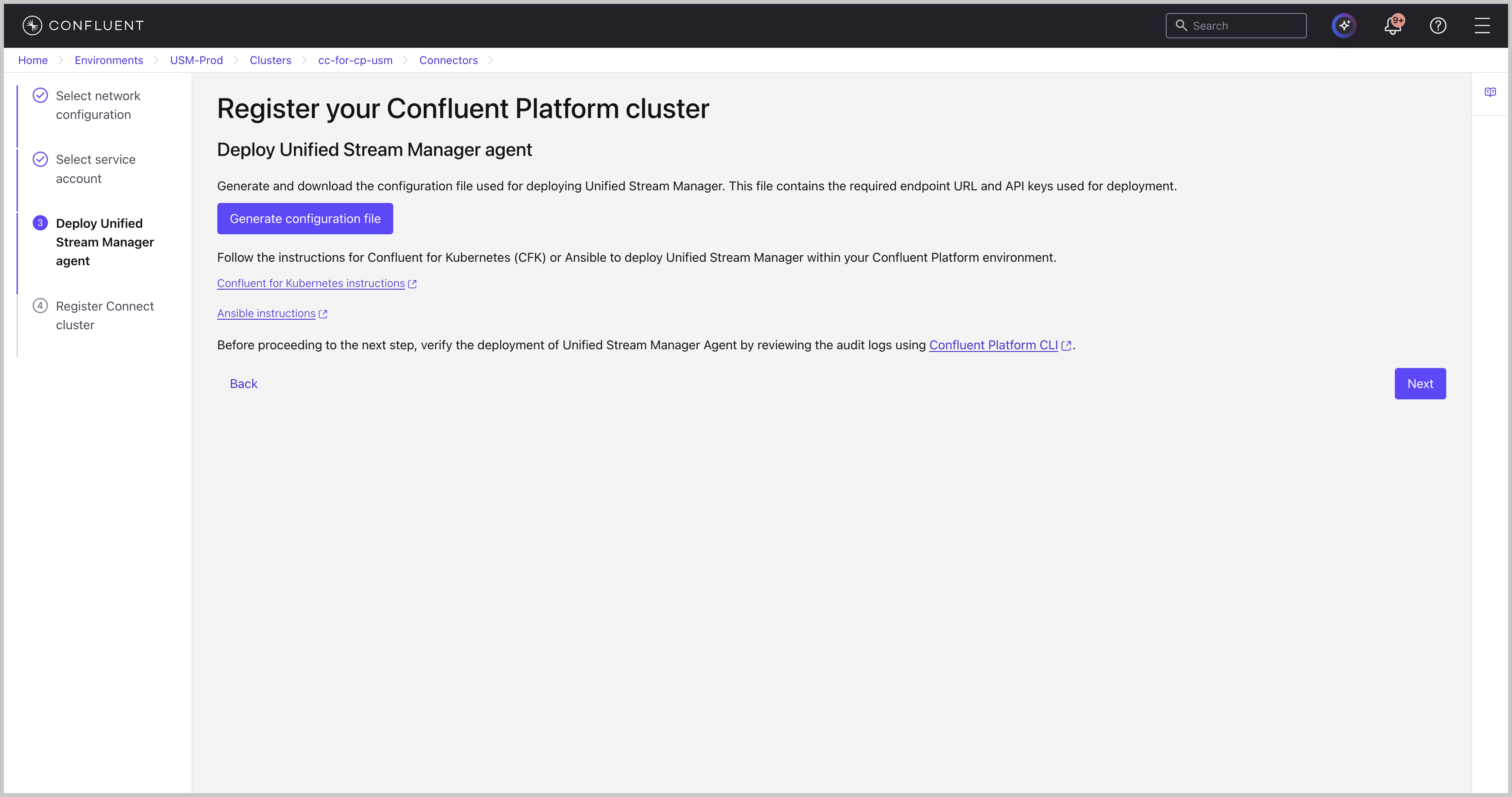
On the Deploy Unified Stream Manager agent step, deploy the Agent in your self-managed environment, pointed at the Connect worker fleet. For instructions, see Deploy the USM Agent.
If you chose Existing agent, complete the following step:
On the Select network configuration step, select an existing network configuration, or click Add network configuration to create one. For instructions, see Private Networking for USM.
Log in to your Confluent Platform cluster by using the Confluent Platform CLI.
On the Register Connect cluster step, get the Connect cluster ID by running the following command:
confluent connect cluster list
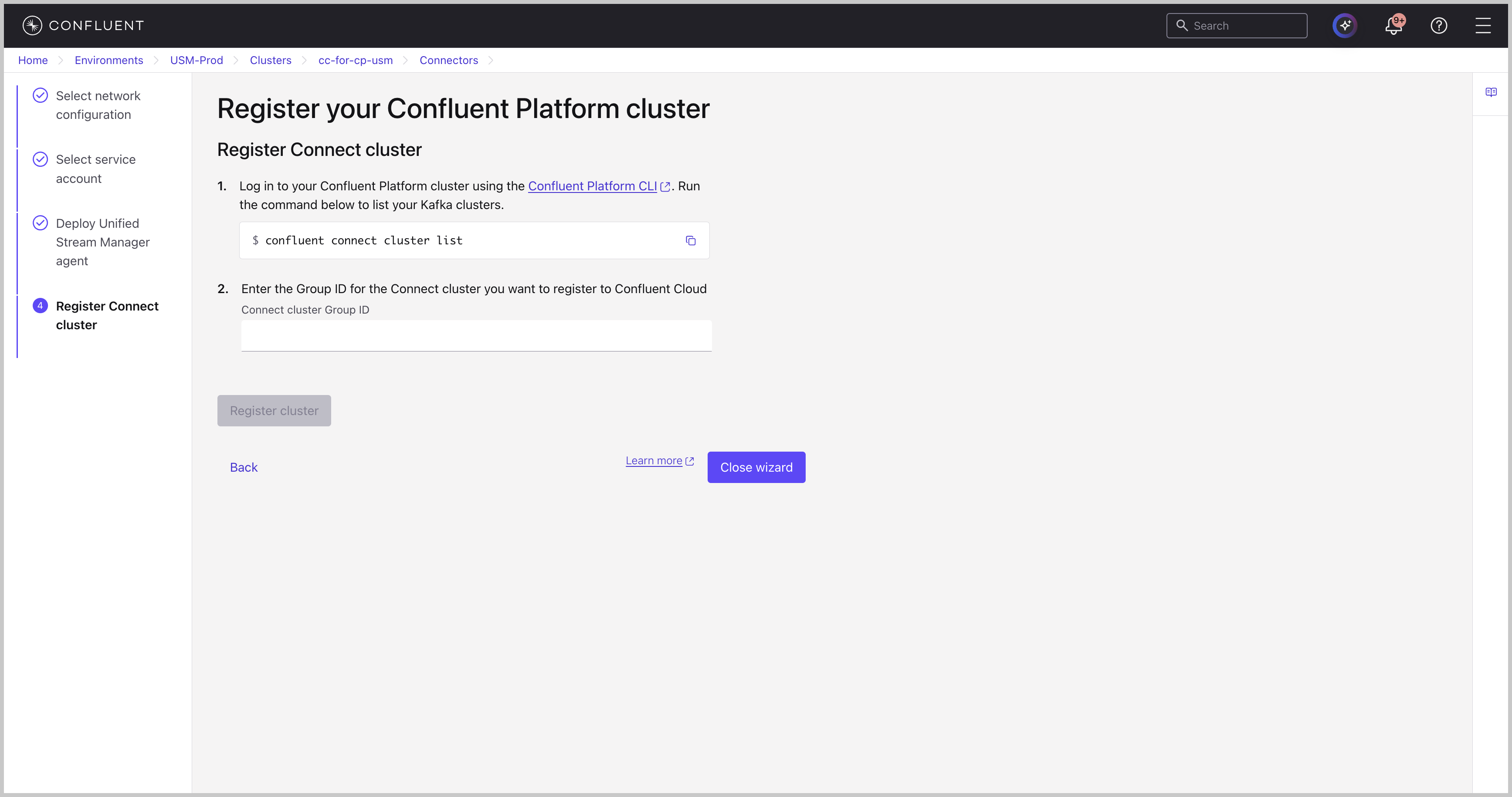
Enter the Connect cluster ID and click Submit.
After you register the cluster and the USM Agent is running, the Self-managed tab on the Connectors page for that Confluent Cloud Kafka cluster populates with all connectors associated with that Connect cluster. From this tab, you can see each connector’s status, type, and task count, and open a connector to view detailed health and performance metrics, such as messages processed, throughput, and lag. For more information about monitoring these connectors, see Monitor Self-Managed Connectors Running Against Confluent Cloud Kafka.
To register a self-managed Connect cluster, use the
confluent usm connect register command with the
--kafka-cluster-id flag.
confluent usm connect register <connect_ID> --kafka-cluster-id <kafka-cluster-ID> --cloud <cloud-type> --region <region-name>
<connect_ID> comes from running confluent connect cluster list
against your self-managed environment.
--kafka-cluster-id: The Confluent Cloud Kafka cluster ID (lkc-...) that the Connect worker produces to and consumes from.--cloud: The cloud provider that hosts that Kafka cluster, eitherawsorazure.--region: The region of that Kafka cluster.
For example, to register a Connect cluster with ID
connect-group-xyz123 against a Confluent Cloud Kafka cluster with ID
lkc-abc123 in AWS region us-east-1:
confluent usm connect register connect-group-xyz123 --kafka-cluster-id lkc-abc123 --cloud aws --region us-east-1
The following is an example of the output:
+--------------------------------+--------------------------+
| ID                             | usmcc-global-mnopqr23456 |
| Connect Cluster                | connect-group-xyz123     |
| Kafka Cluster                  | lkc-abc123               |
| USM Kafka Cluster ID           | usmkc-global-abcdef12356 |
| Cloud                          | AWS                      |
| Region                         | us-east-1                |
| Environment                    | env-abc123               |
+--------------------------------+--------------------------+
After you register the cluster and the USM Agent is running, the Self-managed tab on the Connectors page for that Confluent Cloud Kafka cluster populates with all connectors associated with that Connect cluster. From this tab, you can see each connector’s status, type, and task count, and open a connector to view detailed health and performance metrics, such as messages processed, throughput, and lag. For more information about monitoring these connectors, see Monitor Self-Managed Connectors Running Against Confluent Cloud Kafka.
For a complete reference of related commands, see the confluent usm CLI documentation.
Configure Connect workers for metadata sync
After registering your cluster, you must ensure your Connect workers can securely send metadata to Confluent Cloud. The required actions depend on your Confluent Platform deployment method.
For Confluent for Kubernetes or Ansible Playbooks for Confluent Platform deployments
If you deployed Confluent Platform using Confluent for Kubernetes or Ansible Playbooks, no additional configuration is needed. These tools automatically manage the settings required for metadata synchronization. After the registration is complete, your connector metadata begins to appear in Confluent Cloud.
Note
Confluent Platform Connect versions 7.9.6, 7.9.7, 7.9.8, 8.1.2,
8.1.3, 8.1.4, 8.2.0, 8.2.1, 8.2.2, and 8.3.0 have
a known issue that prevents Confluent for Kubernetes and Ansible Playbooks for Confluent Platform deployments from
emitting the metrics required for USM. If connector metrics do
not appear in Confluent Cloud after registration, see
Issue: Connect metrics are missing from USM to apply the workaround.
For manual or other deployments
If you installed or manage Confluent Platform manually, you must update the properties file for each Kafka Connect worker in the registered cluster.
Open the properties file for each Kafka Connect worker in the cluster that you registered.
Confirm that the
bootstrap.serversproperty correctly points to the Kafka cluster that the Connect workers use to store connector metadata.Add the following metadata properties to the worker configuration file to enable the metadata events service.
confluent.connect.metadata.events.enabled=true
confluent.connect.metadata.events.client.base.url=https://usm-agent.connect.svc.cluster.local:10000
confluent.connect.metadata.events.ssl.key.password=${file:/mnt/sslcerts/tls-connect/jksPassword.txt:jksPassword}
confluent.connect.metadata.events.ssl.keystore.location=/mnt/sslcerts/tls-connect/keystore.p12
confluent.connect.metadata.events.ssl.keystore.password=${file:/mnt/sslcerts/tls-connect/jksPassword.txt:jksPassword}
confluent.connect.metadata.events.ssl.protocol=TLSv1.2
confluent.connect.metadata.events.ssl.truststore.location=/mnt/sslcerts/tls-connect/truststore.p12
confluent.connect.metadata.events.ssl.truststore.password=${file:/mnt/sslcerts/tls-connect/jksPassword.txt:jksPassword}
Save your changes.
Perform a rolling restart of your Connect workers. After they restart, the workers send metadata to Confluent Cloud.